
A designer posts the second round of a vehicle wrap for a florist’s delivery vans in the channel the agency shares with its client. By the next morning the thread under it holds nine replies. The brand manager wants a deeper red, someone from sales asks whether “the tulip” could be bigger, and the head of marketing has left a thumbs-up, but on the first version, posted two days earlier. Before the designer opens the file, she has to work out which of the tulips on the two sides of the van is meant, which version the thumbs-up was for and whose word counts.
Slack handles the conversation around a file well. The comments on the file and the approval need a place where they stay attached to the right spot and the right version. Split the two, and Slack feedback stays quick without turning into guesswork.
What Slack does well for feedback
Slack is strong for quick questions, requests and status updates around a project. Its own guide to gathering feedback recommends a dedicated project channel with a naming pattern such as #proj-, an @mention with a clear deadline for the person whose input you need, replies kept in the thread and decisions from a thread shared back to the channel (Slack, 2025). For a simple sign-off, the same guide suggests an emoji reaction from a manager.
Threads keep a discussion about one message together without cluttering the channel, and a reply can also be sent back to the channel (Slack Help Center). Audio and video clips of up to five minutes let a creative director talk through a layout on screen instead of typing it out (Slack Help Center).
Slack also offers a feedback template with a feedback form, a tracker list and a canvas with instructions. Slack describes it for uses such as peer feedback, training feedback and employee evaluation, where each entry gets a type and a severity level.
Which of these you can use depends on your plan. As of 17 November 2026, Slack’s plan comparison lists the following, and Slack’s guide to guest roles adds the guests:
| Slack feature | Free plan | Pro, Business+ and Enterprise+ |
|---|---|---|
| Message and file history | 90-day access, content older than one year is deleted | included |
| Audio and video clips | included | included |
| Huddles | one-to-one only | included |
| Work with external people | one-to-one only | included |
| Canvases | channels and DMs only | included |
| Lists and Workflow Builder | not included | included |
| Guest accounts for clients | not available | available |
Why Slack feedback breaks down on design files
Slack feedback breaks down when the comment and the thing it refers to drift apart. A thread sits under a message, not on the area of the image, the PDF page or the second of the video that someone means. It goes wrong at five points:
- Comments without a spot: “Move the logo up a bit” is clear on a business card and vague on a six-page leaflet with three logos.
- Mixed versions: when version two is posted as a new message, some people keep replying under version one. Clear rules for document version control help here.
- Approval by emoji: a thumbs-up belongs to the message it was added to. It does not say whether the person may approve, and on a client job that question matters.
- Decisions in DMs: Slack’s own guide warns against keeping decisions in direct messages, and a client’s reply by DM stays invisible to the rest of the team.
- History on the Free plan: with 90 days of visible history and deletion after one year (Slack, as of 17 November 2026), an approval from spring is out of view when a reprint comes up in autumn. An audit trail of approvals needs a place that keeps it.
A Slack feedback workflow in 5 steps
This workflow keeps Slack for the conversation and moves comments and approvals onto the file.
Try it yourself: In the demo you work in a real draftgo workspace with sample data.
1. Agree what goes where
Write one rule into the project channel’s description: questions, dates and status updates go into Slack, comments on a file go onto the file. If you set out the rest of your feedback management at the kick-off, add this rule to it.
2. Upload the file and name the decision-maker
Put the draft into a proofing tool instead of dragging it into the channel. The guide to online proofing and how it works explains how comments, versions and approvals stay together there. Name the one person who approves each stage, so a thumbs-up from anyone else counts as an opinion and not as an approval.
3. Post one request with link, date and @mention
Post a single message that @mentions the reviewer and gives the link, what you want feedback on and a date, for example: “Please comment on the colours of both van sides by Wednesday at noon, directly on the file.”
4. Keep the comments on the file
Reviewers place their comments where the change belongs and discuss them in the comment’s own thread. If a point comes up in a Slack clip or in the channel, add the result to the file as a comment, so whoever makes the changes has one list.
5. Post the result back to the channel
When the round is done, write one line in Slack: “Version 3 approved by the brand manager, print files go out on Monday.” The team sees the decision where it works, and the approval itself is recorded in the proofing tool with person and time.
Common mistakes and what to do instead
| Mistake | What to do instead |
|---|---|
| New version posted as a reply in the old thread | Upload it as a new version of the same file and post the link once |
| Feedback arrives by DM | Thank the person, copy the point onto the file and link it in the channel |
| Several people react with a thumbs-up | Name the approver before the round starts |
| Clips and huddles end without notes | Write the agreed change as a comment on the file |
Practical example: six social ads in a Slack Connect channel
Take a nine-person creative agency that produces six social ads for an e-bike maker: four image ads and two 10-second videos. The agency and its client work in a shared Slack Connect channel, where the client’s marketing director, a product designer and the social media manager follow the job. Until now each ad lands in the channel as an attachment, and a comment such as “the battery looks too small” could mean any of the six.
For this campaign the agency uploads all six ads into one project with two loops, an internal review and then the client approval. Only the marketing director, who decides, gets a personal approver link. The product designer and the social media manager comment through the loop’s shared viewer link, which lets them comment but not approve.
In the Slack Connect channel each round is now one message with the link and a date. Comments sit on the spot of each image and at the exact second of each video, and when the second video needs a different end frame, the agency uploads the new cut as a version of the same file. At the end, the channel gets one line: all six ads approved, ready for scheduling.
How it works in draftgo
In draftgo, comments and approvals stay on the file, and Slack keeps the conversation.
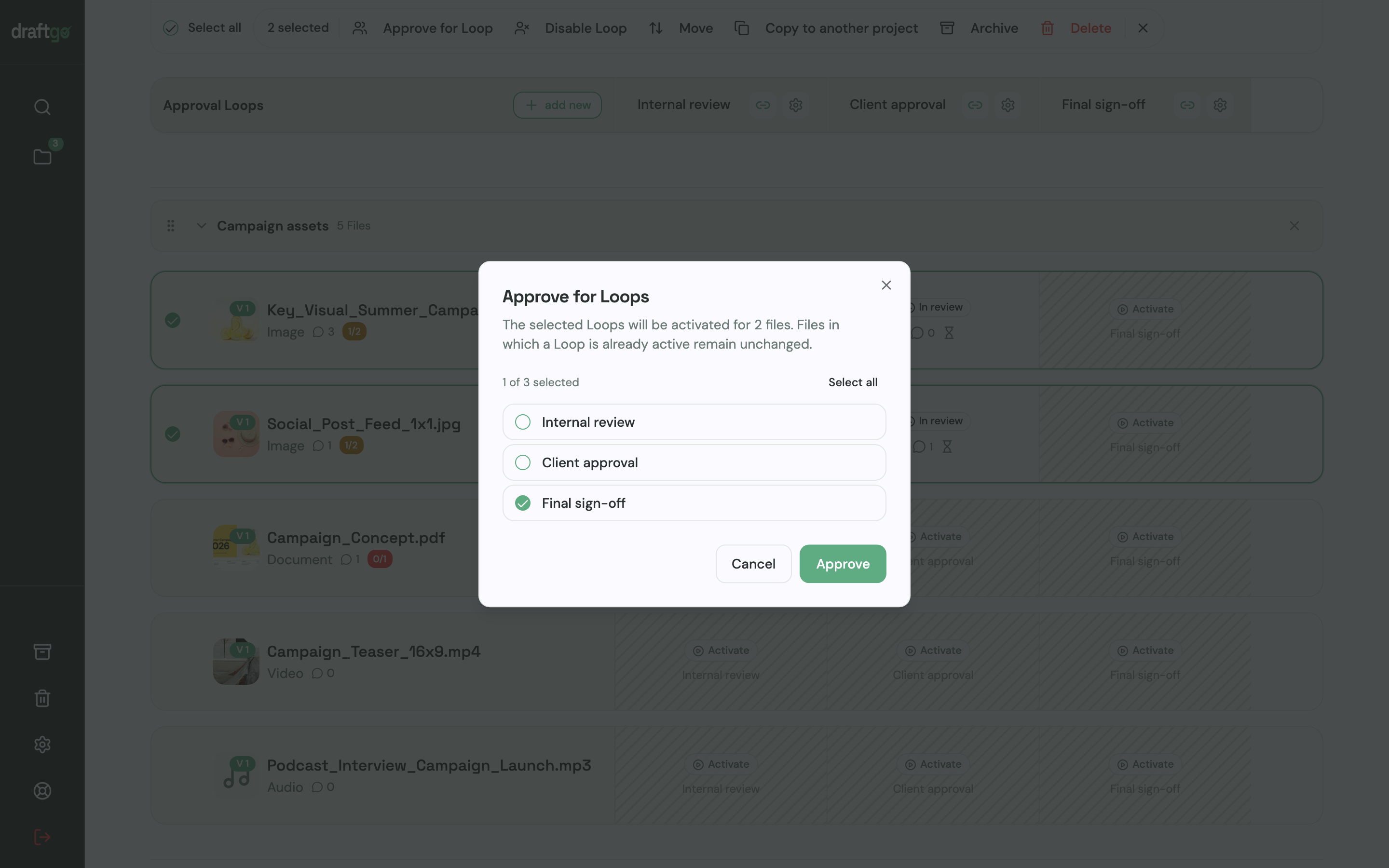
- Upload and activate the loop: You upload images, PDFs, videos or audio files to a project and activate the files in a loop, for example “Internal review” and then “Client approval”. For each loop you decide whether all approvers, a set number or any one of them must approve, separately for your team and for guests. A project holds 1 loop on Free, 3 on Freelancer and as many as you need on Agency and Team.
- Share the right link in Slack: The person who approves gets a personal approver link. Everyone else who should comment gets the loop’s shared viewer link, which cannot approve. Guests need no draftgo account and no seat in your Slack workspace.
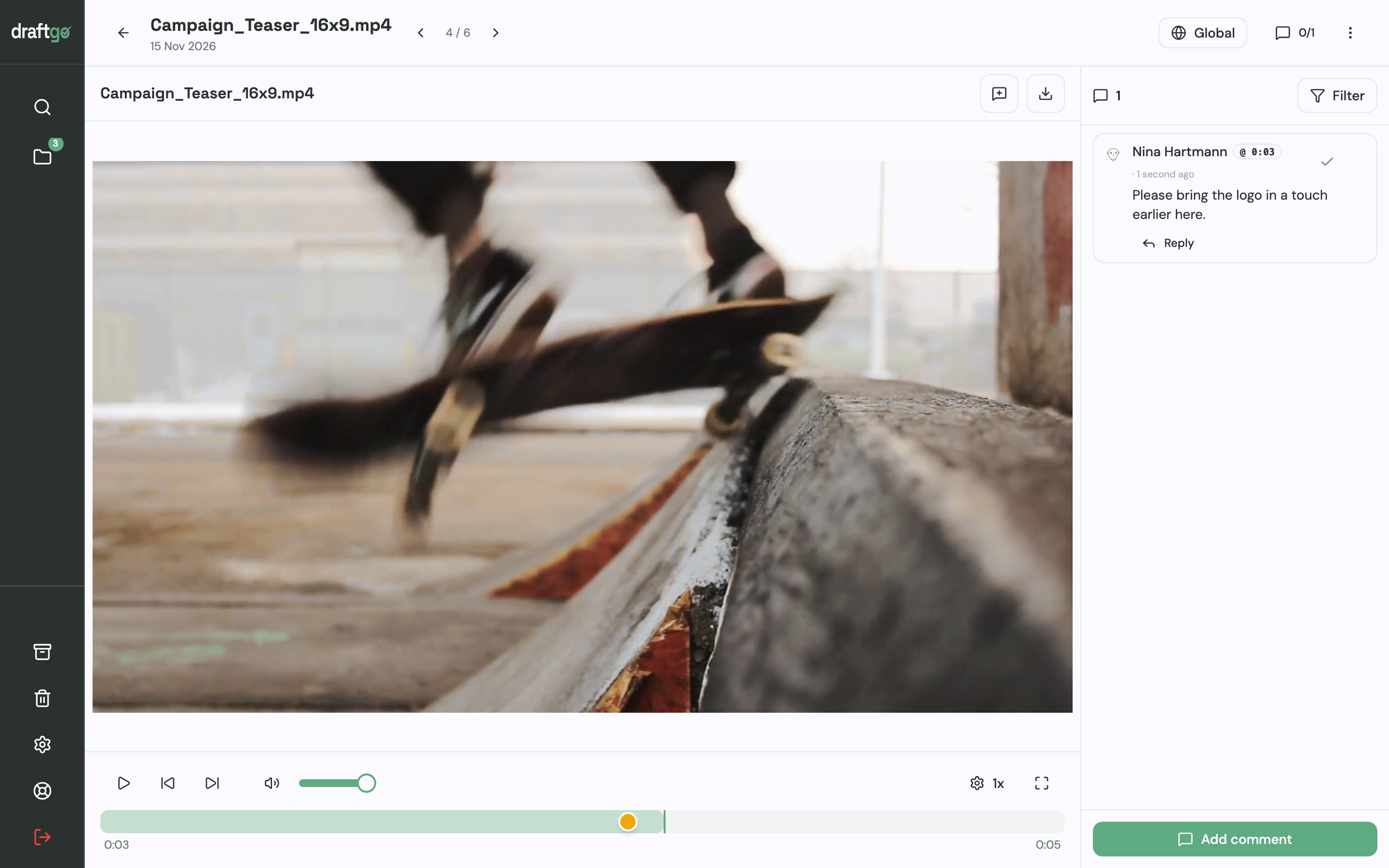
- Comment at the exact spot: Reviewers place a pin or a rectangle on an image, highlight or strike through text in a PDF, or comment at a point on the video timeline. Replies, @mentions and attachments stay with the comment.
- Stay informed by email: What concerns you directly arrives by email straight away. Subscribed projects, loops and files arrive bundled every 30 minutes or as a daily or weekly summary that also lists pending approvals. There is no Slack app for draftgo, so the link goes into your channel as an ordinary message.
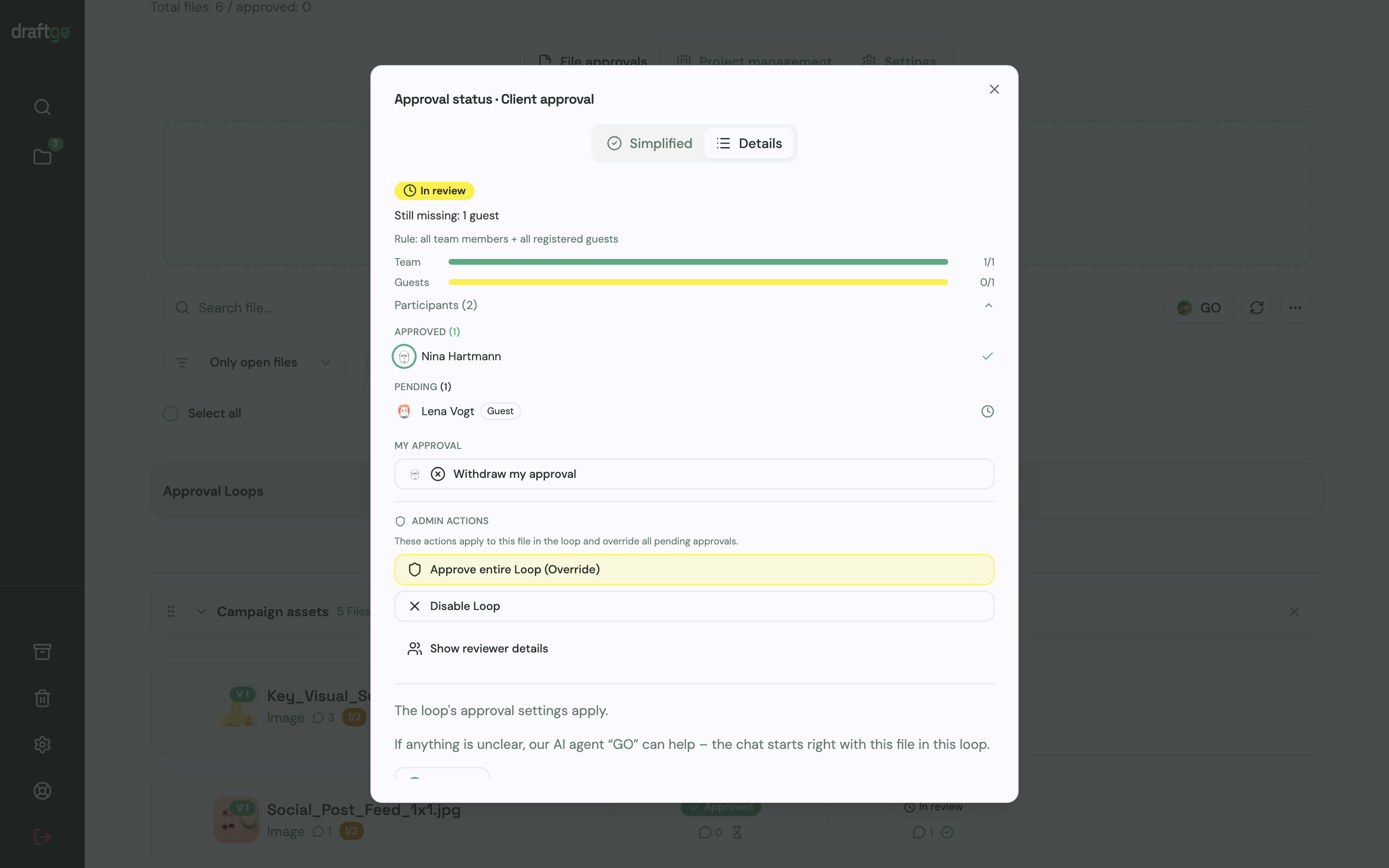
- See who has approved: The approval status shows who has approved and who is still pending. The activity log records approvals, comments, versions and downloads with person and time, and you can export it as CSV, JSON or PDF.
Chwali Bouman, CEO of creategy GmbH, describes the switch like this: “Collecting feedback via email and Slack and spending hours on it – we know the drill. With draftgo, our clients click a link and comment right on the asset. No account, no chaos. We now get projects approved 35% faster.” The page draftgo for agencies shows how agencies set up client reviews this way.
FAQ
How do you give feedback on a design in Slack?
Ask for specific points, @mention the person who should answer and give a date. For comments on a particular area of a layout, a link to a proofing tool keeps each comment on the spot it refers to.
Can clients give feedback in Slack without joining your workspace?
Yes, if they use Slack at their own company: through Slack Connect you work together from separate workspaces (Slack Help Center). Clients without Slack join your workspace as guests, which Slack offers only on its paid plans, and on the Free plan Slack’s plan comparison limits work with external people to one-to-one. A proofing link works without any Slack account, so clients comment in the browser.
Is a thumbs-up in Slack a client approval?
Slack’s own guide suggests an emoji reaction from a manager for a simple sign-off. A thumbs-up still sits on one message and does not show whether that person may approve the file. For client work, record the approval in a tool that names the approver and the time.
How long does Slack keep feedback messages?
On the Free plan you see 90 days of message and file history, and content older than one year is deleted (Slack, as of 17 November 2026). Slack’s plan comparison marks message and file history as included on Pro, Business+ and Enterprise+.
What does the slack feedback command do?
slack feedback is a command of the Slack CLI, Slack’s command-line tool. Developers use it to share feedback on the Slack Platform or on the CLI itself (Slack Developer Docs).
Conclusion
Use Slack for requests, questions and results, and keep comments and approvals on the file. For your next project, write the “comments go on the file” rule into the channel description, name the approver and post each round as one message with a link and a date.
Try it free – draftgo is free for 14 days, no credit card needed.
Written by
Emilia
Content Producer
Ready to streamline your approval processes?
Get started with draftgo today and see how easy professional collaboration can be.