
The cut is exported, the client is waiting and the file is far too big for an email. So you send a WeTransfer link, as you always do. Two days later the notes arrive: timings typed out by hand for three scenes, plus a second opinion from a colleague in a chat message. You fix the cut, send a new link, and the client asks which version they are supposed to look at.
When you search for a WeTransfer alternative, you usually want one of two things: a better way to get large files to someone, or a way to have those files reviewed and approved without the email chain. This comparison covers both, with eight services for sending and storing files and one review tool, each with its free limits, link expiry and entry price.
Why teams look for a WeTransfer alternative
Teams switch when the free plan runs out or when sending a file turns out to be only half the job. According to WeTransfer's help centre article on plan limits, the free plan lets you send up to 10 transfers or 3 GB in total in any rolling 30-day window, as of 17 November 2026.
Transfers on the Free and Starter plans stay online for up to three days, as WeTransfer's article on how long transfers are available explains. A client who is away for a week comes back to an expired link. On the Ultimate plan you decide yourself how long a transfer stays active.
For video editors the monthly cap bites first. Send a rough cut, two revised cuts, a sound mix and the master to two clients separately, and that alone uses all ten transfers of the 30-day window. A total of 3 GB also leaves little room for high-resolution footage.
Feedback is the other reason. Once the sender allows comments, recipients can comment on previews of individual files on every WeTransfer account, and anyone not logged in enters a name and email address first, according to its article on comments on transfer previews. WeTransfer suggests comments for quick reactions or approvals, and the article describes them on a file as a whole. It does not mention comments pinned to a spot in an image, comments at a timecode, versions of a file or a recorded approval. A note about the logo at 0:42 still has to be described in words, and a download tells you nothing about whether the client agreed.
Another transfer service fixes the limits and the short expiry. The feedback problem needs a tool in which the client works on the file itself.
How we evaluated the alternatives
We read each tool's own pricing, limits or help pages on 17 November 2026 and compared every tool against the same six criteria. draftgo is our product. It is in this list because sending a file is often the first step of a client review, and it gets pros and cons like every other tool here.
- Free plan: what you get without paying
- Transfer limit: size per transfer, per file or per month
- Link expiry: how long the recipient can download
- Access: whether recipients need an account
- Protection: passwords and download tracking
- Feedback and approval: whether the client can comment on the file and approve it
Where a vendor's page did not show a figure or could not be read, we write "see their pricing page" instead of guessing. WeTransfer's own pricing page did not load for us, so its limits come from its help centre.
The order follows the type of tool and one open criterion. Dedicated transfer services come first, sorted by the largest amount you can send free in one go. Cloud storage follows, sorted by free storage. The review tool comes last because it solves a different job.
WeTransfer alternatives compared
The table puts free limits and the cheapest paid entry side by side, as of 17 November 2026. Each tool name links to the page we checked for its limits, and each price cell to the page with the price. Prices depend on your region. We show them in the currency and with the billing period each vendor's page showed us that day, so you may see other amounts or another currency.
| Tool | Best for | Free plan | Transfer limit (free) | Link expiry (free) | Entry price |
|---|---|---|---|---|---|
| WeTransfer (for reference) | occasional small sends | yes | 10 transfers or 3 GB in total per 30 days | up to 3 days | see their pricing page |
| SwissTransfer | very large free transfers | yes, no account | 50 GB per transfer | up to 30 days | free; Pro price not listed |
| MASV | video teams moving large volumes | 15 GB a month | no limit on how much you send | files stored free for 5 days | $0.25 per GB after the free 15 GB |
| TransferNow | password protection on a budget | yes, no sign-up | 5 GB per transfer | 7 days | Starter from €3 a month on two-year billing |
| Filemail | regular deliveries on a paid plan | yes, no registration | 5 GB per transfer | not stated | see their pricing page |
| Smash | simple sends with a password | yes, no sign-up | 2 GB with priority, larger transfers queue | 7 days | see their pricing page |
| Google Drive | files that stay in your own storage | up to 15 GB storage | up to 5 TB per file | expiry dates for work and school accounts | Basic, 100 GB, €1.99 a month |
| OneDrive | teams on Microsoft 365 | 5 GB storage | 250 GB per file | expiry dates for Microsoft 365 subscribers | Microsoft 365 Basic, $1.99 a month or $19.99 a year |
| Dropbox Transfer | teams already on Dropbox | Basic, 2 GB storage | 2 GB per transfer | 7 days | Plus, €9.99 a month billed yearly |
| draftgo | client review and approval | permanent Free plan | files up to 500 MB, videos up to 800 MB compressed in the browser | viewer links don't expire | paid plans priced per company, not per user |
For draftgo the table names the limit per file, because files stay in a project instead of being sent as a package. Approver links in draftgo expire after 90 days without use.
Try it yourself: In the demo you work in a real draftgo workspace with sample data.
The 9 alternatives in detail
Each entry starts with what the tool is built for and ends with its price on 17 November 2026.
1. SwissTransfer: best for very large free transfers
SwissTransfer sends up to 50 GB per transfer, all files combined, and keeps them available for up to 30 days, according to swisstransfer.com. A transfer can be downloaded up to 250 times. Neither you nor your recipient needs an account, and a password is optional. The paid Pro plan adds unlimited downloads per transfer.
- Pros: the highest stated free limit per transfer in this comparison, no account on either side
- Cons: sending only, so comments and approvals happen somewhere else
- Price: free; a Pro plan exists, but swisstransfer.com lists no price for it
2. MASV: best for video teams moving large volumes
MASV charges by the gigabyte instead of by plan. Its pricing page includes 15 GB free every month on pay as you go and says there is no limit on how much you can send. Uploaded files are stored free for 5 days, and storage after that costs extra. That model suits editors who send hundreds of gigabytes in one week and nothing for the next three.
- Pros: you pay for what you send, with no size cap named on the pricing page
- Cons: costs grow with every gigabyte, and files stay free for 5 days only
- Price: $0.25 per GB after the free 15 GB a month; subscriptions with a 12-month commitment start at 250 GB a month (MASV pricing)
3. TransferNow: best for password protection on a budget
TransferNow sends up to 5 GB per transfer free and without sign-up and keeps the files for 7 days, according to its pricing page. You can add a password to a free transfer. Paid plans raise the limit to 10 GB on Starter, 250 GB on Premium and 500 GB on Team, and keep transfers for 30 to 365 days.
- Pros: passwords at no cost, a cheap step up to longer availability
- Cons: 5 GB and 7 days are tight for video projects, and download tracking needs a paid plan
- Price: Starter from €3 a month on two-year billing (TransferNow prices)
4. Filemail: best for regular deliveries on a paid plan
Filemail sends up to 5 GB per transfer free without registration, and recipients download without signing up, according to filemail.com. Its plan comparison describes the free Basic account as meant for sporadic sharing of files of 5 GB or less. The paid plans go from 5 GB with 30 days of availability on Personal to 250 GB with permanent availability on Pro and any size on Business. How long free transfers stay online is not stated on the pages we read.
- Pros: clear steps up to any file size, download tracking on the paid plans
- Cons: the free plan is only meant for occasional use, and its availability is not stated
- Price: the comparison page shows no amounts, so see their pricing page
5. Smash: best for simple sends with a password
Smash's pricing page lists 2 GB per transfer on the free plan, which needs no sign-up. Larger free transfers still go through, but they join a queue behind Pro transfers and are sent after a waiting period. Free transfers stay available for 7 days and can carry a password. Pro and Team remove the size limit and keep transfers for 30 days.
- Pros: a password and download confirmation emails on the free plan
- Cons: free transfers over 2 GB wait in a queue, and the free plan has no view or download tracking
- Price: the page shows no amount for Pro, so see their pricing page
6. Google Drive: best for files that stay in your own storage
Google Drive is cloud storage rather than a transfer service. The file stays in your Drive and you share a link to it. All Google accounts come with up to 15 GB of storage (Google One plans), and a single file can be up to 5 TB (Drive help on file sizes). With "Anyone with the link", people open the file without signing in to a Google account. Expiry dates for access are listed for work and school accounts (Drive help on sharing).
- Pros: very large single files, and the file is still in your storage after the client downloads it
- Cons: video fills the free storage quickly, and link expiry is a feature of work and school accounts
- Price: Basic with 100 GB at €1.99 a month as shown to us (Google One plans)
7. OneDrive: best for teams on Microsoft 365
OneDrive comes with 5 GB of free cloud storage per Microsoft account, shared with Outlook.com attachments and the Microsoft 365 apps (Microsoft storage FAQ). A single file can be up to 250 GB, and for files larger than a few GB Microsoft recommends the sync app over the website (OneDrive limits). Expiry dates and passwords on sharing links are only available to Microsoft 365 subscribers (OneDrive sharing help).
- Pros: large single files, and nothing new to learn for teams already working in Microsoft 365
- Cons: little free storage, and link expiry and passwords need a subscription
- Price: Microsoft 365 Basic with 100 GB at $1.99 a month or $19.99 a year (Microsoft 365 Basic)
8. Dropbox Transfer: best for teams already on Dropbox
Dropbox Transfer sends files from your Dropbox as a download link, and recipients don't need a Dropbox account, according to the Dropbox help centre. On the free Basic plan a transfer can be 2 GB and expires after 7 days. Plus raises the limit to 50 GB, while Standard and the business plans allow 100 GB or more, with custom expiry dates and passwords.
- Pros: built into Dropbox, so teams that store their projects there need no extra tool; custom expiry and passwords from Standard upwards
- Cons: 2 GB of free storage and 2 GB per free transfer are small for video, and Basic and Plus transfers expire after 7 days
- Price: Plus at €9.99 a month billed yearly, as shown to us (Dropbox plans)
9. draftgo: best for client review and approval
draftgo is an online proofing tool, so it handles a different part of the job than the services above. You upload images, PDFs, videos or audio files, and the client opens them in the browser from a link, without an account. They comment right at the spot: a pin or a rectangle on an image, a highlight in a PDF, a comment at a point in the video timeline. A new cut becomes a new version of the same file, and every approval is logged with person and timestamp. Stored data is kept on EU servers in the Frankfurt data centre.
- Pros: feedback, versions and approval stay with the file; guests are unlimited from the Freelancer plan; viewer links don't expire
- Cons: not built for raw footage or master files, since uploads stop at 500 MB per file (800 MB for videos the browser compresses); the Free plan allows one approval loop per project
- Price: a permanent Free plan, and paid plans priced per company that you can test free for 14 days. Plans and limits are on the pricing page.
WeTransfer and draftgo compared
WeTransfer delivers a file, and draftgo is where the client reviews it and approves it. If all you need is to hand over a finished file, WeTransfer or one of the transfer services above fits better than draftgo, because you skip setting up a project and the size limits are higher.
| As of 17 November 2026 | WeTransfer | draftgo |
|---|---|---|
| Built for | sending files by link | reviewing and approving files with clients |
| Free plan | 10 transfers or 3 GB in total per 30 days (plan limits) | permanent Free plan |
| Size | 3 GB in total on Free | up to 500 MB per file, videos up to 800 MB compressed in the browser |
| Availability | up to 3 days on Free and Starter (availability) | viewer links don't expire; approver links expire after 90 days without use |
| Feedback | comments on previews of individual files (comments) | comments as a pin or rectangle, on PDF text or at a point in the video or audio timeline |
| Versions and approval | not described in the help articles we checked | new cuts as versions of the same file, approvals logged with person and time and exportable |
draftgo fits when the client should comment at the exact spot and you want the versions and the approval on record. A comment on a frame stays with the version it was made on, so nobody has to guess which cut a note belongs to. The approval shows who agreed to which version and when, which helps when a client later asks why the film went out in this form.
How draftgo compares with dedicated proofing tools such as Filestage or Frame.io is on our comparison pages.
Which WeTransfer alternative fits you?
The right tool depends on what happens after the download. If the job ends there, pick a transfer service that matches your file size. If the feedback starts there, pick a review tool.
| Your situation | Good fit |
|---|---|
| Final print files to a printer | a transfer service such as SwissTransfer or TransferNow |
| Raw footage of hundreds of gigabytes to an editor | MASV or a paid transfer plan |
| A one-off package of up to 50 GB, free | SwissTransfer |
| Files that should stay in your own cloud | Google Drive, OneDrive or Dropbox |
| A cut the client should comment on at the timecode | a review tool such as draftgo |
| An approval you want to be able to show later | a review tool with an approval log |
Often you need both, a review tool for everything that still needs a decision and a transfer service for the final delivery of large files. Video teams who mainly need timecode feedback will find more options in our comparison of video feedback tools. Photographers whose clients pick images from a shoot should look at photo proofing software instead. For agencies, the start of a project is the moment to agree on how files are delivered and reviewed, as our guide to client onboarding for agencies describes.
Practical example: a product film from rough cut to approval
A freelance video editor cuts a 60-second product film for a small furniture brand. Two people on the client side give feedback: the marketing manager and the founder. Until now she sent every cut as a transfer link. The marketing manager watched on her phone and replied by email, the founder sent his notes in a chat, and by the third cut nobody knew which wishes were already done.
This time she uploads the rough cut to a review tool and sends both of them one link. The marketing manager pauses at 0:12 and asks for a different shot of the chair. The founder comments at 0:48 that the price graphic is too small. Both notes sit at their timecode, so she works through them in the order of the timeline instead of matching emails to scenes.
The second cut goes up as version 2 of the same file, and the first version stays available. Both approve version 2, and the approval is on record with their names and the time. Only then does the master file, several gigabytes in ProRes, go to the client through SwissTransfer. More on review for video teams is on our video production page.
How it works in draftgo
In draftgo the review happens on the file, from the first cut to the approval. Here is the workflow for a video. Images, PDFs and audio files follow the same steps, with pins, highlights or comments on the waveform instead of the timeline.
1. Upload the file to a project. Create a project and upload the cut.
2. Set up the loop. In a loop you decide who approves, for example an internal review first and the client after that. A rule per loop says whether everyone, a set number of people or one person has to approve, separately for the team and for guests.
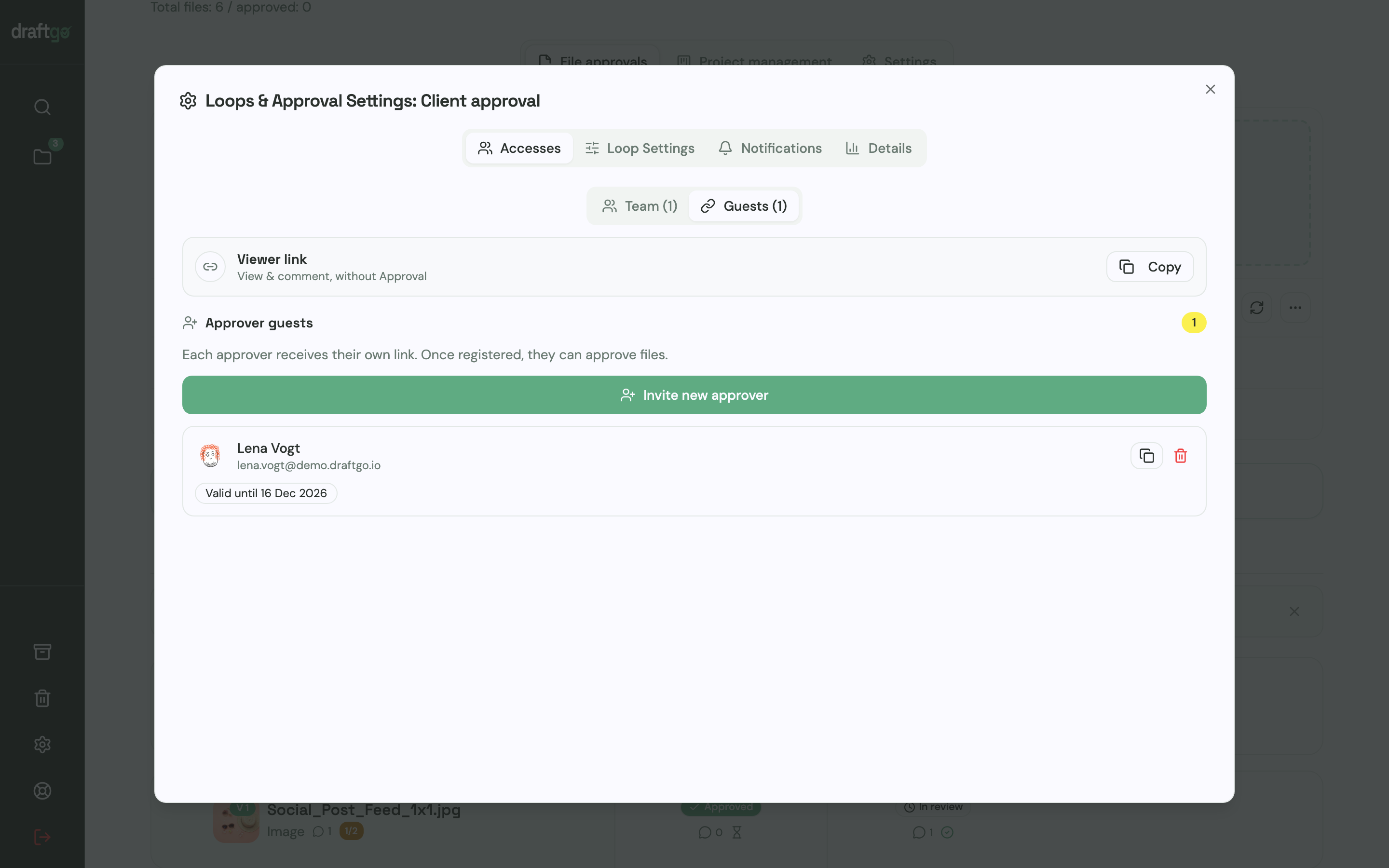
3. Invite the client. Copy the viewer link for people who should only comment, or invite approver guests. Each approver guest gets a personal link with their name and email address and may approve the file.
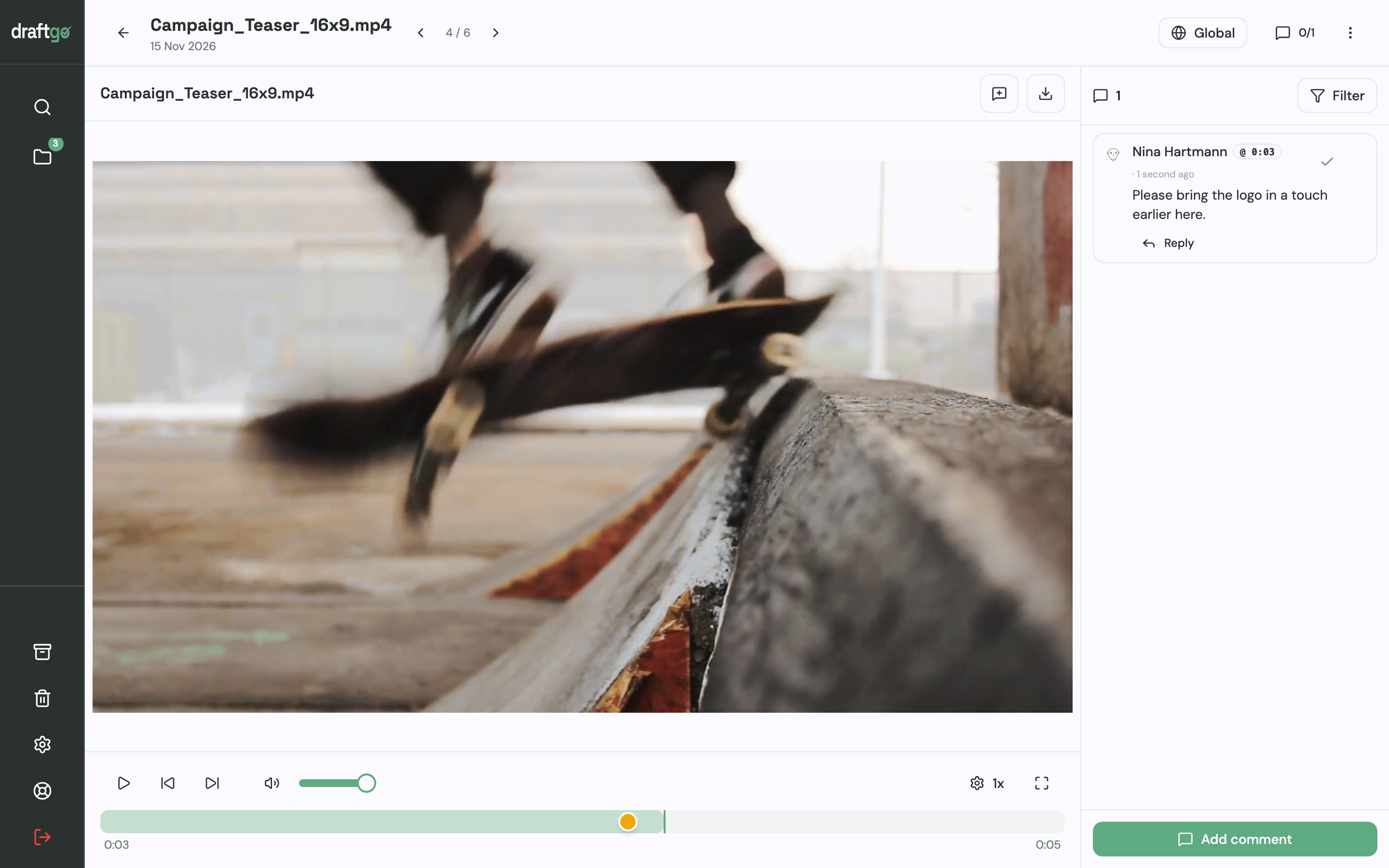
4. Collect comments at the timecode. The client pauses the video and writes a comment, and draftgo stores the time with it and shows a marker on the timeline. Replies and @mentions stay in the comment thread, and you mark a comment as resolved once it is done.
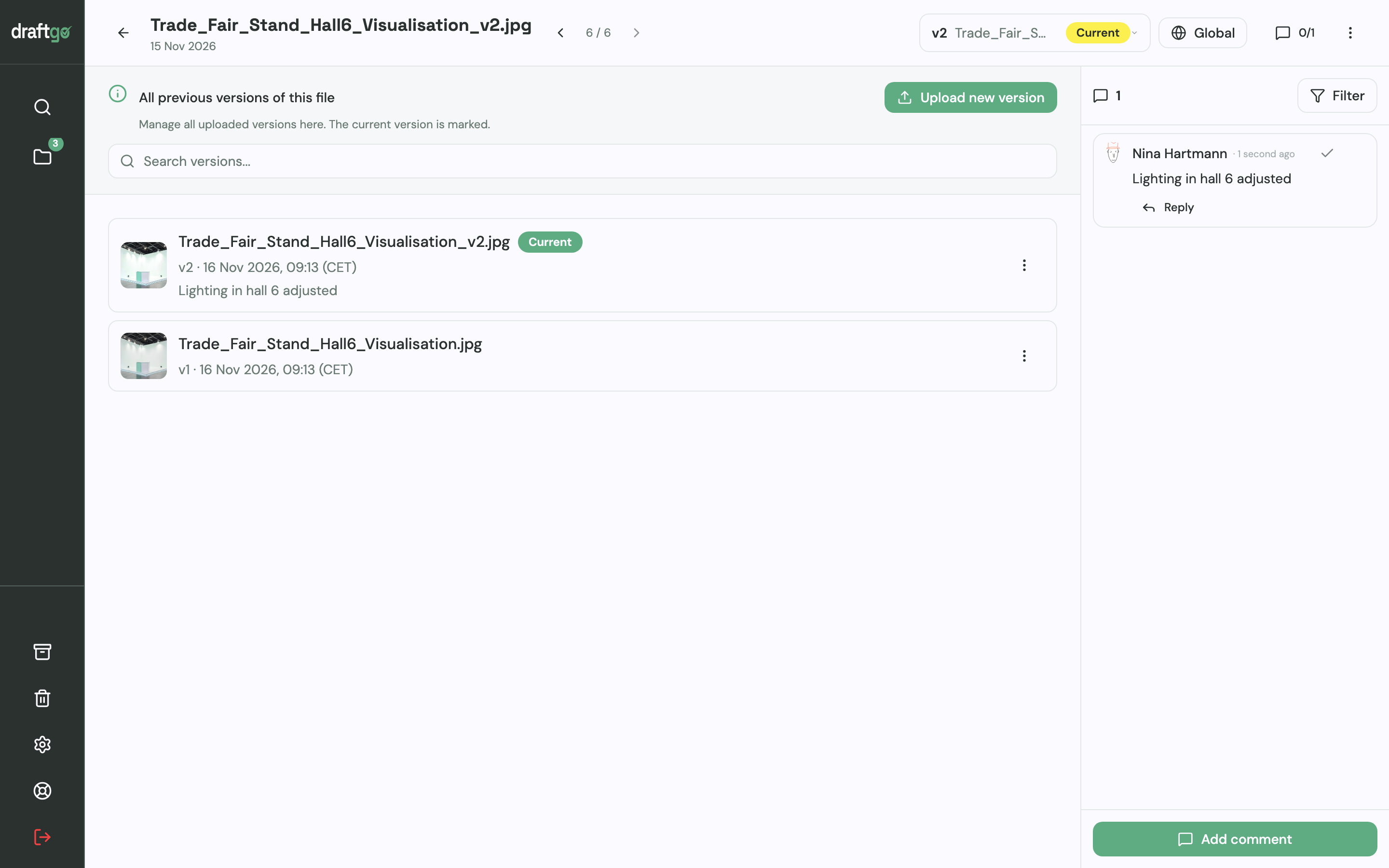
5. Upload the next cut as a version. The revised cut becomes version 2 of the same file. Earlier versions stay available, each comment belongs to its version, and a new version starts the approvals again.
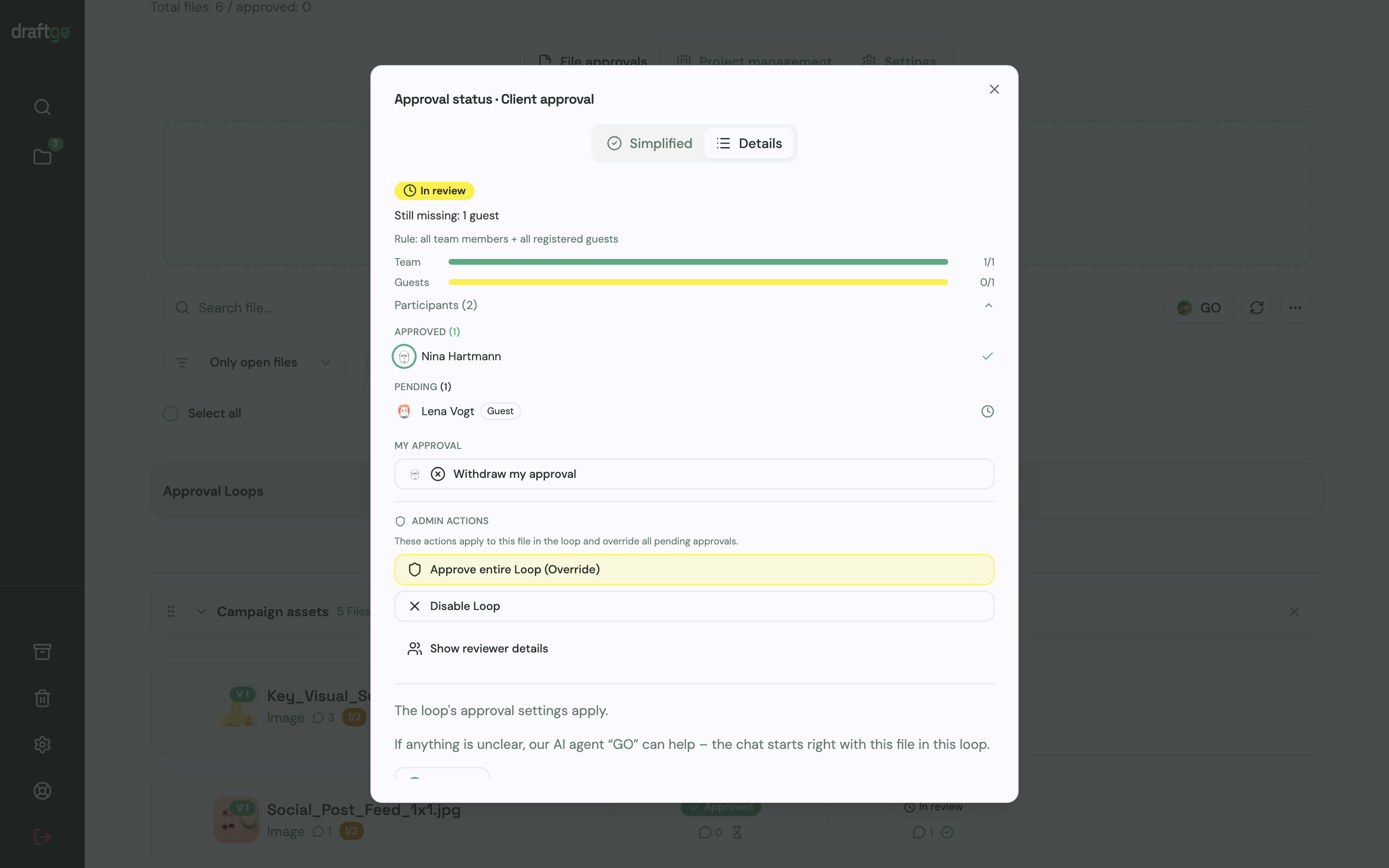
6. Approve and keep the record. Each approver approves in the browser, and the approval status shows who has approved and who is still pending. The activity log records approvals, comments and versions with person and time and can be exported as CSV, JSON or PDF.
A master file above 500 MB then goes out through one of the transfer services in this list.
FAQ
Which free WeTransfer alternative sends the largest files?
SwissTransfer has the highest stated free limit per transfer in this comparison: up to 50 GB, kept for up to 30 days, as of 17 November 2026 (swisstransfer.com). Smash also takes larger free transfers, but they wait in a queue behind paid ones. Google Drive and OneDrive accept bigger single files, though their free storage is only 15 GB and 5 GB.
Do recipients need an account?
Usually not. SwissTransfer, TransferNow, Filemail and Dropbox Transfer say so on their own pages, and Google Drive and OneDrive links shared with "anyone" open without signing in. In draftgo the client opens a guest link without an account, and an approver guest uses a personal link to comment and approve.
Can a client comment on a video sent with a transfer service?
A pure transfer service hands over the file, so the notes arrive by email or chat. WeTransfer lets recipients comment on previews of individual files if the sender turns comments on, but its help article describes comments on the file as a whole. In a review tool such as draftgo the client comments at a point in the timeline, and the time is stored with the comment.
How long do download links stay active?
On the free plans in this comparison, between 3 days at WeTransfer and 30 days at SwissTransfer, as of 17 November 2026. Cloud drives keep the file as long as you store it, and paid plans often allow longer or custom expiry. In draftgo viewer links don't expire, approver links expire after 90 days without use, and you can deactivate any link.
How large can files be in draftgo?
Files can be up to 500 MB, and larger videos up to 800 MB are compressed by the browser before upload. For raw footage or a master file above that, use a transfer service from this list.
Conclusion
If you only need to deliver a large file, choose a transfer service by size and expiry: SwissTransfer for big free packages, MASV for heavy video volumes, TransferNow or Smash when a password matters. When clients send corrections and should approve the final cut, move the review into a tool where comments, versions and the approval stay with the file. Try it free – draftgo is free for 14 days, no credit card needed.
Written by
Emilia
Content Producer
Ready to streamline your approval processes?
Get started with draftgo today and see how easy professional collaboration can be.