
It is Wednesday afternoon, and the brochure has to reach the printer on Friday. The client's marketing manager has sent eleven comments in one email, two of them about a page that moved in the last version. A colleague from product management answered an older thread with a photo of a printout covered in pen marks, and the managing director left a voicemail about the cover. You have three windows open, you match comments to pages by hand, and nobody has said which of the three people decides.
Online proofing ends that sorting, because the file and every note on it sit in one shared place. Comments land on the page or the moment they refer to, and the approval names one person and one version.
What is online proofing?
Online proofing is the review, markup and approval of drafts in a browser-based application. Instead of collecting feedback by email and chat, everyone involved comments directly on the file, and the approval is recorded with the person and the time.
You will also come across the terms creative proofing, digital proofing or online review and approval. They all describe a structured way from the first draft to a version that everyone has agreed on.
Where the term comes from
The word comes from print. A prepress proof is a test print that the customer checks before the press run, and it often serves as the colour reference between customer and printer. The customer marked corrections on it and signed it off, and only then did the press start.
Online proofing carries that principle over to every file that needs sign-off. The test print turns into a link, and the red pen turns into a comment on the right spot. Where the customer used to sign, the tool now records an approval. Today the files include layouts, ads, packaging, presentations, photos, social media posts, websites, videos and audio.
What online proofing is not
A shared cloud folder is not online proofing. File storage distributes files, but the feedback on them still ends up in emails. A proofing tool attaches each note to a spot in the file, assigns it to a version and knows whether the file has been approved.
A PDF with comments from a desktop reader isn't online proofing in the strict sense either. The comments sit in one copy of the file that travels by email, and every reviewer marks up their own copy, so someone has to merge them by hand.
How does online proofing work?
Online proofing rests on four building blocks: comments on the spot, versions on the same file, a rule for who approves and a record of what happened. You need all four to replace the back-and-forth by email.
Comments on the spot
The reviewer places a note exactly where it applies, as a pin or a rectangle on an image, as a highlight in the text of a PDF or at a timecode in a video. "The logo is too small" then sits on the logo itself, and nobody has to interpret a description such as "top left, under the headline". Replies stay in the same thread, and resolved points can be ticked off.
Versions on the same file
Whoever makes the corrections uploads the new draft to the same file. The previous version stays available, comments stay with the version they refer to, and nobody needs to decode file names like "brochure_final_v3_NEW.pdf".
A rule for who approves
Before the review starts, you decide who has to approve: everyone involved, a set number of people or one named person. Reviews often run in stages, first inside your team and then with the client.
A comment is feedback, while an approval is consent to one specific version. A "looks good" next to a headline is therefore not the approval of the whole file. Treat nothing as approved unless it is recorded as an approval.
A record
Every approval, comment and version is logged with the person and the time. Months later you can still look up who approved which version and when, without searching through inboxes.
Online proofing compared with email feedback
The difference shows most clearly side by side:
| Aspect | Feedback by email | Online proofing |
|---|---|---|
| Where feedback lands | Spread across emails, chats and PDF attachments | In one place, on the file |
| Reference to the spot | Described in words ("top left") | Marked at the exact position |
| Versions | File names with "final" and "new" | Versions on the same file |
| Approval | An email saying "fine by me" | A status with person and time |
| Overview | Someone collects it by hand | Open and resolved comments are visible |
| Several reviewers | Contradictory emails, often late | Everyone sees the others' notes |
Types of online proofing
Online proofing differs mainly by the kind of file and by who reviews it. A tool that handles several kinds saves you from switching between programs.
By file type
- PDFs and print files: brochures, flyers, ads and packaging. Reviewers check text, layout and content page by page, often with highlights and strikethroughs in the text.
- Images and designs: logos, key visuals, illustrations and product shots. Comments sit as pins or rectangles on the image.
- Photo selection: photographers let clients pick and rate images in a gallery. The guide to photo proofing software explains that workflow and compares tools for it.
- Video and audio: ads, reels, explainer videos, podcasts and voice-overs. Comments are tied to a timecode, so the editor knows which moment is meant. Our comparison of video feedback tools follows a client review from rough cut to final cut.
- Websites: landing pages and new sites. Some tools let clients annotate the live site, others collect comments on a screenshot of the page, and our article on the website feedback tool weighs up both approaches.
- Social media posts: images, carousels with captions and reels that need sign-off before they go live. The overview of social media approval tools sets out an approval workflow in six steps.
By who reviews
- Internal proof: the team checks the work before anything goes to the client. A second pair of eyes catches typos and missing logos while they are still cheap to fix.
- Client proof: people outside your company review and approve. What matters most here is that nobody has to create an account first.
- Multi-stage proof: first the department that owns the content, then legal, then the managing director. Each stage has its own approvers, and the next stage starts when the previous one has signed off.
Content proof and colour proof
A content proof checks whether text, images and structure are right. A colour proof checks whether colours will print as intended. When it runs on screen, it is called a soft proof and needs a calibrated monitor and the printer's colour profile. Online proofing in the usual sense is the content proof. For colour-critical jobs, the printer's colour proof comes on top.
Try it yourself: In the demo you work in a real draftgo workspace with sample data.
Benefits and limits of online proofing
The main benefit of online proofing is the time you no longer spend sorting emails and chasing answers. To work, it still needs a few rules that the whole team sticks to.
Benefits
- Fewer misunderstandings: a note on the spot leaves less room for interpretation than a sentence in an email.
- Fewer rounds: when every reviewer sees the others' comments, conflicting wishes surface early rather than in round three.
- A clear status: everyone sees which version is current and what is still open.
- Proof of approval: the record shows who approved which version and when. That helps when someone asks months later why the flyer went to print the way it did.
- A low barrier for clients: a link in the browser is enough, with no software to install and often no account.
Limits
- It doesn't replace a brief. A proof clarifies whether the draft fits. What the draft has to achieve belongs in the creative brief.
- It doesn't replace project management. Schedules, budgets and resource planning need their own tool.
- A browser view is no colour proof. An uncalibrated screen doesn't show print colours reliably.
- An approval is not a signature. A recorded approval documents consent, but it is not a qualified electronic signature as defined in the eIDAS Regulation. What counts as acceptance of the work is set by your contract.
- Clients have to get used to it. If they keep replying by email, the best tool does little. A short explanation at the start of the project and a friendly, consistent reply to stray emails usually solve that.
This article is general information, not legal advice.
When does online proofing pay off?
Online proofing pays off as soon as one of these situations applies to you:
- More than one person reviews the same file.
- A draft goes through more than one round of changes.
- You work on several projects or with several clients at the same time.
- You want to be able to show later who approved what.
- Your files are mixed, with PDFs, images and videos in the same project.
For a one-off check with a single person and no corrections, a short message is often enough. And if you only want to send files, you need file storage, not proofing.
Who uses online proofing software?
Anyone who needs other people's approval on a creative file before it goes out uses online proofing software, from solo freelancers to in-house marketing teams. What they need from it depends more on team size and client setup than on industry.
- Agencies agree layouts, campaigns and videos with clients, and on the client side several people often have a say. They need clients to join without friction and an unambiguous approval at the end. The draftgo page for agencies shows that setup.
- Freelancers usually work alone for several clients. A fixed routine with a link and an approval looks professional and settles the question of who said what and when. What draftgo offers solo creatives is on the page for freelancers.
- In-house teams in marketing and communications approve in stages, first the subject experts, then legal or senior management. They need clear roles and an overview of open approvals.
- Photographers and video producers collect feedback on a gallery selection or on a rough cut, instead of swapping lists of file names and timecodes by email.
- Social media teams approve many small pieces of content in a short time, and they have to check image, caption and video together.
- Print and packaging designers need a documented approval before the press starts, because an error found after printing costs the whole run.
Online proofing in practice: 6 steps to your first proof
These six steps set up a proof that works the first time, whichever tool you use. Start with a client who is open to new things rather than with the most difficult one. After the first project you have an example that convinces sceptical clients as well.
1. Agree on roles
Before you upload anything, settle who reviews, who only needs to be kept informed and who gives the final approval. On the client side, ask whether one person decides for everyone or whether several people have to agree. The best moment for this conversation is the start of the relationship, as part of your client onboarding process.
2. Prepare the file
Upload a version that is ready for review, with complete texts and real images. An unfinished draft costs an extra round, because the client comments on the gaps instead of the work.
3. Send the link with a clear request
Say what should be checked and by when. "Please check the prices on page 3 in particular" brings more precise feedback than "What do you think?".
4. Collect and clarify the feedback
Keep every note in the file. When two wishes contradict each other, settle it in the comment thread instead of implementing both.
5. Upload the new version
Make the corrections, tick off the resolved comments and upload the new draft to the same file. Reviewers see the new version straight away, along with what is still open.
6. Record the approval
Once the last comment is resolved, the approvers approve the file in the tool. From then on, exactly this version goes online or to print, not a copy from someone's desktop.
Typical mistakes in online proofing
| Mistake | Better practice |
|---|---|
| The link goes out without an explanation | Say what should be checked and by when |
| Nobody knows who decides in the end | Name the approvers before the first version goes up |
| Comments arrive by email as well | Move them into the file and ask kindly for comments there next time |
| A new file instead of a new version | Upload corrections to the same file, so history and comments stay together |
| Unfinished drafts go into the client round | Review internally first and send only what is really finished |
| Nobody records the approval | Approve explicitly after the last comment, so the status is clear |
How to choose online proofing software
Good online proofing software fits the files you send out and the people who review them. Start from your own projects of the last few months rather than from feature lists, and test with a real job before you decide.
The criteria that count
| Criterion | Question to ask | Why it matters |
|---|---|---|
| Client access | Is a link enough, or do external reviewers need an account? Can they approve through the link or only comment? | Every login is a reason for a client to answer by email instead |
| File types | Does it handle the PDFs, images, videos, audio, websites and social posts you actually send? | A second tool for one file type splits the feedback again |
| Markup | Can notes go on the exact spot, including text highlights in PDFs and timecodes in video? | Precise notes need fewer follow-up questions |
| Versions | Do corrections land on the same file, and does the approval start again on a new version? | Nobody should approve or print a version the client never saw |
| Approval rules | Can you require everyone, a set number or one named person, and run internal and client stages? | Clear rules end the "who decides?" discussion |
| Record and export | Are comments, versions and approvals logged with person and time, and can you export the log? | You can answer "who approved this?" in a minute |
| Data protection | Where is stored data kept, and do you get a data processing agreement? | Client files often contain unreleased products or personal data |
| Pricing model | Do extra users, guests or reviewers cost extra? | Per-user pricing grows with every client who reviews |
| Getting started | Is there a free plan, a trial or a demo, and how long until the first client review runs? | If setup takes weeks, the old email habit wins |
Features that depend on your setup
Some features appear in almost every product comparison. Whether you need them depends on how many people review your files and what your clients require, so decide before the trial which of them are must-haves.
- Deadlines and automatic reminders: many tools let you set a due date per review and remind late reviewers by email. They help most when several people at the client review the same file or a print date is fixed.
- Integrations: plug-ins for design software and connections to project management tools let you send files to review from the program you work in. They suit teams that plan every job in a project management tool or send many files a day from their design software.
- AI checks: some tools look for typos, cut-off text or small type before a person sees the file, and a few check designs against brand guidelines, which matters if you work to a detailed style guide. Test any AI check on one of your own files, because the results depend on the material.
- Security requirements: single sign-on, password-protected links and certifications become a must when a client's IT department asks for them. Ask your largest clients what they require before you compare tools.
Test a tool in one afternoon
A trial tells you more than any feature page. Plan it like this:
- Pick a finished job from last month that went through at least two rounds of feedback.
- Upload the first version and send the link to a colleague who plays the client, ideally on a phone.
- Let them comment on three or four spots, including one in a PDF or a video.
- Upload a corrected version and check whether the open comments are easy to find.
- Approve the file and look at the record: does it show who approved which version and when?
- Export the record and ask yourself whether you could hand it to a client.
If you already have a shortlist, our comparisons of draftgo with other proofing tools go through the differences one tool at a time.
Example: a trade fair brochure with two reviewers at the client
A two-person design studio works for a mid-sized machine manufacturer. For a trade fair it produces a 16-page brochure, a 40-second product video for the stand and a landing page. On the client side, the marketing manager collects the feedback, and the head of product checks every technical figure. Until now, both sent their notes separately by email, sometimes about different versions.
This time the studio sets up the project with two rounds. In the first, the second designer checks the files internally and finds a missing trademark symbol and a price taken from last year's leaflet. In the second round the client reviews. The marketing manager gets a personal link that lets her approve, and the head of product gets a viewer link to comment without approving. They see each other's notes, so when he asks for the full product name on page 5 and she wants that heading shorter, they settle it in the comment thread before anyone redoes the layout.
The video collects its comments at the timecode, and the landing page is reviewed as a screenshot with pins on the layout. After the second version, the marketing manager approves the brochure and the video, and the studio sends exactly the approved PDF to the printer.
Two months later the client's sales team asks why a specification on page 9 differs from the website. The studio opens the record and finds the answer within a minute: the head of product asked for that value in a comment on version 1, and the marketing manager approved version 2 with it.
How it works in draftgo
draftgo is an online proofing platform for agencies, freelancers and in-house teams. Clients comment through a link without an account, and in every plan our AI agent “GO” answers questions about a chosen loop or file, such as what is still open on it. This is how a proof runs there.
1. Upload the files
You upload images, PDFs, videos and audio files of up to 500 MB, and Word files are converted to PDF on upload. A publicly accessible website is captured as a screenshot, as desktop, tablet or mobile, and a social media post holds up to 20 images as a carousel with its caption.
2. Set up the approval loops
Approvals run in loops, for example an internal loop first and a client loop second. For each loop you decide whether everyone, a set number of people or one specific person must approve, separately for your team and for guests. The project page shows every file with its status in each loop.
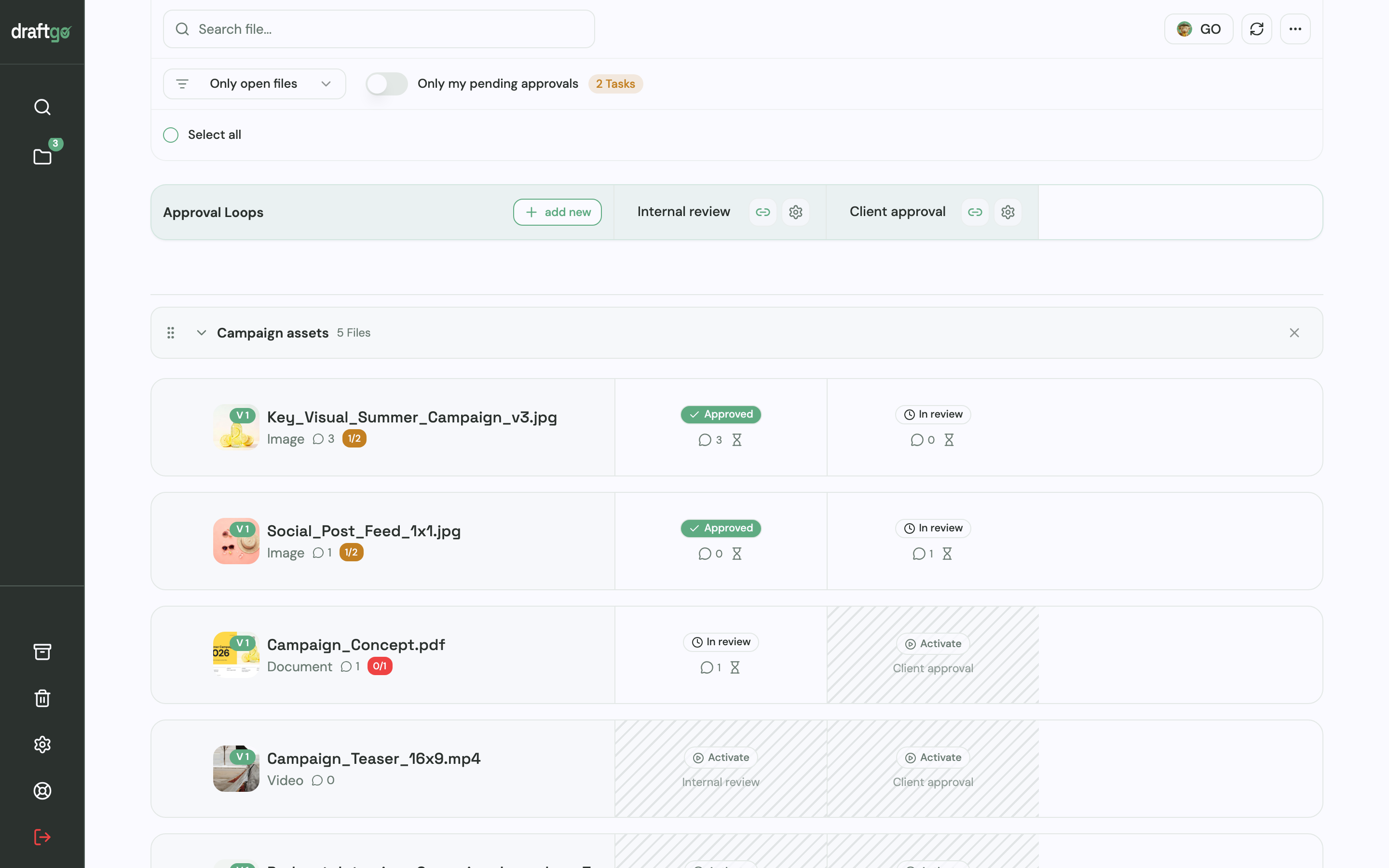
3. Check the file before the client does
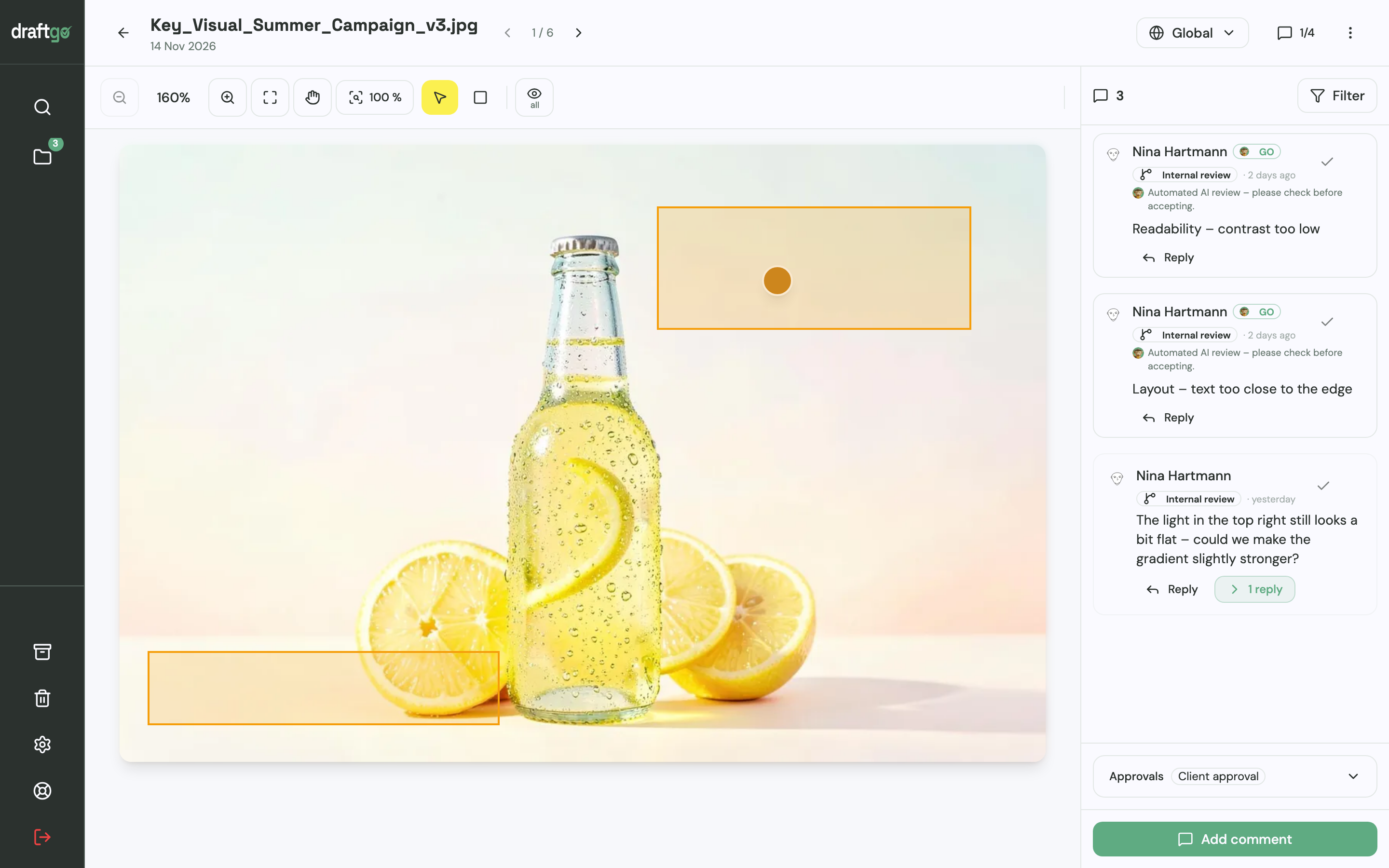
From the Freelancer plan, the AI review checks PDFs, images and social media posts for errors such as spelling mistakes, cut-off text or very small type, and it measures the image resolution in print PDFs. Its comments carry the name GO, so you can tell what came from the AI and decide what to change. The add-on "AI Assistant", available in every plan, makes the AI review unlimited.
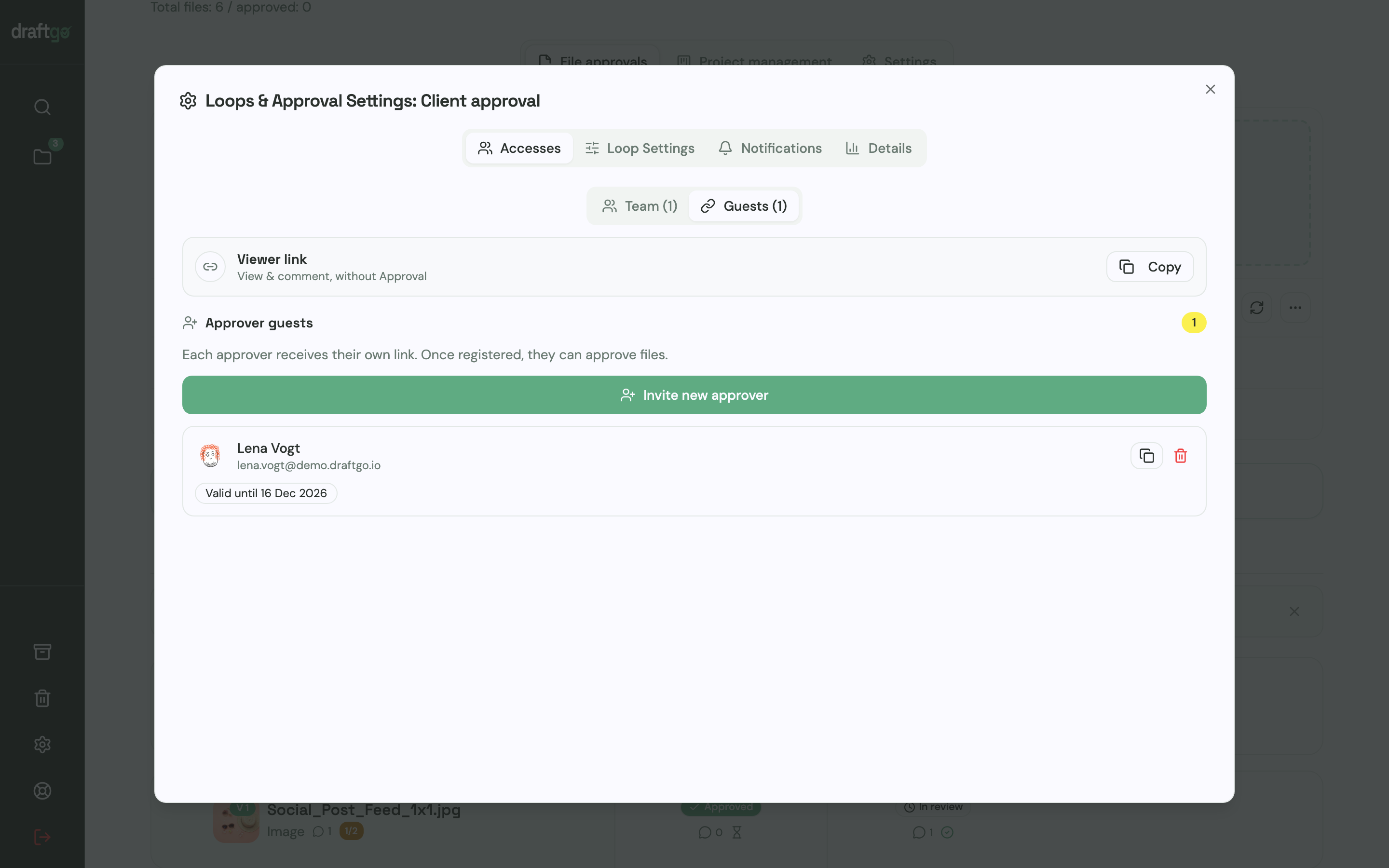
4. Invite the client by link
Clients review without an account. A personal approver link asks for a name and email address and lets the person approve. A shared viewer link per loop or file asks only for a name and is meant for commenting, and every link can be deactivated.
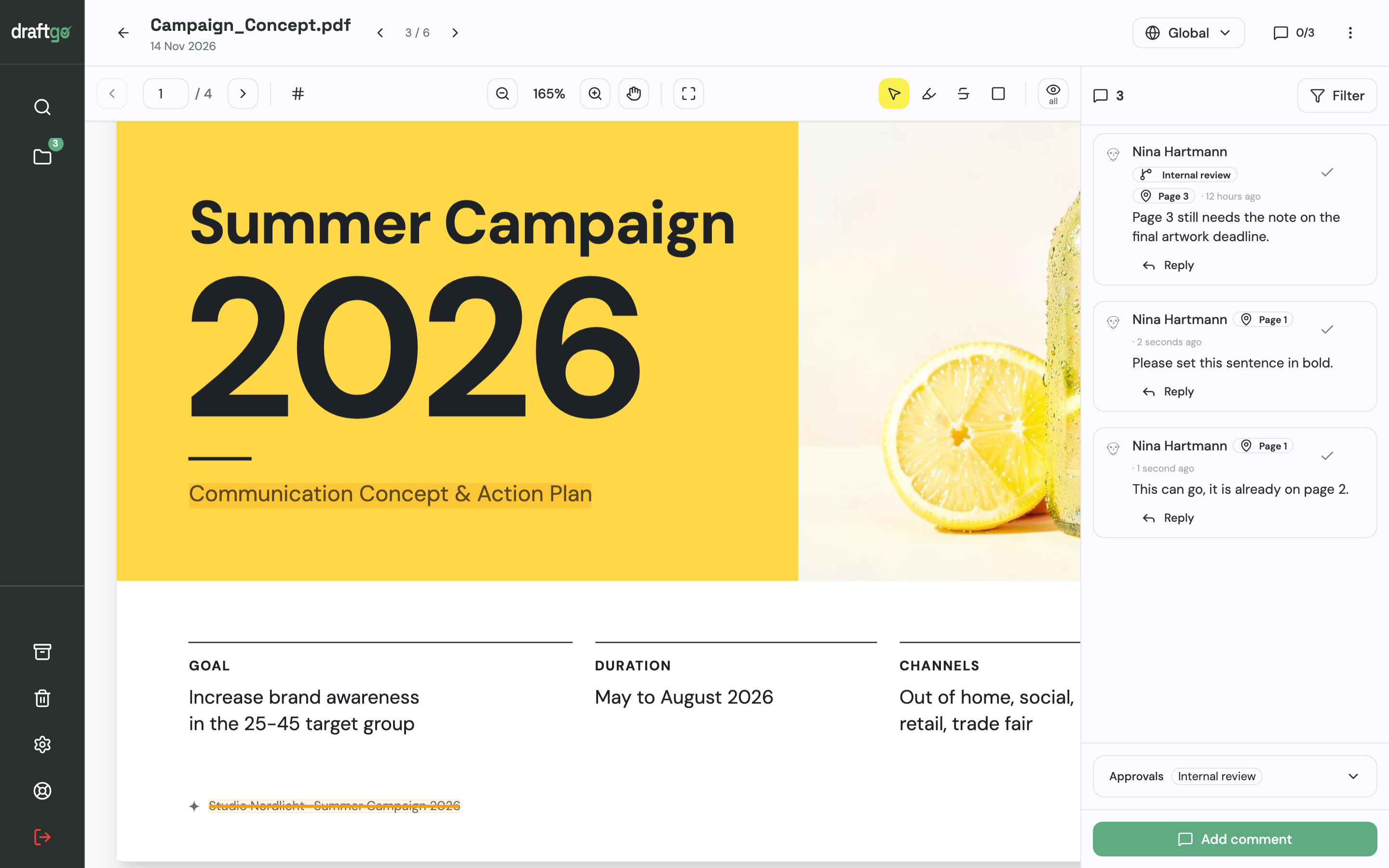
5. Collect comments on the spot
Comments sit as pins or rectangles on images, PDF pages and website screenshots, as text highlights or strikethroughs in PDFs, or at a timecode in video and audio. Reviewers reply, mention colleagues with @ and add attachments, and a resolved comment is ticked off.
6. Upload the next version
The corrected draft goes onto the same file. Earlier versions stay available one by one, comments belong to their version, and the approvals start again.
7. Track the status and keep the record
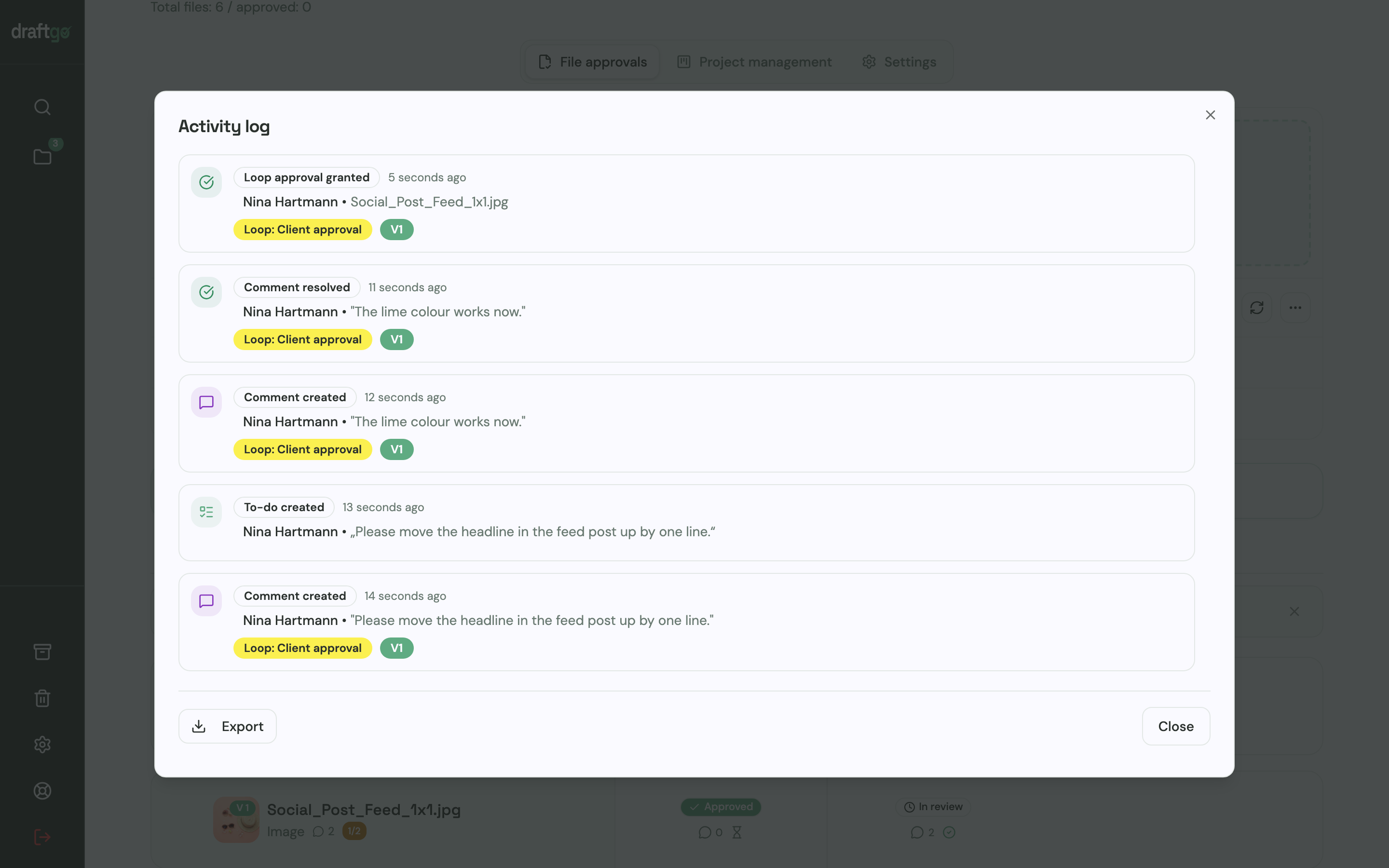
In a loop, a file is inactive, under review or approved, and people approve or withdraw their approval. The activity log keeps approvals, comments, versions and downloads with who did what and when, and you export it as CSV, JSON or PDF.
Anything that concerns a person directly arrives by email straight away. Subscribed projects, loops and files come as a summary every 30 minutes or as a daily or weekly overview, which also lists the approvals still waiting.
Stored data is kept on EU servers in the Frankfurt data centre. Every customer receives a data processing agreement under Art. 28 GDPR, which lists the sub-processors.
Pricing is per company, not per user or guest, and guests are unlimited from the Freelancer plan. The Free plan stays free for good, and the plans with their limits are on draftgo pricing.
FAQ
What does proofing mean?
Proofing means checking a draft before it is used. Originally the proof was the test print before the press run. Today the term covers the review and approval of any creative file, from a PDF to a video.
What file types can you proof online?
Most tools handle PDFs and images, and many add video, audio, websites and social media posts. In draftgo you review images, PDFs, videos and audio files, websites as screenshots and social media posts as carousels with their caption. Word files are converted to PDF when you upload them.
Do clients need special software for online proofing?
No, online proofing runs in the browser. With most tools, clients simply open a link. In draftgo they comment and approve without creating an account.
What is the difference between online proofing and digital asset management?
Online proofing covers the review until a draft is approved. Digital asset management stores finished files for the long term, with metadata, keywords and access rights. Many teams need the first long before the second.
Can I try online proofing for free?
Yes. draftgo has a Free plan that stays free, and the paid plans can be tested for 14 days without a credit card. The demo shows draftgo without any registration.
What is the difference between proofreading and proofing?
Proofreading checks only the text, meaning spelling, grammar and punctuation. Proofing checks the whole file, including layout, images and timing, and ends with an approval of one version.
Conclusion
Online proofing keeps feedback and approvals on the file itself, so nobody has to sort emails any more. Start with one project: decide who approves, send the link with a clear request and keep every note in the file. When you compare tools, test them with a real job and a colleague in the client's role before you read feature lists.
Try it free – draftgo is free for 14 days, no credit card needed.
Written by
Emilia
Content Producer
Ready to streamline your approval processes?
Get started with draftgo today and see how easy professional collaboration can be.