
It is Thursday afternoon and the printer wants the brochure by five. The project folder holds brochure_final.pdf, brochure_final_v2.pdf and brochure_final_FINAL_client.pdf. The client's “looks good, go ahead” came by email on Tuesday, as a reply to an attachment nobody can match to a file any more. Since then, a colleague has corrected a price on page 4 after a Slack message. Which file did the client actually approve?
Document version control answers that question. Many search results for version control are about Git and software source code; this guide covers the files creative teams send to clients, such as PDFs, layouts, images and videos.
What is document version control?
Document version control means that every relevant change to a file is saved as a new version, with a number and a date, while the earlier versions stay available. At any point you can see which version is current, what changed since the last one and which version the client approved. A copy called brochure_new.pdf is not a version in this sense, because it says nothing about who changed it, why, or whether anyone reviewed it.
A version you can rely on answers four questions:
- Which file and which state? The document and its version number.
- What changed? A short note on what was added, removed or corrected.
- Who changed it? The person who made and uploaded the version.
- Who decided? Who commented on it, reviewed it and approved it.
Why file names like final_final_v3 fail
Names like final_final_v3 fail because they put the status into the file name, and the status changes faster than anyone renames files. “Final” describes a hope at the moment of export, and one more round of feedback turns it into final_v2.
Three more problems add to the confusion:
- Copies instead of versions. Every email attachment and transfer link creates another copy, and after two rounds the client, your team and the printer each hold a different “latest” file.
- Feedback without a version. One remark arrives in the PDF, one in a call, one in a chat, and nobody can tell which version each refers to.
- Approval without a reference. “Looks good” in an email approves whatever the client happened to open, possibly an attachment from two rounds ago.
Better file names solve the first problem. The other three only go away when a file, its feedback and its approval stay together in one place.
Naming conventions and version numbers
A naming convention gives every file the same structure, so anyone can read client, project, content, date and version at a glance. A structure that suits most creative projects:
client_project_document_YYYY-MM-DD_v2.0.pdf
| Element | Example | Why it is there |
|---|---|---|
| Client | acme | Sorts files by client |
| Project | spring-fair | Groups the files of one job |
| Document | brochure-16p | Says what the file contains |
| Date | 2026-11-17 | Sorts versions in order |
| Version | v2.0 | Shows the review round |
The file naming guidance of Harvard Medical School recommends the same basics: ISO 8601 dates such as YYYY-MM-DD, no spaces, underscores or hyphens as separators, the version at the end and around 40 to 50 characters in total. It also lists the dot among the characters to avoid, so if a system trips over v2.0, write v2-0. Leave the status out of the name, even though some templates include it, because a name cannot change by itself when the file moves from review to approved.
Tie the version number to review rounds, not to every save:
| Version | When you use it | Who sees it |
|---|---|---|
| v0.1, v0.2 | Internal drafts before the first presentation | Your team |
| v1.0 | First version sent to the client | Client |
| v1.1, v1.2 | Internal corrections after feedback | Your team |
| v2.0, v3.0 | Next rounds for the client; the approved one keeps its number | Client, then printer or publisher |
The idea is borrowed from Semantic Versioning in software. For creative files, a new main number means the client sees this version, and everything after the dot stays inside the team.
Try it yourself: In the demo you work in a real draftgo workspace with sample data.
7 rules for document version control in creative teams
Seven rules turn naming, storage, feedback and approval into one workflow that holds up in a busy week.
1. Keep one source of truth
Pick one place where every version of every file lives, whether a server, a cloud folder or a proofing tool. The client gets one link to the current version instead of attachments. Transfer services create a new copy with every send, which is why teams that need feedback look at alternatives to WeTransfer for sending and reviewing files.
2. Save every change as a new version
Opening a file, editing it and saving it under the same name wipes out the state the client saw. Save each change as a new version and leave the previous one untouched. If the client later asks whether a price was already in the first draft, you open that version and check.
3. Write down what changed
Give each version a one-line note, for example “v2.0 – new hero image, price on page 4 corrected”. The reviewer knows where to look, and months later the note tells you why the version exists. Keep it next to the file, not in someone's inbox.
4. Keep feedback on the version it refers to
Comments belong on the file, at the spot they mean: a mark on the PDF page, a pin on the image, a note at a timecode. This is the basic idea of online proofing, and every comment then carries its version with it. For films the same applies to every cut, as the guide to video feedback tools shows. Feedback given by phone goes onto the file as a comment too.
5. Check the changes before you send the next version
Before version 2.0 goes out, work through the comments on version 1.0 and tick each one off in the new file, so no open point gets lost. For long, text-heavy PDFs a comparison tool helps. Adobe Acrobat Pro, for example, includes a Compare Files tool that highlights changed text, images and formatting between two versions of a PDF (Adobe, as of 17 November 2026).
6. Let the client approve one specific version
An approval should name the version it applies to, such as “brochure v3.0 approved for print”. A comment is not an approval. Agree at the start who approves, measure feedback against the agreed creative brief, and treat every new version as unapproved until someone signs it off.
7. Archive the approved version with its history
Once a version is approved, nobody changes it again. It goes to the printer or publisher under its version number, and the guide to prepress explains what happens to a print file next. When the project ends, archive the approved version with the record of who approved it and when, plus the older versions, because they answer “why did this change?” long after the job is done.
Common mistakes and what to do instead
A few habits still cause mix-ups, each with a simple fix.
| Mistake | What happens | Better practice |
|---|---|---|
| “Final” in the file name | The next round produces final_v2 | Version number in the name, status from the approval |
| The client edits the PDF and sends it back | A second line of versions starts outside your folder | Turn the client's edits into comments on the current version |
| Two people export from different source files | Corrections from one export are missing in the other | One person uploads versions, always from the same source file |
| Working files and exports in one folder | The client receives the open layout file instead of the PDF | Separate folders for source files and review files |
Practical example: a trade fair brochure in three rounds
A two-person studio designs a 16-page trade fair brochure. After internal drafts v0.1 to v0.3, it sends v1.0 to the client, who marks a wrong product photo on page 5 and an outdated price on page 11. The studio fixes both, ticks off the comments and sends v2.0.
The client's marketing lead approves v2.0, then the sales director wants one more line about delivery times. That line goes into v3.0, which needs its own approval, and the printer receives exactly the approved v3.0.
Three months later the client asks why the price on page 11 differs from last year's catalogue. The studio opens v1.0, finds the client's own comment asking for the change and has the answer before the call ends.
How it works in draftgo
In draftgo, the versions, comments and approvals of a file stay together, so the review itself keeps the version history and the file name only has to label the file.
1. Upload the file. You add images, PDFs, videos or audio files to a project; Word files are converted to a PDF on upload. Clients open the file through a guest link without an account.
2. Add each revision as a new version. You upload the revised file as a new version of the same file. Earlier versions stay available one by one, so you can open the state the client saw in any round.
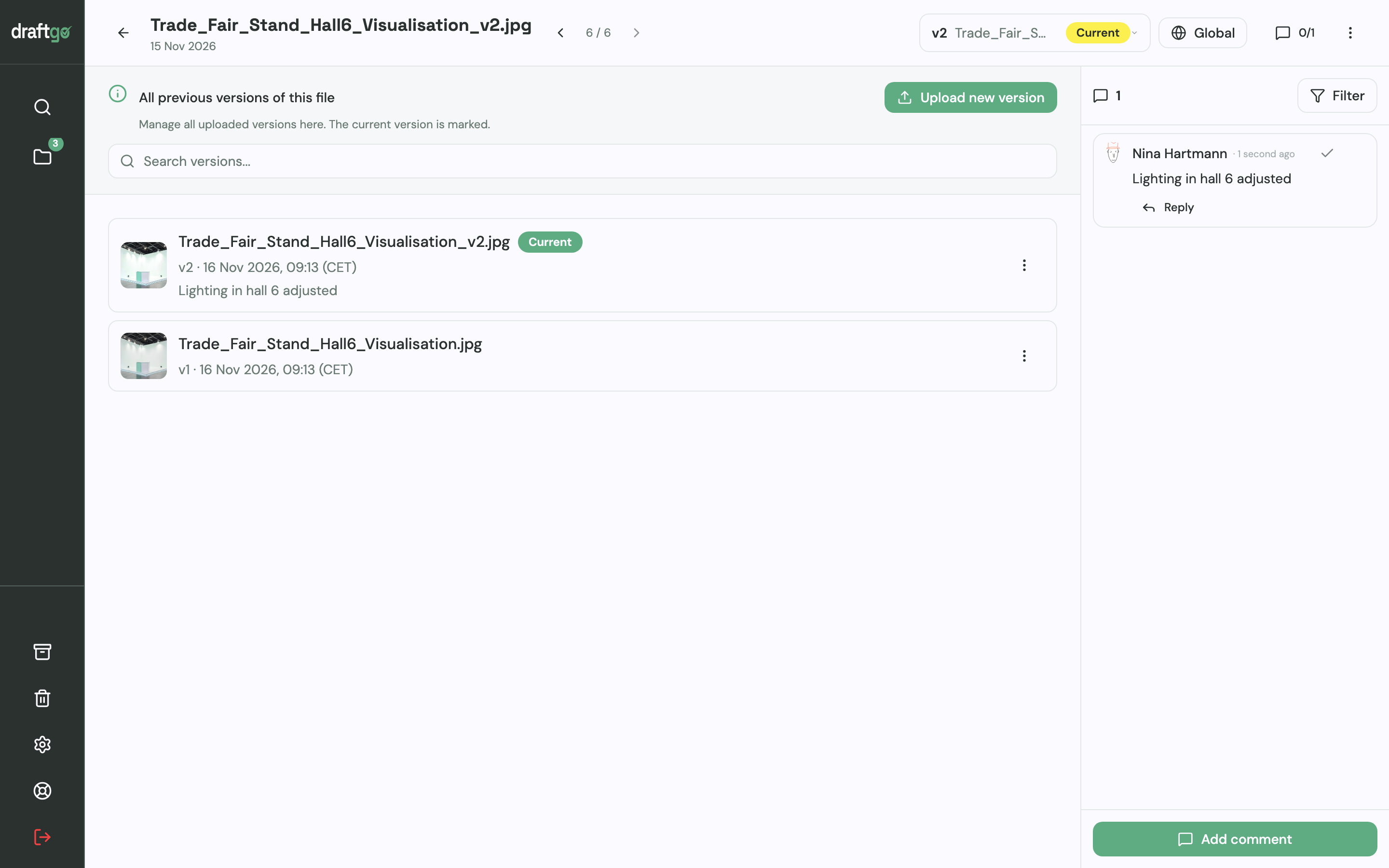
3. Comments stay with their version. Clients and colleagues comment on the exact spot: a point or rectangle on an image, a highlight or strikethrough in a PDF, a note at a timecode in a video. Each comment belongs to the version it was written on, and replies and @mentions keep the discussion in one thread.
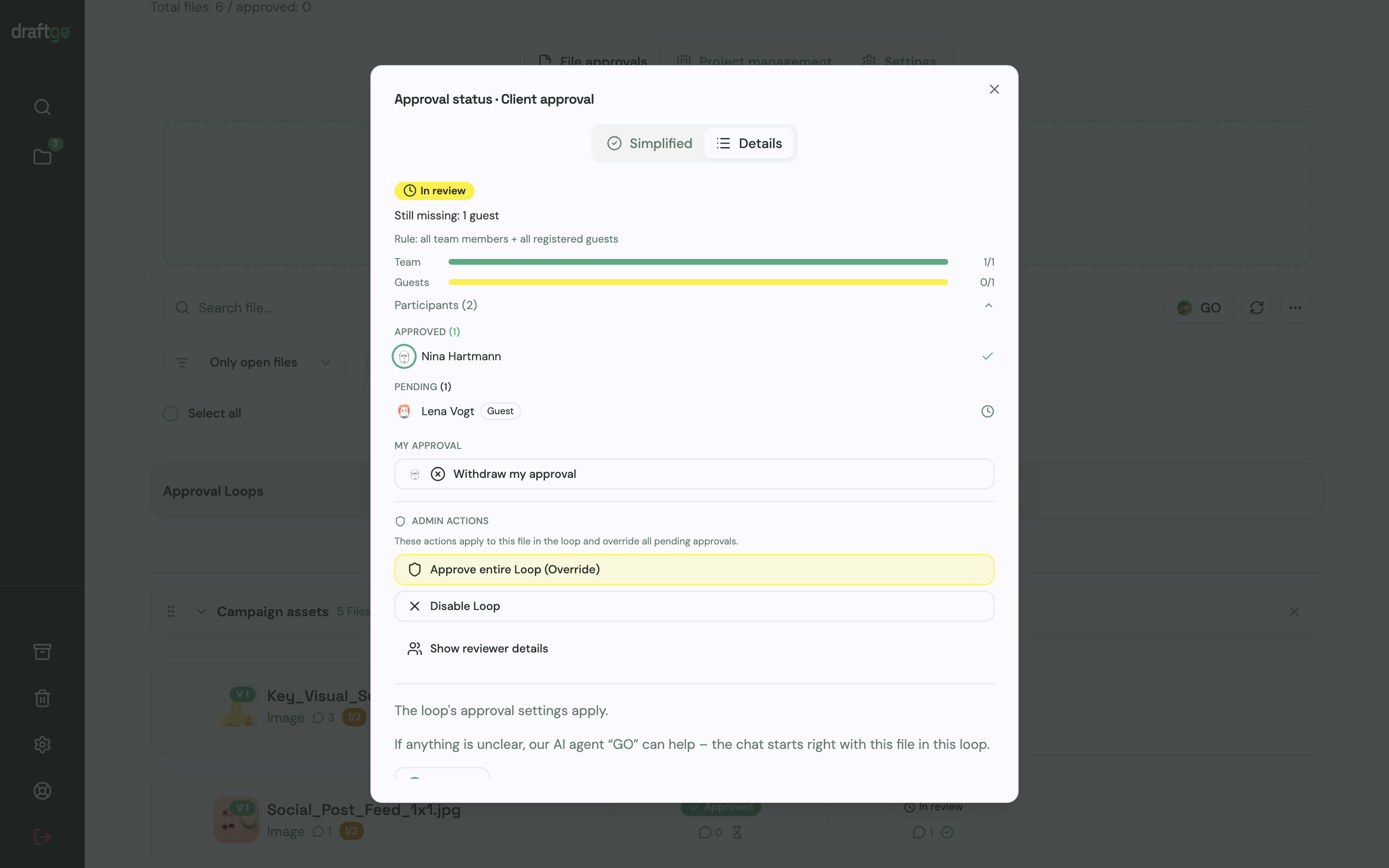
4. Approvals run in loops. A loop collects the approvals for one stage, for example an internal review first and the client approval after it. For each loop you set whether everyone, a certain number of people or any one of them has to approve, separately for the team and for guests. A new version restarts the approvals, so nobody approves an outdated file by mistake.
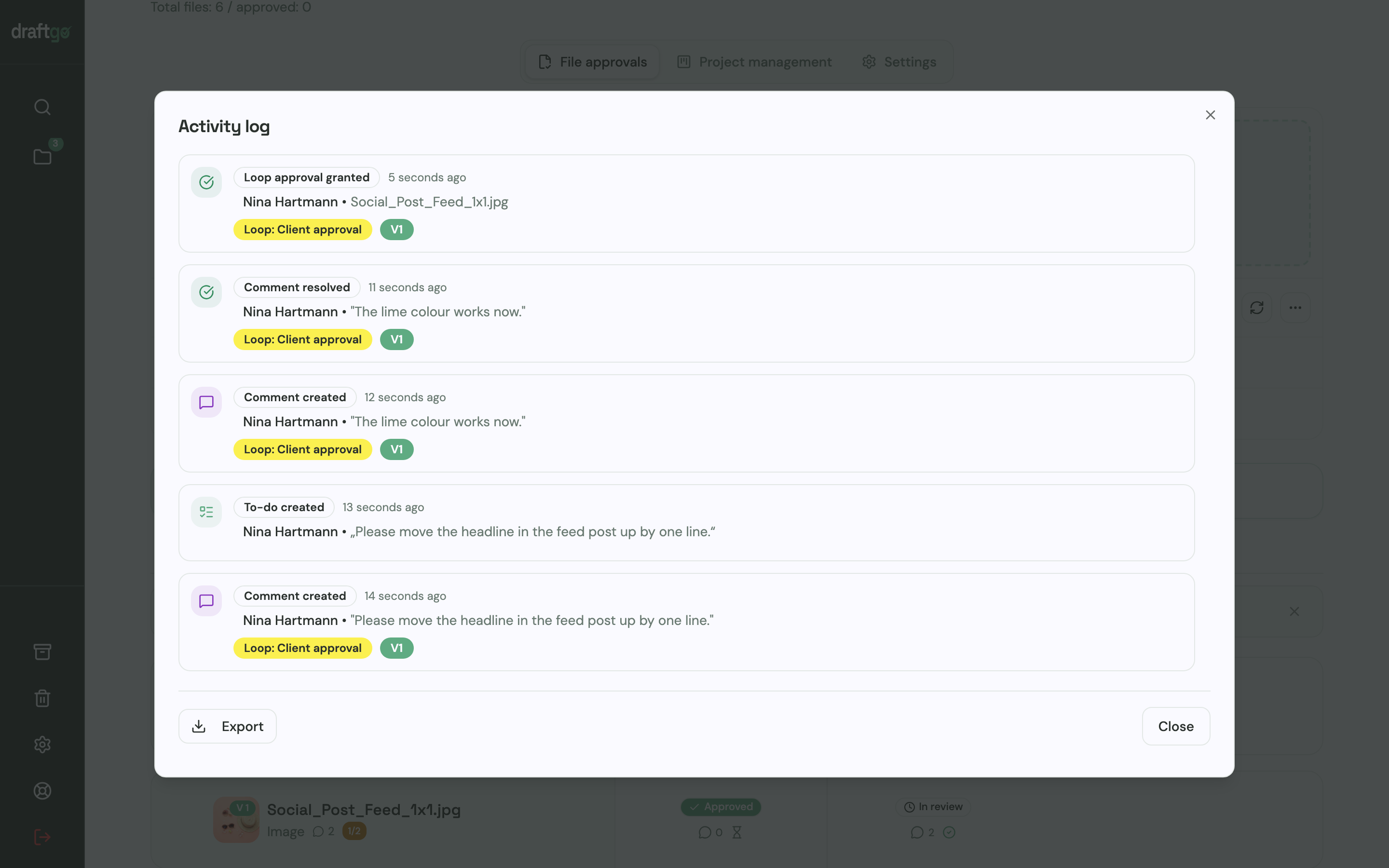
5. Export the record. draftgo records every approval, comment and version with a timestamp. You export the activity log as CSV, JSON or PDF, and the review documentation of a single file as PDF or CSV, ready to archive with the approved file.
Stored data is kept on EU servers in the Frankfurt data centre. If you run approvals for several clients at once, draftgo for agencies shows how their feedback comes together in one place.
Loloson Media LDA. in Portugal produces and edits image and video content, mainly e-commerce assets for an international hair care manufacturer. Founder and managing director Peter Schönherr says: “Instead of endless PowerPoints, my client sees every new version straight away and approves it directly.”
FAQ
What is the difference between version control and a backup?
Version control keeps every state of a file over time, so you can go back to an earlier version and see what changed. A backup is a copy of all your data at one point in time and mainly helps you recover after data loss. You need both, because a backup does not tell you which version a client approved.
What is the difference between a version and a revision?
The words are often used as synonyms. In creative work, a revision is usually a round of changes requested by the client, and a version is the saved file that results from it. One revision round can produce several internal versions before the next one goes to the client.
Do I still need a naming convention if my tool keeps versions?
Yes. Once a file is downloaded, sent to a printer or archived, its name is the only label it carries. A consistent scheme keeps order outside the tool as well.
Is the version history of a cloud folder enough for client approvals?
For storage it often is, for approvals usually not. Many cloud folders keep earlier versions of a file, but feedback and the client’s “looks good” still tend to arrive by email or chat, away from the version they mean. A proofing tool keeps comments and approvals on the version they refer to.
Conclusion
Start with one naming scheme and one place for all versions, and take “final” out of your file names today. Then make sure every comment and every approval belongs to a specific version, and archive the approved file with its record. Try it free – draftgo is free for 14 days, no credit card needed.
Written by
Emilia
Content Producer
Ready to streamline your approval processes?
Get started with draftgo today and see how easy professional collaboration can be.