
The catalogue runs to just over thirty pages, three people have to check it, and every page needs an okay. A few years ago someone would have printed the PDF, stamped “Checked” on the finished pages and scanned the pile back in. Today most teams stamp straight in the PDF. That is quicker, but it still leaves the real questions open: which pages are done, where is something still wrong, and which version does any of it apply to?
What is a PDF stamp?
A PDF stamp is an annotation you place on a page like a rubber stamp, such as “Approved”, “Draft” or “Checked”. It sits on top of the content as a comment and does not change the text of the page. Besides the ready-made stamps that come with a PDF program, you can make custom stamps from your own file, and some programs offer dynamic stamps that fill in details such as the date when you apply them.
In a review, a stamp is a quick signal for a whole page. A change to a single word or line belongs at the spot itself, as a highlight, a strikethrough or a comment. Our comparison of PDF annotation tools shows which programs handle that markup and which ones let colleagues and clients comment together.
How to add a PDF stamp in Acrobat
In Adobe Acrobat you find stamps among the tools under “Stamp”. The steps below follow the custom stamp guide of Whitman College's business office from 2022. Menus differ between Acrobat versions, so a label on your screen may read slightly differently.
1. Apply a ready-made stamp
Open the PDF, go to “Tools” and choose “Stamp”. Pick a stamp from the drop-down list and click on the page where it should go. You can then move it or change its size like any other comment.
2. Create a custom stamp
Design the stamp as a file of its own first, for example with the words “Page checked” and your logo, and save it somewhere easy to find. In Acrobat, open “Stamp”, select “Custom Stamps” and choose “Create” from the drop-down. Browse to your file, give the stamp a category and a name, and confirm. From then on the new stamp appears in the stamp list of every PDF you open.
Where stamps fall short in a team review
When one person goes through a PDF alone, a stamp does the job. Once several people review the same document, problems start:
- Everyone stamps their own copy. Three reviewers produce three files, and someone has to merge the stamps by hand.
- A stamp knows no version. “Checked” on page 12 does not say whether it applies to Monday's version or Wednesday's.
- No reason attached. A red stamp without a sentence leads straight to the question of what exactly is wrong.
- Green stamps are not an approval. Nowhere does it say whether every page is really done or who signs off the whole document.
How to set up roles and stages for this is covered in our guide to the approval workflow.
Try it yourself: In the demo you work in a real draftgo workspace with sample data.
Review and approve a PDF page by page in 5 steps
With this routine, stamps help the team instead of raising new questions. It works for catalogues, brochures, presentations and reports.
1. Keep one file for everyone
Put the PDF where every reviewer opens the same file, rather than sending copies by email. Stamps and comments then end up in one version, and everyone sees which pages the others have already checked.
2. Agree what each stamp means
Decide before the first round what a stamp stands for. Two stamps are almost always enough: one for “this page is fine” and one for “something on this page is still open”. Every extra variant needs explaining and soon leads to the question of what “Approved with reservations” actually means.
3. Give every red stamp a reason
A stamp on an open page needs a sentence saying what is wrong and how it should read. Put the exact correction as markup at the text itself. The stamp then only shows that work is still waiting on this page.
4. Bring corrections back as a new version
When a round is finished, the team works in the comments and uploads the revised file as a new version. The stamps of the old version stay where they were, and the next round starts clean. Reviewers now mainly check the pages that were open before. Our guide to document version control explains how to keep versions apart without a folder full of final_final files.
5. Approve the document as a whole
Once every page is green, the person responsible approves the document explicitly. Only that approval counts, not the sum of the stamps. For print products the press approval follows, as described in our guide to prepress.
| Mistake | Better practice |
|---|---|
| Everyone stamps their own copy | Everyone reviews the same file in one place |
| Many stamps with unclear meanings | Two stamps with an agreed meaning |
| A red stamp without explanation | Every “check” stamp with a short comment |
| Green stamps count as approval | An explicit approval of the whole document |
| Stamps end up in the print file | Stamps only in the review copy, the print file stays clean |
Before the file goes to the printer, the preflight checklist helps you check what a clean print file needs.
Practical example: a product catalogue with three reviewers
Take a small agency laying out the annual catalogue for a garden furniture brand. The product manager, the head of sales and the managing director all have to review it. In the first round the product manager stamps most pages green. On a handful of pages she sets a red stamp, each with a sentence such as “The lounge sofa's dimensions don't match the data sheet”.
The head of sales sees her stamps in the same file and only checks the prices on the open pages. The agency works everything in and uploads the next version. In the following round everyone looks only at the pages that were red. When nothing is open any more, the managing director approves the catalogue, and only then do the print files go to the printer.
How it works in draftgo
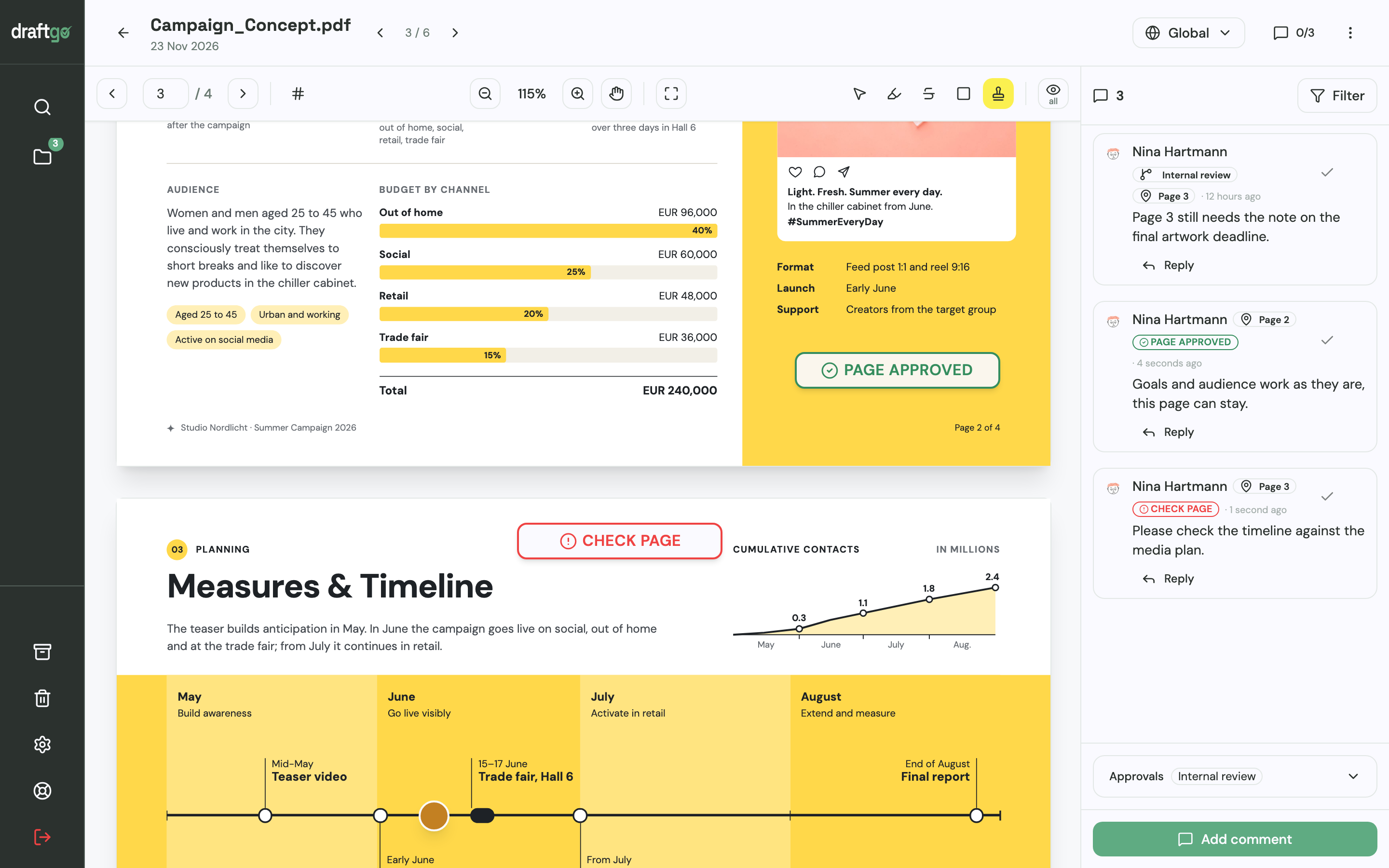
draftgo has two stamps for PDFs: “Page approved” in green and “Check page” in red. A stamp is a comment, so it never approves or blocks the file on its own. The page PDF review with draftgo shows the rest of the document workflow.
- Upload the PDF. You upload the PDF to the project. draftgo converts Word files into a PDF on upload, and the stamps are available there too.
- Set a stamp. In the PDF viewer you pick the stamp as a tool and click on the page. In the small dialog you choose the stamp, add a comment if you like and click “Add stamp”.
- Let clients stamp too. Guests who may comment set stamps as well, through a link and without an account of their own. A stamp from your team can be marked “Internal only (not visible to guests)”, and your guests will not see it.
- Work through stamps like comments. Every stamp sits in the comment list, takes replies, can be marked as resolved and appears in the file's review doc as PDF and CSV.
- Upload a new version. The correction becomes a new version of the same file, and the approvals start again.
- Approve the file. The file is approved as a whole, by the people you named as approvers. A green stamp marks a finished page; it does not replace the approval of the document.
FAQ
Can I add a stamp in the free Acrobat Reader?
Yes. According to a 2021 guide by the German tech site heise online, the free Reader includes the stamp tool and creates custom stamps from PDF files only. If your clients don't have Acrobat at all, a browser-based review tool saves them the install.
Is an “Approved” stamp the same as an approval?
No. A stamp shows that someone checked a page, but it does not record who approved the whole document or which version that approval applies to. Agree on an explicit approval of the file, recorded with person, version and time.
How many stamps should a team use?
Two are enough in most cases: one for a finished page and one for a page with open points. Every extra variant needs explaining and makes misunderstandings more likely. More important than the number is that every red stamp carries a short comment.
Do stamps belong in the print file?
No, stamps are notes for the review and have no place in the print data. The printer gets a version without comments and stamps. The safest route is to export the print file fresh from the original layout file after the approval.
Can clients stamp a PDF without Acrobat?
Yes, if they review the PDF in the browser, for example through a link from a proofing tool. In draftgo, guests set the stamps “Page approved” and “Check page” directly in the guest view, with no account and no extra software.
Conclusion
A PDF stamp shows at a glance which pages are finished and where something is still open. To make it work for a team, review one shared file, use two stamps with a clear meaning and give every red stamp a sentence. The approval only counts once the person responsible approves the document in its current version, so try this routine on your next multi-page PDF.
Try it free – draftgo is free for 14 days, no credit card needed.
Written by
Emilia
Content Producer
Ready to streamline your approval processes?
Get started with draftgo today and see how easy professional collaboration can be.