
You send your client the second draft of their flyer, and two days later that exact version turns up at the printer. They only meant to ask for a quote. Or a draft lands on the company intranet before the managing director has seen it. A watermark such as “Draft” or “Not approved” stops nobody technically, but it tells everyone what they are holding.
What does a watermark on a draft do?
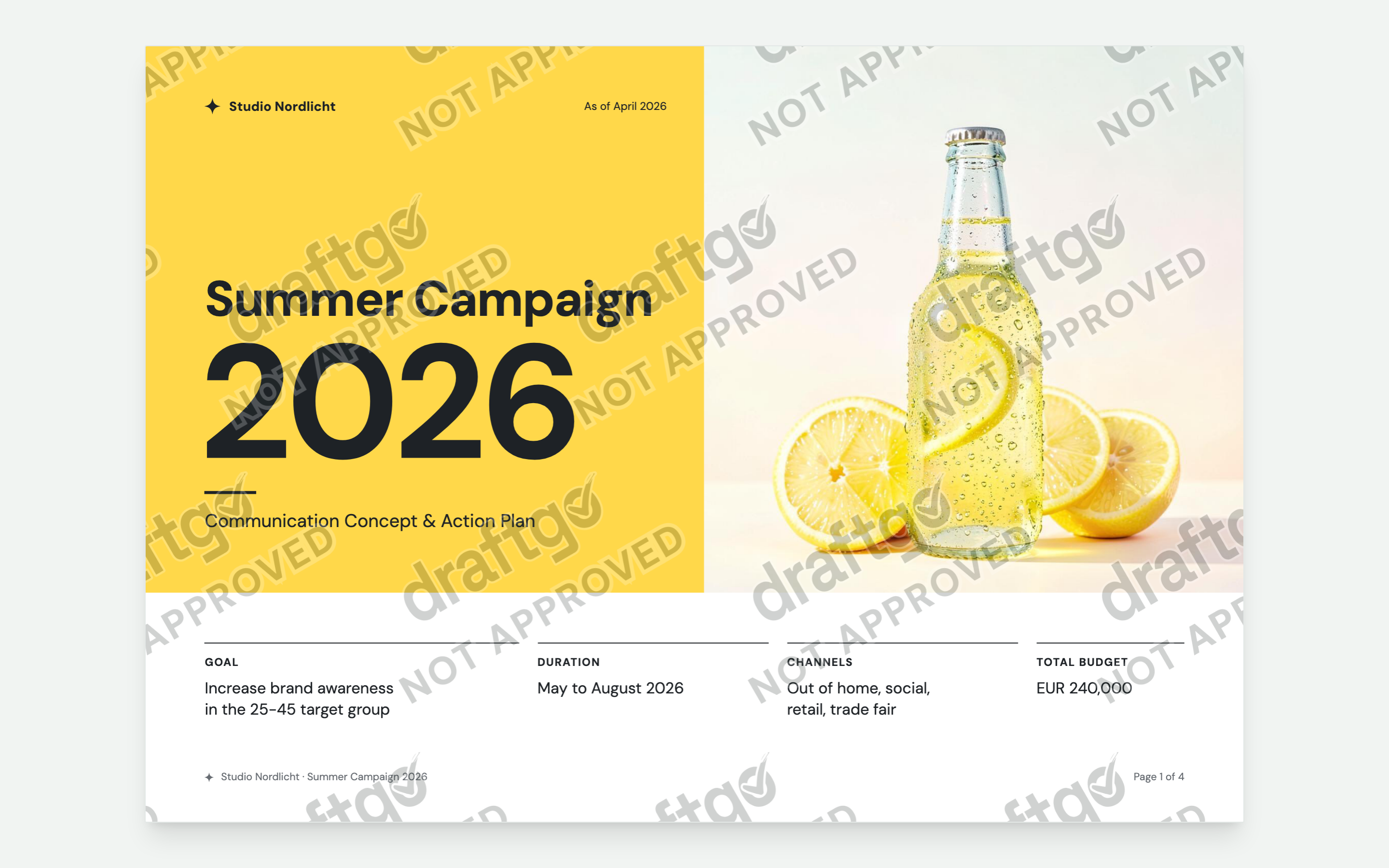
A watermark is a piece of text or an image that sits semi-transparently in front of or behind the content of each page. On drafts it has one clear job: it marks the file as work in progress, even when someone forwards it, prints it or shares a screenshot. Typical wording is “Draft”, “Not approved” or “For review only”, often with a date or version number.
A watermark is not copy protection. It labels the file but does not lock it. Where it helps is with the colleague who finds an old attachment and the printer who isn't sure which version counts. If you also need to control who can open a file at all, our guide on how to share confidential files covers access and leaks.
How to add a watermark to a PDF in Acrobat
In Adobe Acrobat the watermark lives in the “Edit PDF” tool. The steps follow the Acrobat watermark guide of Southern Illinois University Edwardsville, last updated in April 2025. Menu labels vary between Acrobat versions.
1. Open the PDF and choose “Edit PDF”
Open the PDF in Adobe Acrobat and select the “Edit PDF” tool in the pane on the right. If it isn't there, open “All tools” and pick “Edit PDF” from the list.
2. Add the watermark
Click “Watermark” and then “Add”. In the dialog you decide whether the watermark is text, such as “Not approved”, or a file, such as your logo as an image or PDF.
3. Set the appearance
Adjust font, size, colour, rotation and opacity, and decide whether the watermark sits in front of or behind the content. For drafts, a diagonal line of text across the page at low opacity works well: it catches the eye straight away, and your client can still read everything underneath. Under the appearance options you can also limit the watermark to certain pages.
4. Save it as a separate file
Save the marked version under its own name, for example with “draft” and the version number in the file name. The original without a watermark stays with you and later becomes the approved version. If a watermark ends up in the wrong file, “Watermark” and “Remove” in the same tool take it out again.
Try it yourself: In the demo you work in a real draftgo workspace with sample data.
Common watermark mistakes
Most problems don't happen while you add the watermark but afterwards, once several versions are in circulation.
| Mistake | Better practice |
|---|---|
| The watermark lands in the original file | Watermark only a copy, keep the original clean |
| It covers text the client has to check | Low opacity, diagonal across the page |
| The client gets no clean file after approving | Hand over the approved version without a watermark straight away |
| A marked file goes to print | Print files only from the approved original |
| Nobody knows which version is marked | Version number in the file name or in the watermark |
What else a clean print file needs is explained in our guide to prepress.
Watermarks in your approval process: 4 steps
A watermark helps most when it is a fixed part of the process rather than a decision you make case by case.
1. Agree on it up front
Tell your client in the quote or at kick-off that drafts arrive marked “Not approved” and that the clean file follows the approval. Then nobody is surprised, and the label doesn't come across as mistrust.
2. Share drafts as a link, not an attachment
When you send a review link instead of an attachment, your client comments in the browser and often never needs to download the file. How a full review round works from brief to sign-off is set out in our guide to the approval workflow.
3. Get approval for a specific version
An approval always applies to one particular version. Record who gave it and when, and only then hand over the file without a watermark. Our guide to document version control shows how to keep versions apart so that nobody approves the wrong one.
4. Hand over the clean file
After the approval your client receives the original file, and for print products the press approval follows. If you deliver the final files only after payment, the steps in our guide on what to do when a client is not paying an invoice will help too.
Practical example: a flyer for a physiotherapy practice
A freelance designer creates a flyer and an advert for a physiotherapy practice. The owner likes to show drafts to her team and forwards the files to do so. So that no interim version ends up at the copy shop, every draft carries “Not approved” diagonally across the page.
After a couple of correction rounds the owner approves the current version. The designer sends her the file without the label the same day, along with the print files for the printer. When the practice manager later finds an older version in her downloads, she can see at once that it isn't the right one.
How it works in draftgo
In draftgo the label goes onto your guests' downloads automatically and disappears with the final approval. The page draftgo for freelancers shows how you work with clients who don't need an account.
- Turn the setting on. As an admin you switch on watermarks for guests under Settings → Team → Approval settings → “Other settings”. For newly registered companies the switch is on from the start.
- Share the draft. Your client opens the file through a guest link, without an account of their own, and comments right in the browser.
- Download before the approval. If they download a PDF or a JPG or PNG image, they get a copy with the watermark “Not approved”. All other files, such as videos or audio, and very large files can only be downloaded after the final approval.
- After the final approval. Once the current version is approved, your client downloads it without a watermark. Older versions keep the label.
- Your team. You and your team always download the originals, before the approval too. Guests in a gallery download the originals as well.
The label sits on the downloaded copies only. In the guest view your client sees the file exactly as you uploaded it.
FAQ
Can I add a watermark to a PDF without Acrobat?
Yes, if you build the label into your layout file. Put the text “Not approved” on a layer of its own in your layout program and hide that layer for the final export. Draft and final file then come from the same source file.
Does a watermark protect my drafts?
It makes clear that a file isn't approved yet and discourages anyone from passing it on as final. It cannot prevent use. More important is that you hand over the final file only after the approval and that your client reviews drafts mainly in the browser.
How visible should the watermark be?
Visible enough to stand out on every page and light enough for your client to check the content underneath. Diagonal text at low opacity across the page does both. Check how it looks once on screen and once printed.
Which version does the client get without a watermark?
Only the version they approved. If another change follows, a new round begins, and the new version carries the label again until it is approved.
What happens to videos in draftgo before the approval?
With the setting switched on, guests can download videos, audio files and all files other than PDF, JPG and PNG only after the final approval. They can watch and comment on these files in the browser as usual before that.
Conclusion
A watermark on drafts takes little effort and stops an interim version from passing as final. Add it to copies only, keep it readable and hand over the clean file once the matching version is approved. It's simplest when the label disappears by itself after the approval.
Try it free – draftgo is free for 14 days, no credit card needed.
Written by
Emilia
Content Producer
Ready to streamline your approval processes?
Get started with draftgo today and see how easy professional collaboration can be.