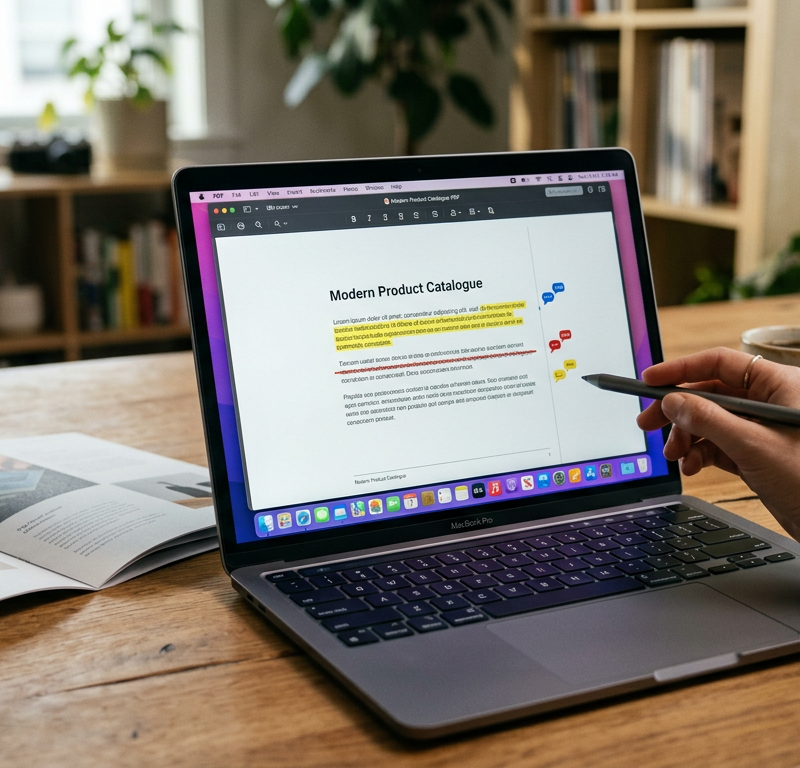
The brochure PDF went to the client on Monday. By Wednesday three marked-up copies are back: the marketing manager used sticky notes in Acrobat, the product manager highlighted lines in Preview and typed his comments into the email, and the managing director sent a photo of a printed page. Each note makes sense on its own. Together they disagree on two headlines, and nobody has seen what the others asked for.
For one person marking up a file, a free reader does the job. Once colleagues and clients review the same PDF, the question becomes where their comments meet. Below are seven tools in two groups, each checked on the vendor's own pages on 23 November 2026.
What is PDF annotation?
PDF annotation means adding comments, highlights, strikethroughs, shapes or notes to the pages of a PDF while the content of the document stays as it is. The marks sit on top of the page, and the designer or author makes the change in the source file, such as an InDesign layout or a Word document.
Annotating is not the same as editing. An editor changes the text and images inside the PDF, while an annotation says what should change and where. Adobe, for example, states that text and image editing is not available in the free Acrobat Reader (Adobe).
How we evaluated the tools
We looked at each tool as an agency or in-house team that sends PDFs to colleagues and clients for comments, using five criteria:
- Annotation tools: highlight, strikethrough, notes and shapes on the page.
- Review with others: whether several people comment on one shared copy.
- Access for reviewers: whether a reviewer needs an account or software.
- Versions and decisions: whether a corrected PDF keeps its comments and whether an approval is recorded.
- Price and free entry: a free app, a free plan or a trial, and what the price counts.
All details come from the vendors' own pages as of 23 November 2026, in the currency each page showed. draftgo is our product, and it gets pros and cons like every other tool here. The order is not a ranking: four desktop readers and editors for annotating on your own come first, then three shared review tools for collaborative PDF annotation.
PDF annotation tools compared
| Tool | Suited for | Free entry | Difference | Entry price, as of 23 Nov 2026 |
|---|---|---|---|---|
| Adobe Acrobat Reader and Acrobat | reviewers who work in Acrobat | Reader is free | share link, comments without logging in | Acrobat Standard US$14.99 a month, annual plan billed monthly |
| Apple Preview | marking up a PDF alone on a Mac | included on every Mac | three text marks in one menu | included on your Mac |
| Foxit PDF Reader and PDF Editor | a free reader with a paid editor | Reader is free | shared review links in PDF Editor | PDF Editor $129.99 per user a year |
| PDF-XChange Editor | many annotation tools on Windows | free version | one-time licence | Editor from €58.00, one-time fee |
| MarkUp.io | PDFs next to websites and videos | 14-day trial | unlimited users, priced by MarkUps | Pro from $79 a month |
| Filestage | review rounds with due dates | free plan: 1 active project | reminders and version comparison | Starter €199 or $199 a month, yearly billing |
| draftgo | client sign-off on PDFs and other files | permanent Free plan | approval loops, one price per company | see the draftgo entry below |
The 7 PDF annotation tools in detail
1. Adobe Acrobat Reader and Acrobat: suited for reviewers who already work in Acrobat
Acrobat Reader is free on Windows, Mac, iOS and Android. Adobe's Reader page lists comments, sticky notes, highlights, strikethroughs and freehand drawing, and with the Share feature reviewers view and comment on a PDF without logging in. On the pricing page, Acrobat Standard costs US$14.99 and Pro US$19.99 a month on an annual plan billed monthly, and every plan lists a shared PDF link for reviews.
- Pros: a free reader on four platforms, a shared link for comments without logging in
- Cons: editing text and images needs a paid plan, priced per person
- Price: Reader free, Acrobat Standard US$14.99 a month on an annual plan billed monthly (Acrobat pricing)
2. Apple Preview: suited for Mac users who mark up a PDF on their own
Preview is one of the apps included on your Mac. You select text, open the menu next to the Highlight button and choose a highlight colour, underline or strikethrough, and a Highlights and Notes sidebar lists every marked passage (Apple Support). The Markup toolbar adds notes, text boxes and shapes (Apple Support). Apple's guide describes no shared review, so the annotated PDF travels on as a file.
- Pros: nothing to install on a Mac, a sidebar with every highlight and note
- Cons: Mac only, and every reviewer marks up a copy of their own
- Price: included on your Mac
Try it yourself: In the demo you work in a real draftgo workspace with sample data.
3. Foxit PDF Reader and PDF Editor: suited for teams that want a free reader and a paid editor
Foxit PDF Reader is free for reading and reviewing, and you highlight passages, add notes and mark up pages without a Foxit account (Foxit PDF Reader). The pricing page lists PDF Editor at $129.99 per user a year with full commenting tools, share links for viewing and reviewing, real-time collaboration and online group feedback. PDF Editor runs on Windows, macOS and the web (Foxit PDF Editor).
- Pros: a free reader without an account, shared review and real-time collaboration in the editor
- Cons: the review features come with the paid editor, priced per user and year
- Price: Reader free, PDF Editor $129.99 per user a year (Foxit pricing)
4. PDF-XChange Editor: suited for Windows users who want many annotation tools
PDF-XChange Editor runs on Windows 10 and later. Its product page says 70% of the features are unrestricted in the free version, among them sticky notes, highlights, strikeouts, callouts, text boxes and a summary of all comments. Licensed features still work in the free version but add a watermark. A licence is a one-time fee, starting at €58.00 for Editor.
- Pros: a wide set of free annotation tools, a comment summary, no subscription
- Cons: Windows only, and licensed features stamp a watermark on the file in the free version
- Price: free version, Editor from €58.00 as a one-time licence (PDF-XChange Editor)
5. MarkUp.io: suited for teams that review PDFs next to websites and videos
MarkUp reviews websites, images, PDFs and videos by link. On a PDF, reviewers highlight copy, flag pages and leave notes, and guests take part without registering (MarkUp). Every plan includes unlimited users and is sized by MarkUps, the items you create for review each month. Pro starts at $79 a month or $990 a year for 50 to 100 MarkUps a month, with a 14-day trial and no free plan listed (MarkUp pricing).
- Pros: PDFs, websites, images and videos in one tool, unlimited users
- Cons: no free plan, and the price follows the number of MarkUps each month
- Price: Pro from $79 a month or $990 a year (MarkUp pricing)
6. Filestage: suited for teams that move PDFs through review rounds with due dates
Filestage reviews PDFs next to videos, designs and websites. Its PDF proofing page names reviewer groups, due dates with automated reminders and an automatic text comparison between PDF versions, and reviewers need no account. On the pricing page, Starter adds due dates, reminders and side-by-side version comparison, while text compare for documents and the import of comments from uploaded PDFs come with Business. The free plan allows one active project and five new files a month.
- Pros: reviewer groups, reminders and version comparison from Starter
- Cons: a team of three pays the same Starter price as a team of ten
- Price: Starter €199 or $199 a month on yearly billing, 10 team members included (Filestage pricing)
Our page draftgo vs Filestage compares the two tools point by point.
7. draftgo: suited for agencies that get client sign-off on PDFs together with other files
draftgo is an online proofing platform for agencies, freelancers and in-house teams. Your team uploads PDFs, and Word files are converted to PDF on upload. Reviewers highlight or strike through text, or place a comment as a point or rectangle on the page. Replies, @mentions and attachments keep the discussion on the comment, and a comment is marked as resolved once it is done.
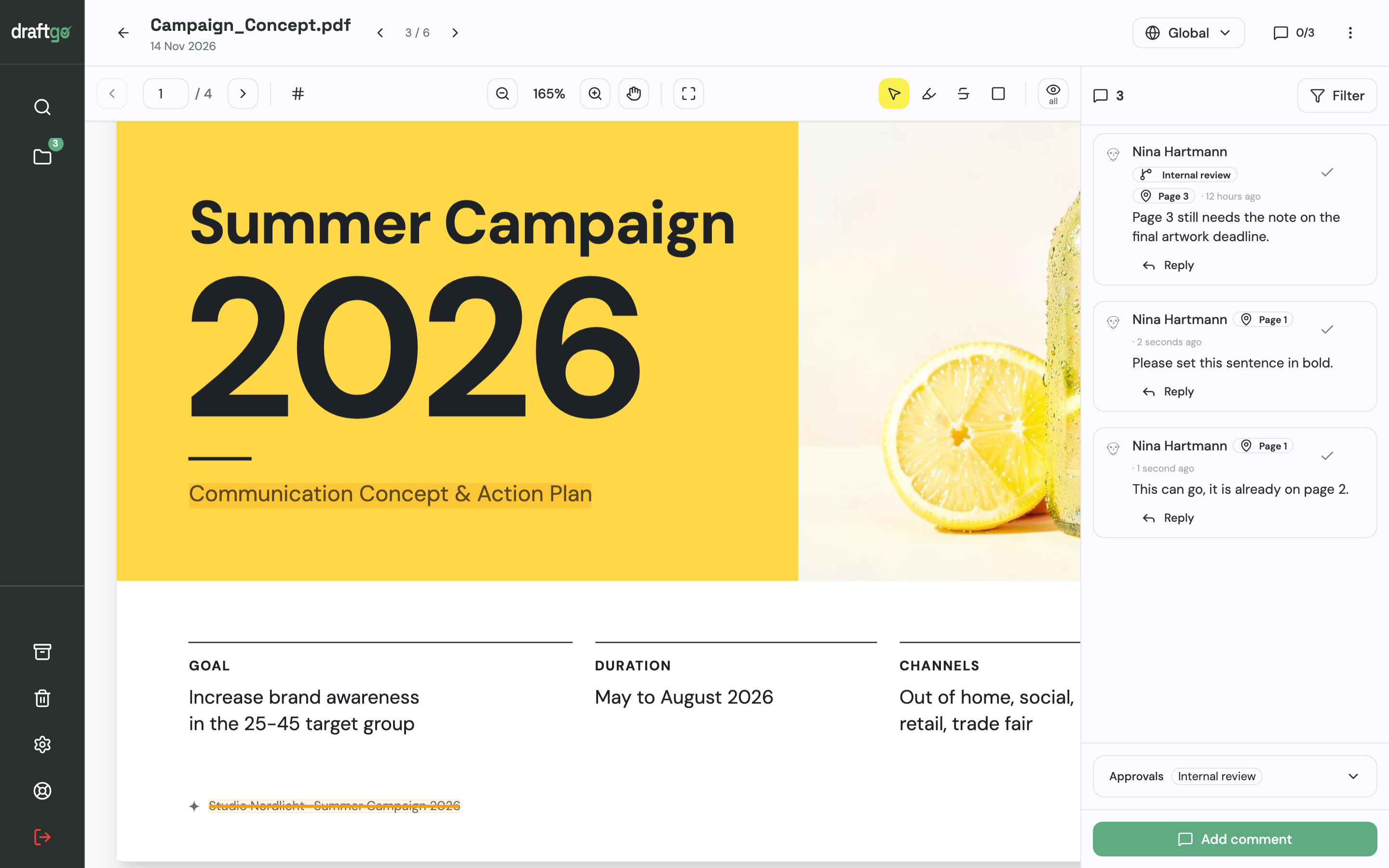
Clients comment through a link without an account: the person who decides gets a personal approver link, and everyone else shares a viewer link. Approvals run in loops, for example internal first and client second, and for each loop you decide whether all approvers, a set number or any one of them must approve. A corrected PDF becomes a new version of the same file, comments belong to their version, and a new version starts the approvals again.
From the Freelancer plan, the AI review checks PDFs for errors such as spelling mistakes, cut-off text or very small type. Its comments carry the name of our AI agent “GO”.
Pricing is per company, not per user, and guests are unlimited from the Freelancer plan. Stored data is kept on EU servers in the Frankfurt data centre. More on document reviews is on draftgo for PDF annotation and document review.
- Pros: text marks, points and rectangles in the browser, clients without an account, versions at the same file, an approval rule for each loop, one price per company
- Cons: no version comparison and no preflight, so print files still need a preflight check
- Price: a permanent Free plan and paid plans you can test free for 14 days, listed on draftgo pricing
Annotating alone or collaborative PDF annotation?
Collaborative PDF annotation means that several people comment on one shared copy of a PDF, see each other's notes and reply to them. Annotating alone means each person marks up a copy of their own, and someone merges the copies afterwards.
Annotating alone works for checking your own work or when one reviewer sends back one file. With every extra reviewer it gets harder: three reviewers send three files, their notes contradict each other unnoticed, and the designer merges them by hand. File names with "final" in them pile up, which our rules for document version control help you avoid.
In a shared review, every comment lands at its spot on one copy. Reviewers answer each other in the thread, and the corrected PDF arrives as a new version of the same file. If the review ends with a sign-off, the tool records who approved which version and when, the basis of an audit trail for creative approvals.
| Question | Annotating alone in a reader | Collaborative PDF annotation |
|---|---|---|
| Where are the comments? | in each reviewer's copy | in one shared copy, online |
| Who sees whose comments? | only the person who merges | everyone invited to the review |
| How is a conflict settled? | by email, after the fact | in the comment thread |
| What happens to the next draft? | a new file goes around | a new version of the same file |
| How is the decision recorded? | in an email | as an approval with name and time |
The line between the groups is not strict: Acrobat Reader and Foxit PDF Editor also share a PDF by link for comments, while the review tools add versions, approvals and guest access.
Which PDF annotation tool fits you?
| Your situation | Tool to test first |
|---|---|
| You mark up a PDF for yourself on a Mac | Apple Preview |
| You need free annotation tools on Windows | PDF-XChange Editor or Foxit PDF Reader |
| Your reviewers work in Acrobat | Acrobat Reader with a shared link |
| Your team also edits the text inside the PDF | Acrobat or Foxit PDF Editor |
| Print PDFs pass reviewer groups with due dates | Filestage |
| PDFs, websites and videos are reviewed by many users | MarkUp.io |
| An agency gets client sign-off on PDFs, images and videos at one price per company | draftgo |
Tools for more file types are compared in our overview of proofing software.
How to annotate a PDF in 3 steps
1. Use the right mark for each note
Highlight what needs attention, strike through what should go and use a comment for new text. A rectangle around a table shows that the whole element is meant.
2. Write the change, not only the problem
"Replace with: Order by 30 May" saves the round of questions that "date wrong?" would start.
3. Collect everything in one place
Before anyone changes the source file, all comments should sit in one copy or one review, with conflicts settled.
Practical example: a product brochure for a garden furniture maker
A four-person agency lays out a 24-page product brochure. At the client, the marketing manager approves, a product manager checks the technical details and the head of sales comments on the copy. The agency's art director signs off every draft first.
The agency uploads the PDF to draftgo with an internal loop for the art director and a client loop for the marketing manager, which the Agency plan covers with five users and unlimited loops. The marketing manager gets a personal approver link, and the two other reviewers share the viewer link. The product manager strikes through a wrong table width on page 12, and the head of sales highlights a claim on page 3 and mentions the designer, who replies in the thread. After version 2, the art director approves internally and the marketing manager approves in the client loop, which the activity log records with name and time. Before the print run, the file goes through prepress at the printer.
FAQ
Can I annotate a PDF for free?
Yes. Acrobat Reader, Foxit PDF Reader and the free version of PDF-XChange Editor let you highlight, strike through and add notes without paying, and Preview is included on every Mac. For reviews with clients, Filestage and draftgo also have free plans with limits, as of 23 November 2026.
Can several people annotate the same PDF?
Yes, with a tool that shares one copy. Acrobat Reader shares a PDF by link for comments, Foxit lists real-time collaboration in PDF Editor, and review tools such as MarkUp, Filestage and draftgo collect every reviewer's comments on one shared file.
Do reviewers need an account to annotate a PDF?
Not in every tool. Adobe says reviewers of a shared PDF view and comment without logging in (Adobe), and Filestage, MarkUp and draftgo let guests comment through a link without an account. Test the link with a colleague who plays the client first.
Conclusion
If you mark up PDFs on your own, a free reader such as Preview, Acrobat Reader, Foxit PDF Reader or PDF-XChange Editor is enough. Once colleagues and clients review the same file, choose a tool that keeps comments, versions and the approval in one place, and run your next brochure through its trial.
Try it free – draftgo is free for 14 days, no credit card needed.
Written by
Emilia
Content Producer
Ready to streamline your approval processes?
Get started with draftgo today and see how easy professional collaboration can be.