
The kickoff workshop runs in Miro, and by lunchtime the board is full of ideas from the whole team. Two weeks later the designer exports the finished layout, places it on the same board and asks the client to comment. Now the first and second drafts sit side by side, a sticky note on the old frame still says “logo bigger”, and the account manager can’t tell which version the client approved in Friday’s call.
A search for a Miro alternative can mean another whiteboard that suits your team better, or a place where clients review finished files and approve them. This comparison covers both: four whiteboards and one proofing tool, each checked on the provider’s own pages on 17 November 2026.
Why teams look for a Miro alternative
A Miro alternative makes sense when the free plan is too small, when paying per member no longer fits your team, or when the board has turned into files a client must approve. Plan and price are reasons to switch whiteboards, while approval calls for a different kind of tool.
Miro’s Free plan lets you create as many boards as you like, but only the three most recent stay editable (Miro pricing). On 17 November 2026 the page showed a visitor from the EU €8 per member a month for Starter and €20 for Business, both billed yearly. For a five-person agency on Starter that is 5 × €8 × 12 = €480 a year.
Clients join a public board as visitors without registering and view, comment or edit, depending on the access level and your plan (Miro help on visitors). Approval becomes the issue later in a project. Miro’s plan cards list no approval step for finished files. Its help centre names approval trackers among the Custom Widgets you can build on a board, a beta rolling out on Starter and Business (Miro help on Custom Widgets), and the Miro Marketplace has apps such as Workflows for Miro by AppFox with approval stages and a workflow history (Workflows for Miro).
How we evaluated the alternatives
We read each provider’s own pricing and help pages on 17 November 2026 and compared the free plans, entry prices, access for people outside your team and the way feedback and approval work. draftgo is our product. It gets pros and cons like every other tool.
Prices appear in the currency and billing period each page showed a visitor from the EU that day, and where a page showed no figure or does not allow automated reading, we link it instead. The order is not a ranking: the whiteboards are sorted alphabetically, and draftgo comes last because it does a different job.
Miro alternatives compared
The table puts the free plans and an entry-level paid plan side by side, as of 17 November 2026. Each tool name links to the page we checked for its free plan, and each price to the page that showed it.
| Tool | Suited for | Free plan | Paid entry plan |
|---|---|---|---|
| FigJam | teams that design in Figma | Starter: 3 FigJam files in the team folder, unlimited drafts that others can only view | see their pricing page |
| Lucidspark | boards that grow into diagrams | 3 editable boards | Individual, €9 a month billed yearly, VAT excluded |
| Microsoft Whiteboard | companies on Microsoft 365 | no plan of its own | part of Microsoft 365, no separate price |
| Mural | facilitated workshops | 3 editable murals at a time | Team+, $9.99 per member a month billed annually |
| draftgo | client review and approval of finished files | 1 user, 2 GB, 2 projects | priced per company, not per user |
Whiteboard alternatives: 4 tools
These four are whiteboards like Miro, and they differ in the tools they connect to and in how they let people outside your team in.
1. FigJam: for teams that already design in Figma
FigJam is Figma’s whiteboard. The free Starter plan holds three FigJam files in the team folder, and drafts outside the folder are unlimited, though on Starter you can invite others to a draft with view access only (Figma help on the Starter plan). On the Professional, Education, Organization and Enterprise plans you can start an open session: visitors join a FigJam file without a Figma account, for 24 hours at a time, but they can’t leave comments (Figma help on open sessions).
- Pros: the whiteboard lives in the same Figma account as your design files, and on paid plans clients join a workshop without signing up
- Cons: three FigJam files in the team folder on Starter, no comments from open-session visitors
- Price: see Figma’s pricing page
2. Lucidspark: for boards that grow into diagrams
Lucidspark is the whiteboard from Lucid, which also makes Lucidchart and sells both as a bundle. Its free plan includes three editable boards, freehand drawing and commenting (Lucidspark pricing). Individual adds unlimited editable boards, and Team adds guest collaborators, voting, a timer and revision history with versioning.
- Pros: commenting on the free plan, guest collaborators and revision history on Team, a direct route to Lucidchart diagrams
- Cons: three editable boards on the free plan, and the seven-day trial asks for payment details at sign-up
- Price: Individual €9 a month and Team €10 per user a month, both billed yearly and excluding VAT (Lucidspark pricing)
Try it yourself: In the demo you work in a real draftgo workspace with sample data.
3. Microsoft Whiteboard: for companies that run on Microsoft 365
Microsoft calls Whiteboard the visual collaboration canvas in Microsoft 365, with templates, inking and sticky notes for Teams meetings (Microsoft Whiteboard). The standalone apps for Windows, iOS and Android were retired on 16 October 2026, while work and school accounts keep using Whiteboard in Teams and on the web (Microsoft support).
- Pros: no extra tool or contract for teams already on Microsoft 365, whiteboards right inside Teams meetings
- Cons: the standalone apps are retired, and the product page names no way to buy Whiteboard on its own
- Price: no separate price; the product page links to the Microsoft 365 plans
4. Mural: for facilitated workshops
Mural’s free plan covers unlimited members and murals, three of them editable at a time, plus unlimited visitors with view-only rights (Mural pricing). Team+ makes every mural editable and lets visitors edit, and Business adds single sign-on and unlimited external users. A timer, anonymous voting, private mode and a facilitator lock come with every plan.
- Pros: facilitation tools on every plan, free visitors on all plans
- Cons: three editable murals at a time on the free plan, visitors only view until Team+
- Price: Team+ at $9.99 per member a month billed annually or $12 billed monthly, Business at $17.99 per member a month billed annually (Mural pricing)
A proofing tool for the approval stage
Once a board turns into finished files, the team needs to know which version is current and who approved it when. A whiteboard keeps feedback on the board, while a proofing tool keeps it on the file and each of its versions, as our guide to online proofing explains.
5. draftgo: for client review and approval of finished files
draftgo is an online proofing tool, not a whiteboard. You upload images, PDFs, videos and audio files, and clients comment by link without an account, right at the spot: a pin on an image, a highlight in a PDF, a comment at a point in the video. Approvals run in loops, internal first and the client after that, each with a rule for who has to approve. The activity log records every approval with person and time. Stored data is kept on EU servers in the Frankfurt data centre.
- Pros: clients comment and approve without an account, loops in stages, each draft a version of the same file, unlimited guests from the Freelancer plan, one price per company
- Cons: boards come in as exported files with no ready-made integration with Miro, one user and one loop per project on the Free plan
- Price: a permanent Free plan, and paid plans priced per company that you can test free for 14 days; details on the pricing page
Peter Schönherr, founder and managing director of Loloson Media LDA, which produces image and video content for e-commerce, puts it this way: “With draftgo, our approval rounds are around 50% faster. Instead of endless PowerPoints, my client sees every new version straight away and approves it directly.”
Miro and draftgo compared
Miro is where ideas take shape, and draftgo is where a client reviews a finished draft and approves it. If your team only needs a shared board for workshops, a whiteboard is enough.
| As of 17 November 2026 | Miro | draftgo |
|---|---|---|
| Built for | brainstorming, workshops and diagrams on a shared board | client review and approval of finished files |
| Pricing | per member, Starter €8 a month billed yearly (pricing) | per company, not per user |
| People outside your team | visitors by public link, view only on Free, comment and edit rights on paid plans (visitors) | guests by link without an account, approvers with a personal link |
| Feedback | comments and sticky notes on the board | pins on images, highlights in PDFs, comments in the video or audio timeline |
| Drafts | new drafts go onto the board as new images or frames | each draft is a version of the same file, comments stay with their version |
| Approval | approval trackers as Custom Widgets (beta, help) and marketplace apps (Workflows for Miro) | loops with a rule for who approves, logged with person and time |
You can also use both. The board keeps the workshop and the sketches, and a draft that needs a decision goes to draftgo, for example as a high-resolution JPG or PDF of a frame, an export Miro lists from its Starter plan (Miro pricing). Each correction then becomes a new version of the same file instead of a copy called final_v3, as our guide to document version control shows.
Which Miro alternative fits you?
If the free plan, the price or the workshop features are the problem, switch whiteboards. If the problem is getting finished files approved, add a proofing tool next to Miro.
| Your situation | Good fit |
|---|---|
| Your team designs in Figma | FigJam |
| Your boards turn into flowcharts and diagrams | Lucidspark |
| Your company runs on Microsoft 365 and meets in Teams | Microsoft Whiteboard |
| You run workshops with many visitors | Mural |
| Clients should comment on finished files and approve them | a proofing tool such as draftgo |
Agree on the split when a client project starts. Our guide to feedback management shows how to collect and close comments in one place, the page for agencies shows client approval in draftgo, and our tool comparisons put draftgo next to other proofing tools.
Practical example: from a Miro workshop to client approval
Take a five-person agency that is planning a spring campaign for a regional bakery chain. The kickoff runs in Miro: the client’s marketing lead and the agency team collect ideas on sticky notes, vote on three directions and sketch the key visual in a frame. The board stays the record of how the idea came about, next to the creative brief both sides signed off.
Then the designer builds a poster and two social images in her design tool and uploads them to draftgo as PDF and PNG instead of pasting them onto the board. The art director approves in an internal loop, and the marketing lead gets a personal link for the client loop. She marks a typo in the poster headline and asks for a warmer tone in one image. The designer uploads version 2 of both files, the marketing lead approves, and the activity log shows who approved which version and when.
How it works in draftgo
In draftgo the review runs on the file, from the first upload to the approval.
1. Create a project and upload the drafts. Export the frame or layout as PDF or image and upload it. Each loop appears as a column with the status of every file.
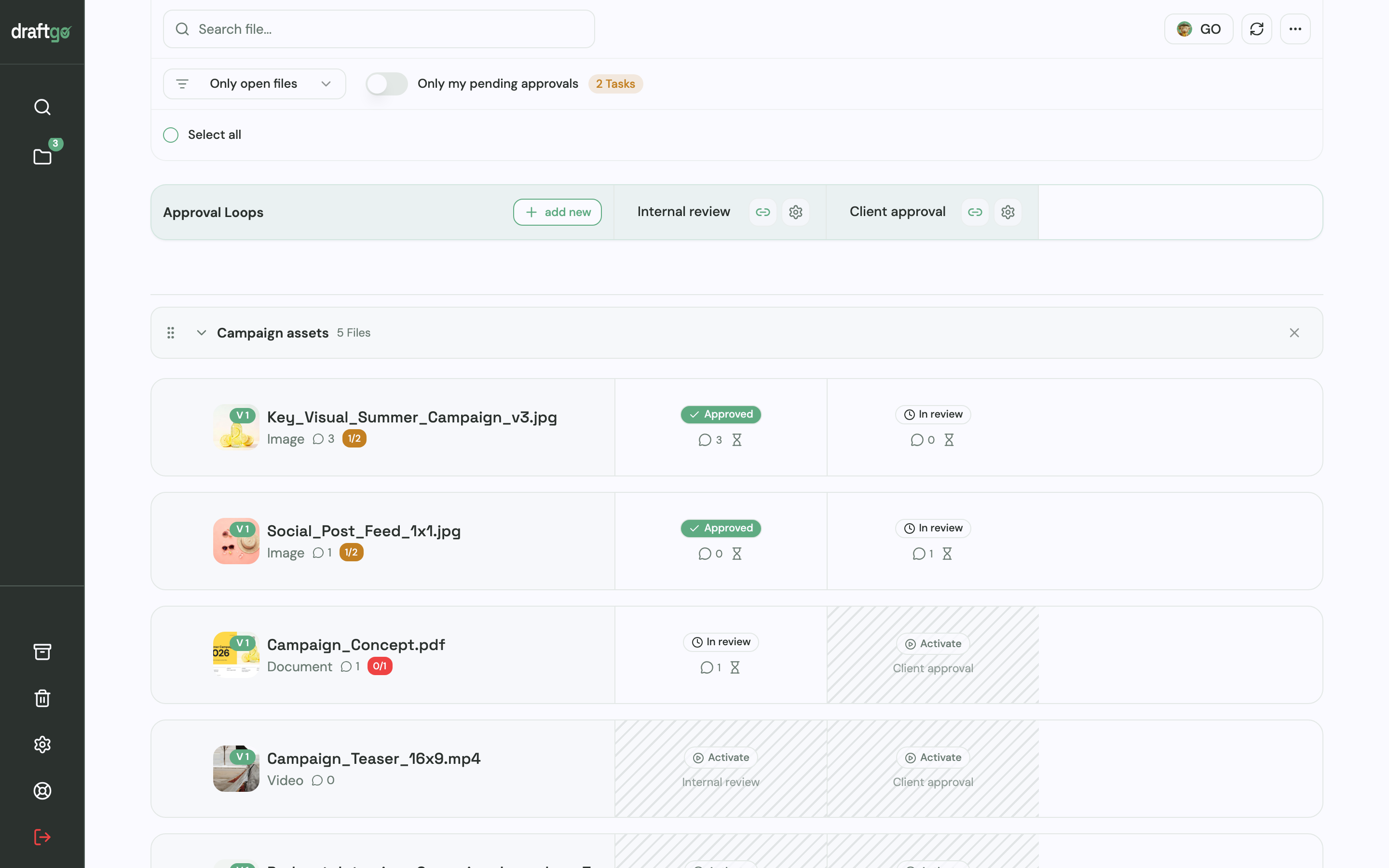
2. Set up the loops. Create an internal loop and a client loop, and decide for each whether all approvers, a set number or any one of them has to approve, separately for team and guests. A project holds one loop on Free, three on Freelancer and as many as you need on Agency and Team.
3. Invite the client. Approver guests get a personal link with their name and email address and may approve. The viewer link is shared and lets people comment without approving.
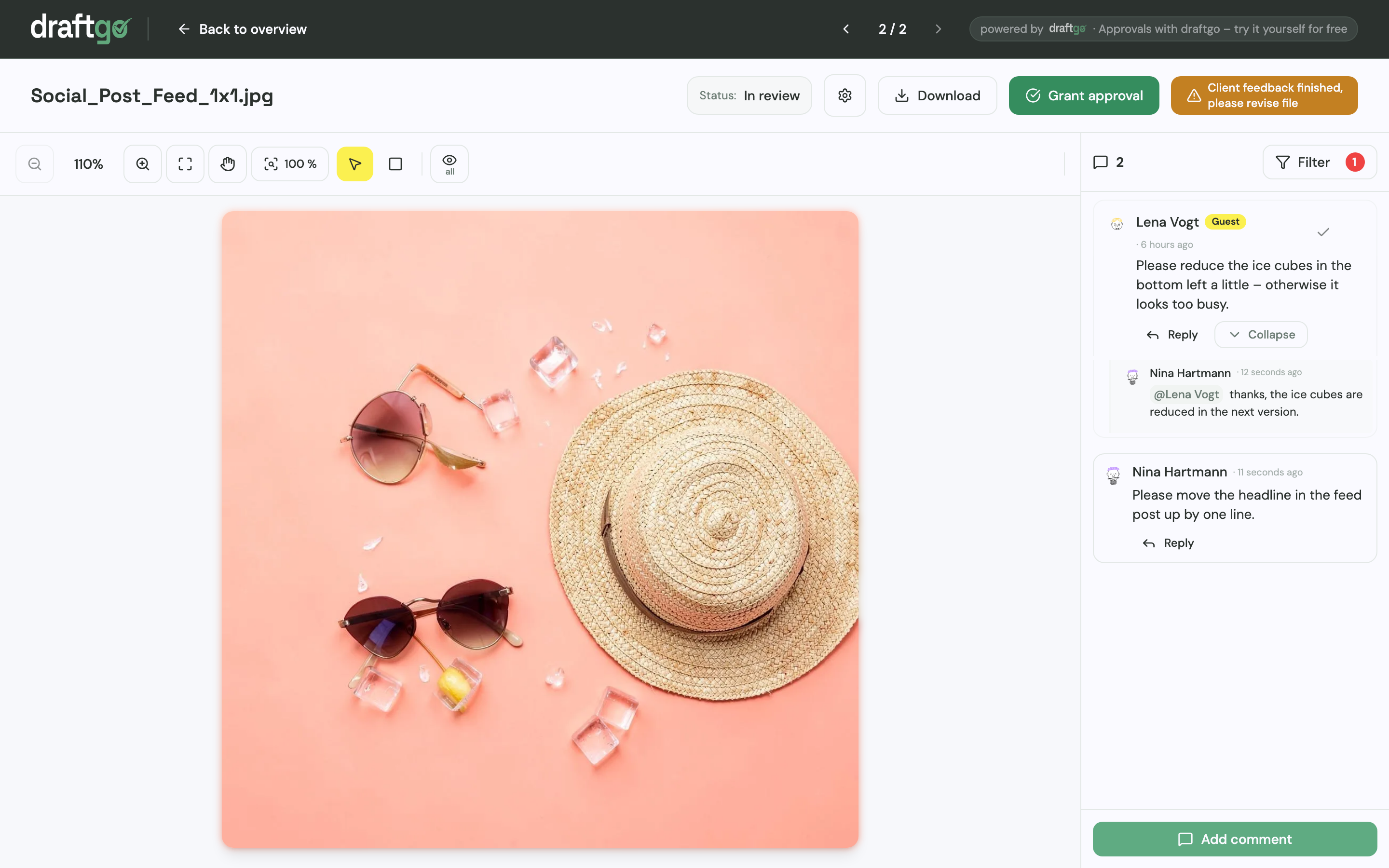
4. Upload corrections as new versions. Earlier versions stay available, each comment belongs to its version, and a new version starts the approvals again. When the internal loop is done, you activate the file in the client loop.
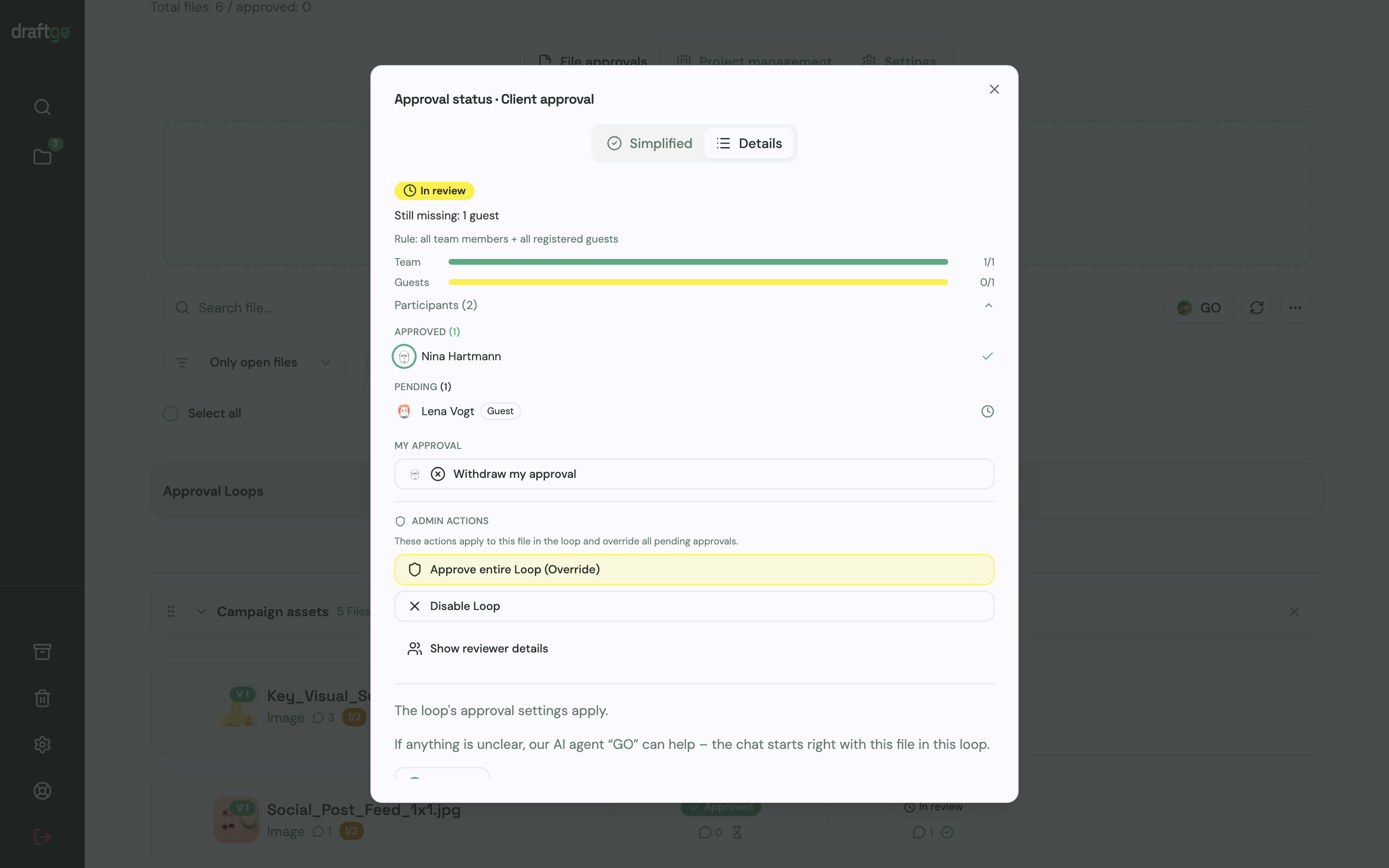
5. See who has approved. The approval status lists everyone involved under “Approved” and “Pending”, with progress for the team and for guests.
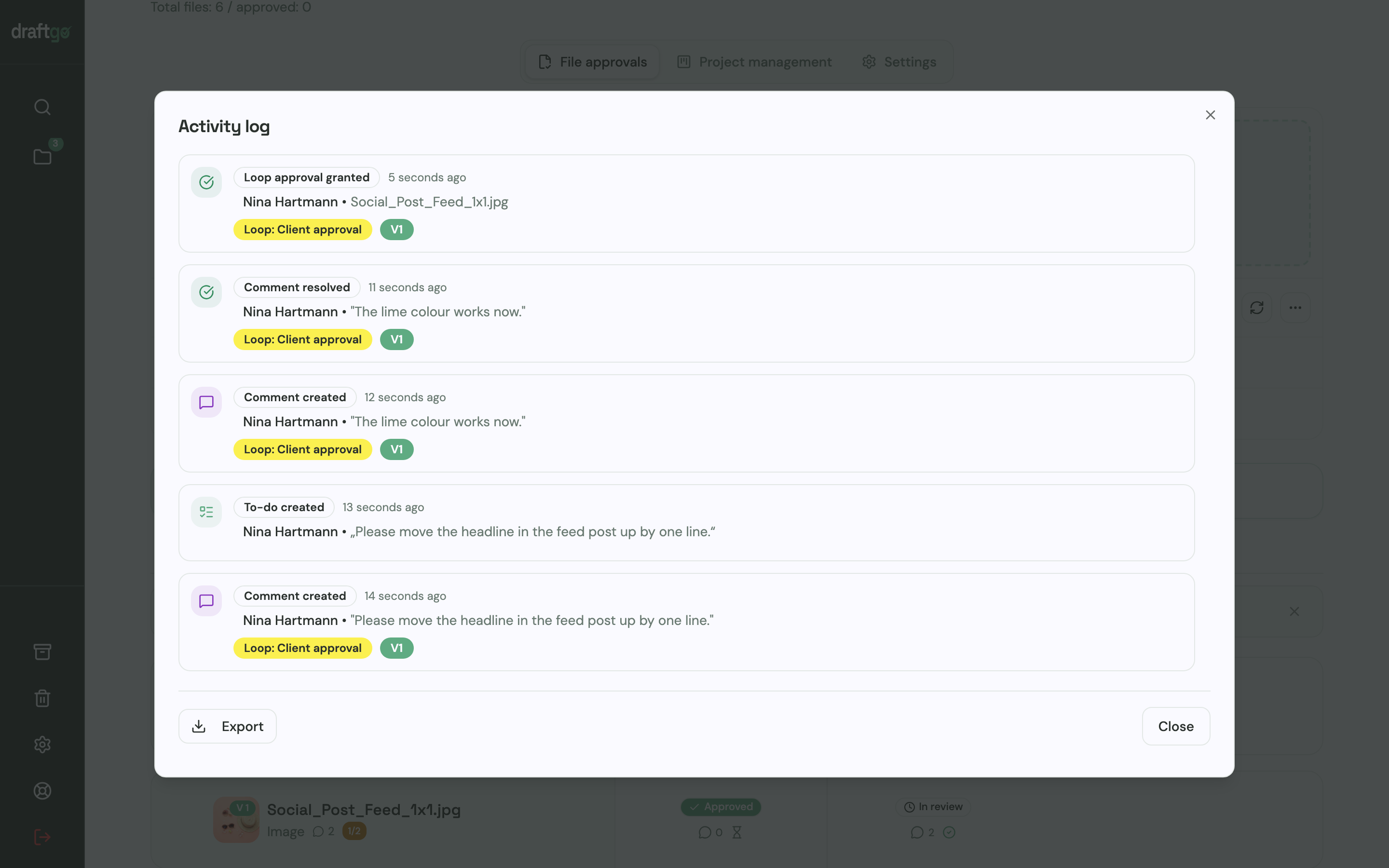
6. Keep the record. The activity log lists approvals, comments and versions with person and time, and you can export it as CSV, JSON or PDF. Our guide to the approval audit trail shows what to keep.
FAQ
Which Miro alternative has a free plan?
FigJam, Lucidspark and Mural each have one, as of 17 November 2026. FigJam’s Starter plan holds three FigJam files in the team folder plus unlimited drafts that others can only view (Figma help), Lucidspark’s free plan has three editable boards (Lucidspark pricing) and Mural keeps three murals editable at a time (Mural pricing). Microsoft Whiteboard has no plan of its own and comes with Microsoft 365.
Is draftgo an alternative to Miro?
Not as a whiteboard. draftgo is a proofing tool for feedback and approval on finished files, so it takes over where a Miro board turns into drafts that a client has to sign off. You can keep Miro for ideas and use draftgo for the approval.
Can clients give feedback in Miro without an account?
Yes, from a paid or Education plan on. Visitors join a public board without registering, but on Miro’s Free plan they can only view the board (Miro help on visitors). For an approval tied to one version of a file, a proofing tool records who approved what and when.
How do Miro boards get into draftgo?
You export the frame or board as a PDF or image and upload it to a draftgo project. There is no ready-made integration between the two. When the draft changes, you upload the new export as a new version of the same file.
Conclusion
Pick the whiteboard that matches your tools: FigJam if you design in Figma, Lucidspark for diagrams, Microsoft Whiteboard for Microsoft 365 teams and Mural for facilitated workshops. If the trouble starts when finished files need a client’s approval, keep your whiteboard for ideas and move review and sign-off into a proofing tool. Try it free – draftgo is free for 14 days, no credit card needed.
Written by
Emilia
Content Producer
Ready to streamline your approval processes?
Get started with draftgo today and see how easy professional collaboration can be.