
Your editor replaces the file on Vimeo with the second cut of a product film and sends the client the same review link as last week. The client’s brand manager leaves two comments, at 0:12 and at 0:31. That evening the client’s head of e-commerce, who has the same link, switches the status to Approved before either note is fixed. The print ads and the PDF user guide for the same launch are still waiting in an email thread.
Vimeo Review handles the film well. Whether it covers the whole job depends on how many file types and approvers your projects have.
What is Vimeo Review?
Vimeo Review is the set of feedback tools built into Vimeo: you create a review link for a video, and the people you send it to comment at a timecode on a private review page. According to Vimeo’s help article on review links, updated on 3 November 2026, you create these links in the Share panel of a video, and one video can have several links, each with its own settings.
This is what reviewers can do, as Vimeo describes it in that article and on its page on time-coded video feedback, both checked on 17 November 2026:
- Comment at a timecode: reviewers pause, click and type, and the comment is tied to that moment. Clicking a comment jumps back to it, and replies, mentions, emoji reactions and links sit at the same timestamp.
- Comment without an account: guests open the link without a Vimeo account and enter their name and email before they post feedback.
- Mark the video as approved: if the “Change status” permission of a link is on, reviewers can mark the video as Approved.
- See earlier versions: with “View previous versions” switched on, reviewers see the history of the video.
- Download or not: permissions belong to the link, so one link can allow downloads while another does not.
For the editor, the same product page describes a panel for Adobe Premiere Pro that pulls the time-coded comments onto the editing timeline as markers. Comments can be sorted and filtered by open, resolved or needs review.
Which Vimeo plans include review links?
Every Vimeo plan has review links, but the Free plan has only one per video. Vimeo’s help article on review links states that additional review links and features require a Creator, Core, Professional, Studio or Enterprise plan.
| Feature | Free plan | Creator, Core, Professional, Studio, Enterprise |
|---|---|---|
| Review links per video | One | Unlimited on Creator |
| Expiry date of a link | Up to one month ahead | Custom expiry dates on Creator |
| Password for a review link | No | Yes |
| Your team’s logo on the review page | No | Yes |
| A folder of videos shared for review | No | Yes |
Sources: the help article on review links, the Creator plan overview and the article on sharing a folder for external review, all checked on 17 November 2026. Vimeo lists its plans and prices on its pricing page; this article names no prices.
How approval works in Vimeo Review
In Vimeo Review, approval is a status of the video. Vimeo’s help article on video versions lists three review statuses, In progress, Needs review and Approved, and shows the status on the settings page of the video.
Who can set it depends on the link. A reviewer on a link with “Change status” switched on can mark the video as Approved. On a paid plan, where a video can have several review links, you can send the person who decides a link that changes the status and send everyone else a link that only allows comments.
Each new cut replaces the file under the same video. Vimeo then counts up the version number and keeps the comments on earlier versions in the version history, according to the same article, and its page on time-coded video feedback adds that the review link stays the same. For one film that goes through several rounds, that keeps the feedback in one place.
The help articles we checked describe one status per video. They describe no rule for several approvers, for example that two people at the client must both approve before the video counts as final.
When agencies look for a Vimeo Review alternative
A Vimeo Review alternative makes sense once a job is about more than one video on Vimeo. Four situations in agency work point that way:
- The campaign has more than video. Vimeo’s help pages describe review links for videos and for folders of videos. When the same launch has print ads, a PDF brochure or website screenshots, their feedback ends up in a different place.
- Several people have to approve. If the client’s marketing lead and a product manager both have to say yes, you need a rule that the file only counts as approved once both have.
- An internal check comes first. An agency in which the creative director checks every cut before the client sees it works in two stages, each with its own approvers.
- The record has to cover the whole job. Vimeo’s page on video approval says that every comment, version change and status update of a video is logged. When the client later asks who approved the print ads and the brochure as well, you need that record for every file of the job in one place. Our guide to the audit trail for creative approvals shows what such a record should contain.
For a wider view of tools built for video review, our comparison of seven video feedback tools goes through editing integrations, version comparison and approval stages tool by tool. This article compares Vimeo Review with draftgo only.
Try it yourself: In the demo you work in a real draftgo workspace with sample data.
Vimeo Review and draftgo compared
draftgo is our product. On 17 November 2026 we read Vimeo’s help articles on review links and versions, its pages on time-coded feedback and video approval and its pricing page, and compared both tools on the same eight criteria. Neither tool comes first by default.
| Criterion | Vimeo Review | draftgo |
|---|---|---|
| Comments at a timecode | Yes, with replies, mentions and emoji reactions | Yes, with replies, @mentions and attachments |
| Reviewers without an account | Yes, guests enter name and email | Yes, the approver link asks for name and email, the viewer link for a name |
| File types | Videos, also shared as a folder | Video, audio, PDFs, images, website screenshots, social media posts |
| Approval | One status per video, set by reviewers whose link allows it | Loops with set approvers and a rule per loop, separately for team and guests |
| Password and expiry date of a link | Password on paid plans; expiry up to one month ahead on Free, custom on Creator | No password and no expiry date you set; approver links expire after 90 days without use |
| Versions | Same link for each new version, earlier comments in the version history | Versions of the same file, comments belong to their version, a new version restarts the approvals |
| Editing software | Premiere Pro panel with comments as markers | No panel, editors upload exported files |
| Record of decisions | Every comment, version change and status update of a video logged, according to Vimeo’s page on video approval | Activity log of approvals, comments, versions and downloads with person and time, export as CSV, JSON or PDF |
Vimeo Review: suited for teams whose finished films live on Vimeo
- Pro: the review happens where the video is hosted; clients keep one link from the first cut to the last; comments reach Premiere Pro as markers; review links can carry a password and an expiry date.
- Contra: one review status per video, with no rule for several approvers on the pages we read; the Free plan has one review link per video.
draftgo: suited for agencies that approve videos together with print, PDFs and images
- Pro: every file type of a campaign in one project; approval loops with a rule per loop; an activity log you can export; one price per company, with unlimited guests from the Freelancer plan.
- Contra: comments do not appear on an editing timeline; the editor exports each cut and uploads it as a new version.
Our comparisons of draftgo with other review tools are on the comparison pages, and the plans are on draftgo pricing.
Which option fits your team?
- You review single videos and publish them on Vimeo anyway: stay with Vimeo Review, since the feedback sits next to the video you deliver.
- Your editors want the comments on their Premiere Pro timeline: Vimeo’s panel does that; with draftgo they work from the comment list next to the video.
- Your projects mix video with PDFs, print and images: review all of them in one proofing tool, for example draftgo.
- Two or more people approve, first in your team and then at the client: pick a tool with approvers and a rule for each stage.
Where these approvals sit in a production is laid out in our video production workflow.
Practical example: a product launch with a film, a user guide and banners
Take a sixteen-person agency that launches a cordless hedge trimmer for a power tool maker. The job has a 50-second launch film, a four-page PDF user guide and six web banners for online DIY retailers. At the client, the brand manager decides, and a product engineer checks the technical details. At the agency, the creative director checks every file before the client sees it.
The agency puts all eight files into one draftgo project and sets up two loops: an internal loop with the creative director and a client loop in which the brand manager approves. Two loops in one project need at least the Freelancer plan: Free allows one loop per project, Freelancer three, and Agency and Team have no limit. The brand manager gets a personal approver link. The engineer gets the shared viewer link and comments without approving.
In the client round, the engineer comments at 0:18 of the film that the cutting length shown on screen does not match the product, and highlights the same figure on page 2 of the user guide. The editor corrects the film, the designer corrects the PDF, and both upload new versions of their files, which starts the approvals again. The creative director approves both internally, and the brand manager approves the film, the user guide and the six banners in the client loop. Three weeks later the client asks which version of the user guide went to print, and the agency finds the brand manager’s approval of version 2 in the activity log, with date and time.
How it works in draftgo
In draftgo, the film sits in the same project as the rest of the campaign, and each loop approves by a rule you set.
- Upload the campaign. The film, the PDF and the banners share one project. A single file may be up to 500 MB; a video of up to 800 MB is compressed in your browser before it uploads. A website can be added as a screenshot.
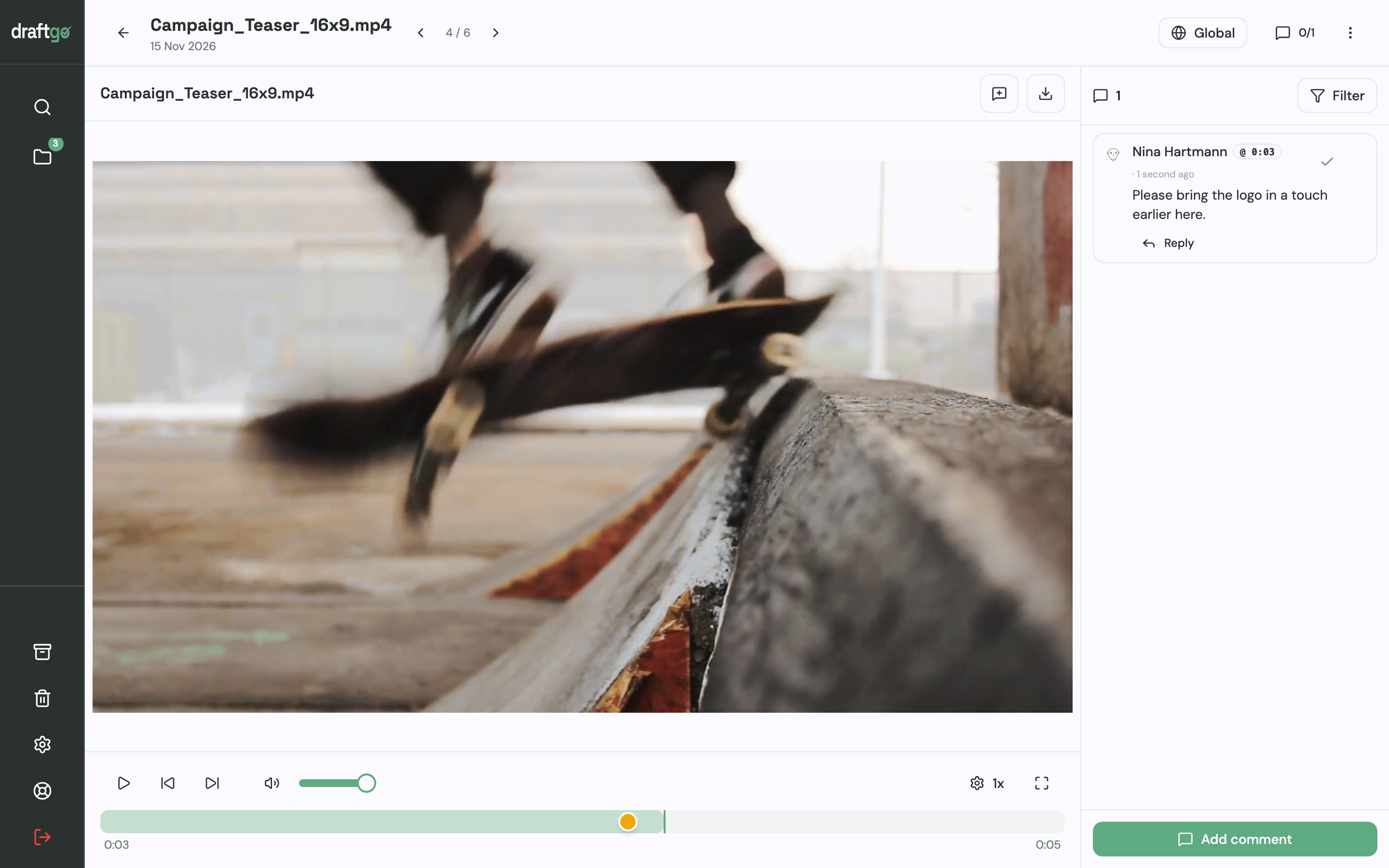
- Comment where the change belongs. In a video or audio file the comment sits at a timecode, in a PDF it is a highlight or a strikethrough, and on an image a pin or a rectangle.
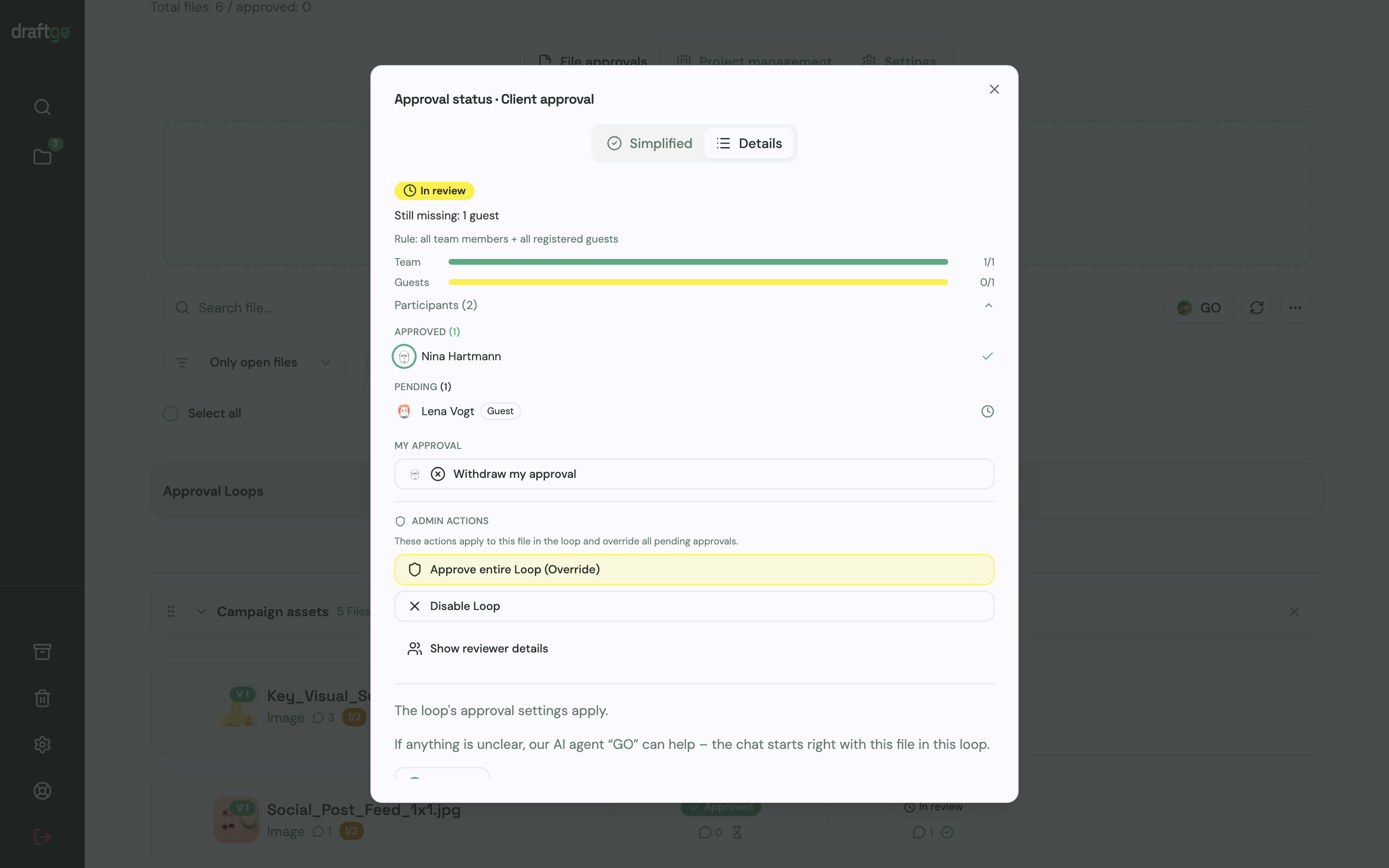
- Set the rule per loop. A loop counts a file as approved when all approvers, a set number or any one of them have approved, and you choose this rule for the team and for guests independently. Once the internal check is done, you activate the files in the client loop.
- Invite the client. The person who decides opens a personal approver link and enters a name and email address. Anyone else at the client opens the shared viewer link, which lets them comment but not approve. Guests need no account; members of your team do. The status dialog shows who has approved a file and who is still pending.
- Upload the next cut. A new version lands on the same file, earlier versions stay available, and each comment stays with the version it was written on. Approvals of the earlier version do not carry over, so the approvers decide again.
- Check the user guide. Before the client sees the PDF, you can start the AI review on it to catch typos, cut-off text or very small type. Our AI agent “GO” posts each finding as a comment on the page. AI review pages are included from the Freelancer plan.
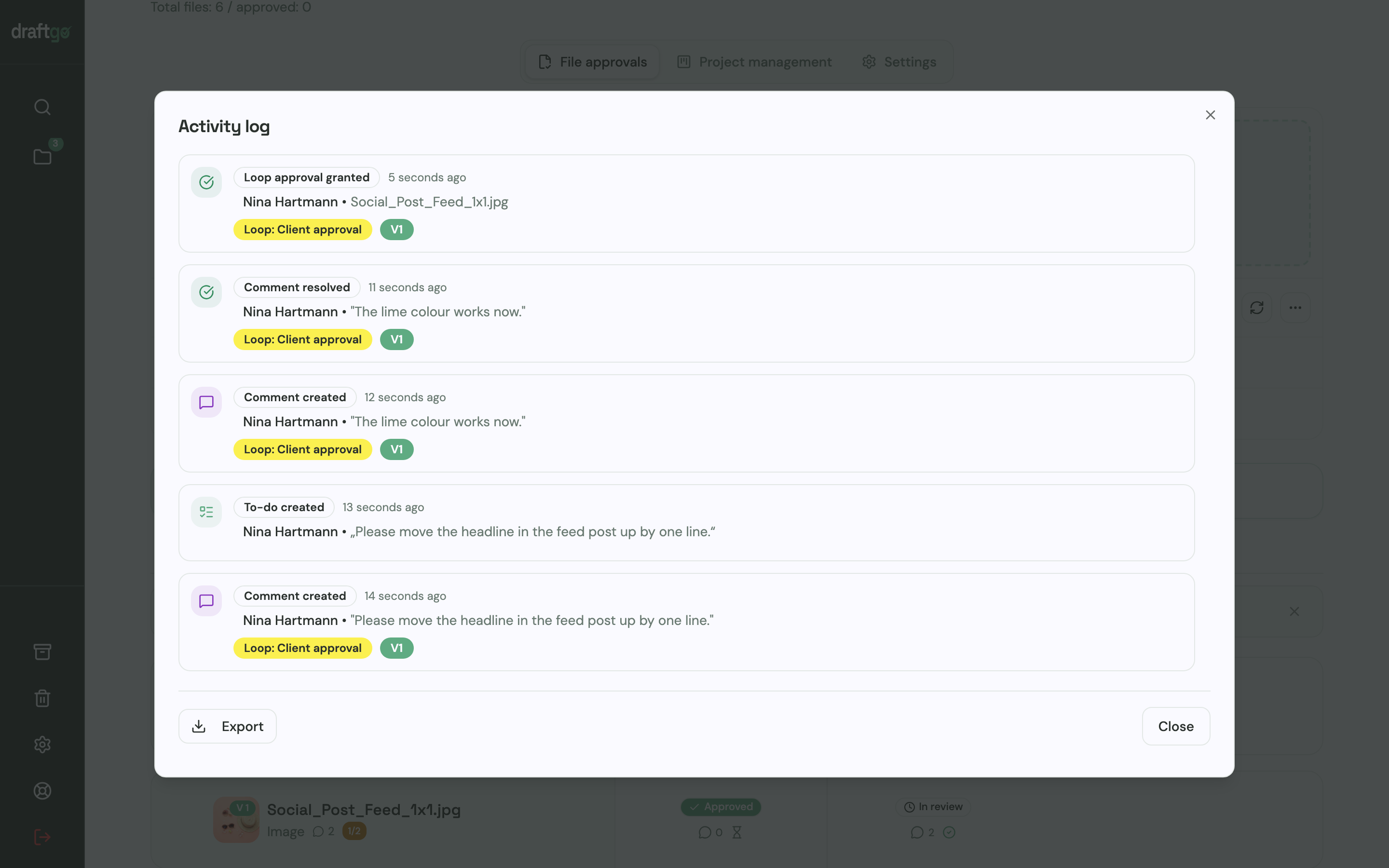
- Export the record. Approvals, comments, versions and downloads go into the activity log with person and time. Exported as CSV, JSON or PDF, it shows which version of the user guide the brand manager approved.
draftgo charges one price per company, not per seat. Stored data is kept on EU servers in the Frankfurt data centre. How production teams set up projects is shown on draftgo for video production, and the basics of online proofing explain the method behind loops and versions.
FAQ
Is Vimeo Review free?
Partly. Vimeo’s Free plan includes one review link per video, and its expiry date can be set up to one month ahead. More review links, a password and your own logo on the review page need a paid plan, according to Vimeo’s help centre.
Do clients need a Vimeo account to comment?
No. Guests open the review link without an account and enter their name and email before their first comment. Team members you add through the Share panel comment according to their role in your Vimeo team.
Can a client approve a video in Vimeo Review?
Yes, if the review link has the “Change status” permission switched on. The reviewer can then mark the video as Approved. Vimeo’s help article on versions lists this status next to In progress and Needs review.
What happens to comments when I upload a new cut to Vimeo?
Replacing the file creates a new version, and the review link stays the same. The comments on earlier versions stay in the version history, and reviewers see earlier versions if their link allows it.
What is the difference between Vimeo Review and a proofing tool?
Vimeo Review is part of a video platform and works on the videos you host there. A proofing tool such as draftgo reviews video next to PDFs, images and website screenshots, with approvers and a rule for each stage, and one activity log for every file of a project.
Conclusion
If your projects are single videos that end up on Vimeo, Vimeo Review covers comments, guests and a simple approval status, and a paid plan adds more links, passwords and your logo. If a campaign mixes video with print and PDFs, or two people must approve in stages, run your next real project through a proofing tool and compare the rounds.
Try it free – draftgo is free for 14 days, no credit card needed.
Written by
Emilia
Content Producer
Ready to streamline your approval processes?
Get started with draftgo today and see how easy professional collaboration can be.