
The client watched the second cut on their phone and sent an email: "Around 1:20 the music gets too loud, and can the logo come in earlier?" The marketing lead added a voice note about the interview, the managing director wrote "looks good" in a chat, and by Friday nobody is sure whether "looks good" meant version two or version three.
A video feedback tool ends that guesswork. Reviewers watch the video in the browser, pause it and comment at the exact timecode, and every comment stays with the version it refers to. Video keeps growing: US digital video ad spend is projected to surpass $80 billion in 2026, according to the IAB (2026). For editors, videographers and agencies, a clear review process is part of delivering that work on time.
What is a video feedback tool?
A video feedback tool lets clients and colleagues comment on a video at a specific moment, so every note is tied to a timecode instead of a description such as "somewhere in the middle". It keeps the versions of a video together and records who approved which cut.
Most video feedback tools cover the same jobs:
- Timecode comments: reviewers pause the video and comment at that moment; clicking the comment jumps back to it.
- Markup on the frame: many tools let reviewers draw on the frame or mark an area of it.
- Versions: each new cut is a new version of the same video, and earlier versions stay available with their comments.
- Client access: reviewers open a link in the browser, ideally without creating an account.
- Approval: the person responsible signs off a specific version, and the tool records it.
- History: comments, versions and approvals stay on record.
Whether a vendor calls it a video feedback tool, video review software or a video feedback platform, the core is the same: it ties feedback and decisions to an exact moment in an exact version.
Video review tool or video messaging tool?
Two different kinds of products share the name "video feedback tool": tools for reviewing a video with clients, and tools for giving or collecting feedback in the form of a video. Both are useful, but they solve different problems.
Video review tools are built for production. You upload a cut, share a link, and reviewers comment at timecodes, compare versions and approve. Editors, videographers, agencies and marketing teams use them for commercials, explainer videos, social clips and corporate films.
Video messaging and recording tools record your screen or your camera, so you can explain feedback on a design or a document as a short video, or collect video testimonials and bug reports from customers. The video is the feedback, not the thing being reviewed.
| Question | Video review tool | Video messaging or recording tool |
|---|---|---|
| What is reviewed? | A video you produced | A design, website, document or product |
| What does the reviewer do? | Comments at timecodes and approves a version | Records a video message or a screen recording |
| Are versions tracked? | Yes, each cut is a version | Usually not |
| Is there an approval? | Yes, per version | Usually not |
| Who uses it? | Editors, videographers, agencies, marketing teams | Designers, support and product teams, anyone who prefers to explain on video |
This guide compares video review tools, the first kind. If you want to explain feedback on a design or a website as a short recording, a video messaging tool is the better match; for comments directly on a web page, see our guide to the website feedback tool.
7 criteria for choosing a video feedback tool
Choose a video feedback tool by what your reviewers need to do and what your editors need to receive. The first three criteria decide whether clients give clear feedback; the others decide how much work each round costs your team.
1. Timecode comments and markup
Every tool in this comparison places comments at a timecode. Check how precise that is, whether reviewers can draw on the frame or mark an area, and whether a comment can also refer to the whole video, for example "the music doesn't fit the brand".
2. Reviewers without an account
Clients review faster when they open a link and press play. Check whether reviewers need an account, whether they enter a name and email address before the first comment, and whether they can also give the formal approval through the link. Check, too, whether your plan limits the number of reviewers.
3. Versions and comparison
A video usually goes through several cuts. A good tool keeps them together as versions of the same file, shows which version a comment belongs to and makes clear which one was approved. Some tools also show two versions next to each other, which helps when a client asks whether a requested change really happened.
4. Approval rules and stages
A small job may need one approver. Agency work usually runs in two stages: an internal check by the producer or creative director, then the client. On the client side, check whether you can require that everyone approves, that a set number of people is enough or that one named person decides. Some tools add due dates and automatic reminders for reviewers.
5. File sizes and formats
Raw exports are large. Check the maximum size per file, the storage in your plan and which formats the tool plays in the browser. For long or high-resolution masters, a tool with large file limits saves you from exporting a smaller review copy for every round.
6. Integration with editing software
Editors who work in Adobe Premiere Pro, After Effects, Final Cut Pro or DaVinci Resolve save time when comments appear as markers on their timeline. Several tools offer a panel or an extension for this; others work with exported files, which your editor uploads after each render.
7. A record of decisions and data protection
A history of comments, versions and approvals with names and times settles questions about who approved what, and it helps with billing extra rounds. Client videos can also show unreleased products or people, so ask where stored data is kept and whether the provider offers a data processing agreement.
Video feedback tools compared (as of November 2026)
The seven tools below are video review tools in the sense of this guide. Some focus on video production, others review videos alongside PDFs, images and other files.
How we compared the tools
We checked each vendor's own product, help and pricing pages in November 2026 against the seven criteria above, with the most weight on reviewers without an account, versions and approval. The list is alphabetical, not a ranking. Prices change often and depend on team size, so this comparison names none; each entry links the vendor's pricing page. draftgo is our product.
| Tool | Suited for | Reviewers without an account | Versions side by side | Approval | Editing software integration |
|---|---|---|---|---|---|
| draftgo | Agencies and freelancers that approve videos next to other formats | Yes, with a personal approver link | No | Loops with rules per loop | No |
| Dropbox Replay | Teams that already store their media in Dropbox | Yes, in the browser | Not described in the overview | Review and approval of video, image and audio | Premiere Pro, After Effects, Final Cut Pro, DaVinci Resolve, Pro Tools, LumaFusion |
| Filestage | Teams with several review stages and due dates | Yes, with name and email | Yes | Reviewer groups in stages, due dates, reminders | Premiere Pro, After Effects |
| Frame.io | Post-production teams working in Adobe tools | Yes, with name and email on a share link | Yes, Comparison Viewer | A status field reviewers can update | Premiere Pro panel |
| ReviewStudio | Creative teams that review many file types | Yes, no sign-up | Yes, compare feature | Approval options and automated workflows | None named for video editing |
| Vimeo | Teams that host and share their videos on Vimeo | Yes, as a guest | Not described; version history | Status labels | Premiere Pro, Final Cut Pro |
| Wipster | Marketing and video teams with multi-step approvals | Yes | Yes | Multi-step workflows with an audit trail | Premiere Pro, After Effects, Final Cut Pro |
Try it yourself: In the demo you work in a real draftgo workspace with sample data.
1. draftgo: suited for agencies and freelancers that approve videos next to other formats
draftgo is an online proofing platform for agencies, freelancers and in-house teams. Team and guests comment on videos and audio files at a timecode, new cuts become versions of the same file, and approvals run in loops with set approvers, first internally, then with the client. The same project holds PDFs, images, website screenshots and social media posts.
- Pro: clients approve through a personal link without an account; video, audio, PDFs and images in one review; approval rules per loop.
- Contra: there is no panel for editing software, so editors upload exported renders.
- Pricing: draftgo pricing, with a free plan and a 14-day trial of the paid plans.
2. Dropbox Replay: suited for teams that already store their media in Dropbox
Replay is Dropbox's review and approval tool for video, image and audio projects. According to its help overview, updated in August 2026, reviewers give frame-by-frame feedback and on-screen markups in the browser without special software or a Dropbox account, and every version keeps its comments and markups. Editors respond to feedback from Adobe After Effects, Adobe Premiere Pro, Apple Final Cut Pro, Avid Pro Tools, Blackmagic Design DaVinci Resolve and LumaFusion, and comments can be exported in formats such as XML, CSV and plain text.
- Pro: integrations with six editing tools, including DaVinci Resolve and Pro Tools; reviewers without an account.
- Contra: it reviews video, image and audio only, and features such as password-protected links come with the Replay Add-On.
- Pricing: Dropbox plans
3. Filestage: suited for teams with several review stages and due dates
Filestage is a review and approval platform for creative files. On its video review page, reviewers click the video to leave frame-accurate, timestamped comments and annotations, open a shared link without an account or setup and add their name and email. New uploads stack on the previous version, and two versions can be compared side by side. Reviewer groups run in stages, such as the internal team, then the client, then legal, with due dates, reminders and status tracking. Filestage integrates with Adobe Premiere Pro and After Effects, and it also reviews images, PDFs, documents and live websites.
- Pro: structured review stages with due dates and reminders; comparison of two versions side by side.
- Contra: the free plan covers one project and five new files per month.
- Pricing: Filestage pricing
4. Frame.io: suited for post-production teams working in Adobe tools
Frame.io is a review and collaboration platform for video and creative files. According to its help article on share links, reviewers who are not signed in enter their name and email address to comment, comments are timestamped and jump to the exact frame, and a paintbrush tool lets them draw on the video. The Comparison Viewer compares two versions of a version stack, a panel for Adobe Premiere brings the review into the editing timeline, and Camera to Cloud uploads takes from the set.
- Pro: frame-accurate review with drawing, version comparison and a Premiere panel; reviewers on share links need no account.
- Contra: paid plans are priced per member of your team.
- Pricing: Frame.io pricing
5. ReviewStudio: suited for creative teams that review many file types
ReviewStudio is an online proofing platform for video, images, audio, documents, web content and 3D files. On its video proofing page, it offers frame-accurate feedback with timestamped markups and threaded comments, markup tools such as freehand, shapes and text, and a comparison of versions and feedback history. External reviewers open a shared link without sign-up, downloads or registration, with an optional password, and approvals can be automated with workflows. Native integrations include Asana, Monday and Wrike.
- Pro: detailed markup tools; reviewers without sign-up; one platform for many file types.
- Contra: the page names no integration with video editing software.
- Pricing: ReviewStudio pricing
6. Vimeo: suited for teams that host and review videos in one place
Vimeo is a video hosting platform with review tools. On its video collaboration page, reviewers leave time-stamped comments that you sort, filter and resolve, status labels and version history show which cut is current, and a new version keeps the same review link. Review links can carry passwords, expiry dates and permissions, external reviewers comment as guests without a Vimeo account, and comments sync with Adobe Premiere Pro and Final Cut Pro.
- Pro: review and hosting in one place; the review link stays the same for every new version.
- Contra: video review starts with the paid Starter plan; the free plan does not include it.
- Pricing: Vimeo plans
7. Wipster: suited for marketing and video teams with multi-step approvals
Wipster is a review and approval platform for video and other creative content. On its website, reviewers leave frame-accurate, timestamped comments without needing an account, any two versions can be compared side by side, and multi-step approval workflows keep an audit trail of who approved what and when. It handles video, images, PDFs and audio, without file size limits according to the same page. Its integrations sync feedback into Final Cut Pro and share work from the timeline of Premiere Pro and After Effects.
- Pro: multi-step approvals with an audit trail; no file size limits; integrations with Premiere Pro, After Effects and Final Cut Pro.
- Contra: the integrations page names no connection to DaVinci Resolve.
- Pricing: Wipster pricing
Which tool fits your team?
- Your editors live in Premiere Pro or another editing suite: Frame.io, Dropbox Replay, Wipster or Filestage, depending on the software your team uses.
- You need several review stages with due dates and reminders: Filestage or Wipster.
- You host your videos on Vimeo or store them in Dropbox anyway: the review tools of Vimeo or Dropbox Replay.
- You review videos next to PDFs, images, websites and social posts, and clients should take part without an account: draftgo or ReviewStudio.
Detailed comparisons are on draftgo vs Frame.io, draftgo vs Wipster and draftgo vs Filestage.
How a video review works from rough cut to final cut
A video review moves from story and structure to detail, so each round answers a different question. Use these five steps as a template in any of the tools above.
1. Agree on reviewers, rounds and the approver
Before the first cut, write down who reviews for the client, who has the last word and how many rounds the budget includes. Settle this when you start with a new client, as part of your client onboarding for agencies.
2. Rough cut: story, structure and length
The rough cut shows the order of scenes, the interviews and the overall length. Ask the client to comment on what is missing, what is too long and whether the story works, not on colour or typography yet. A change to the structure costs less now than after the fine cut.
3. Fine cut: timing, graphics and text
The fine cut has the final edit, the lower thirds, titles and on-screen text. Reviewers check names and job titles in the lower thirds, spelling, the timing of graphics and the logo. Every comment goes at its timecode, so the editor finds it without searching.
4. Sound and colour
Once the edit is locked, music, voice-over, sound mix and colour grade follow. Ask reviewers to watch with sound on headphones or speakers and on a large screen, because a phone in a noisy office hides problems with both.
5. Final cut: approval and delivery
The named approver signs off the final version in the tool. Then you export the deliverables, such as the master, a version with subtitles and cut-downs for social media, which go through the same approval. For reels and short clips, our guide to the social media approval tool covers the steps.
Template: what to check in each round
| Round | Who reviews | What to check | Done when |
|---|---|---|---|
| Rough cut | Producer, client | Story, order of scenes, length, interviews | The structure is agreed |
| Fine cut | Producer, client, people who appear in the video | Lower thirds, on-screen text, graphics, logo, timing | All comments are resolved |
| Sound and colour | Producer, client | Music, voice-over levels, mix, colour grade | All comments are resolved |
| Final cut | Named approver at the client | The final version | The approval is recorded |
| Deliverables | Producer | Formats, subtitles, cut-downs | Every file is delivered |
Typical mistakes and better practice
| Mistake | Better practice |
|---|---|
| The client comments on colour in the rough cut | Say what each round is for when you share it |
| Feedback arrives by email with vague times | Every comment goes at its timecode in the tool |
| A corrected cut is sent as a new link | Upload it as a new version of the same video |
| Several people at the client give conflicting notes | One named approver decides, the others comment |
| The video is published without a recorded approval | The approver signs off the final version in the tool |
Example: a 90-second recruiting film for a logistics company
A freelance videographer and a small agency produce a 90-second recruiting film for a family-owned logistics company. The HR manager collects feedback from the warehouse team; the managing director wants to approve the final version.
In the rough cut, the HR manager comments at 0:35 that the interview with the forklift driver runs too long and asks for a scene from the night shift. The agency agrees with the videographer which scenes to replace, and the second cut fixes the structure.
In the fine cut, the HR manager notices at 0:42 that the driver's name is misspelt in the lower third, and the managing director comments at 1:10 that the music drowns out the last sentence of the interview. Because the client loop requires both of them to approve, the video stays in review until both have seen the corrected version. The videographer uploads it as a new version, the earlier comments stay with the earlier cut, and the approval starts again.
Two days later both have approved. The agency exports the master and two vertical cut-downs for social media, which go through the same loop, and the stills from the shoot day go to the HR manager as a gallery to choose from, as described in our guide to photo proofing software. When a new head of marketing asks three months later who approved the final film, the HR manager opens the history and sees the names, the version and the dates.
How it works in draftgo
With draftgo, your team uploads the cut, your client reviews it in the browser, and every approval is recorded, next to the PDFs, images and website screenshots of the same project.
- Videos and audio: upload videos and audio files of up to 500 MB, and the browser compresses larger videos of up to 800 MB before the upload.
- Comments at a timecode: team and guests comment at a timecode in a video or an audio file, or on the file as a whole. Replies, @mentions and attachments keep the discussion on the comment, and a comment is marked as resolved once it is done.
- Versions: each new cut becomes a new version of the same file. Earlier versions stay available, comments belong to their version, and a new version starts the approvals again.
- Clients without an account: a personal approver link asks for a name and email address and lets the client approve. A shared viewer link per loop or file lets further people comment without approving, and a link for several guests has fixed seats.
- Approval rules per loop: run an internal loop first and the client loop second. For each loop you decide whether everyone, a set number of people or one specific person must approve, separately for your team and for guests. A file in a loop is "Inactive", "Under review" or "Approved".
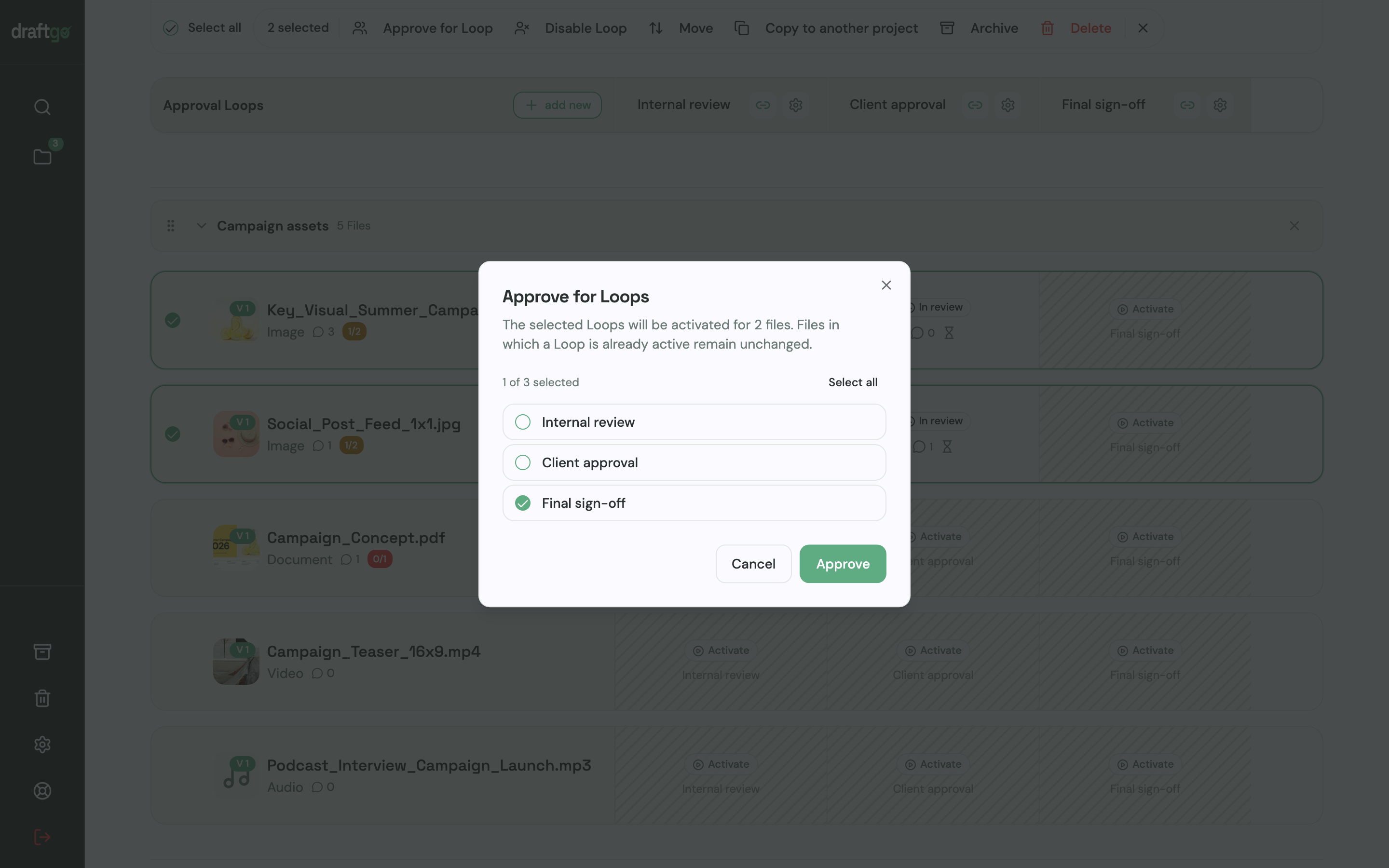
- Guests in the loop: per loop, you decide whether guests may upload their own files and whether they can mark that their feedback is complete.
- Social media cut-downs: a reel goes into review as a video, and carousels with captions as social media posts.
- To-dos from comments: turn a comment into a to-do on the project board and assign it to one person, for example the editor.
- History: the activity log keeps approvals, comments, versions and downloads with person and time, and you export it as CSV, JSON or PDF, together with the review documentation of a file as PDF and CSV.
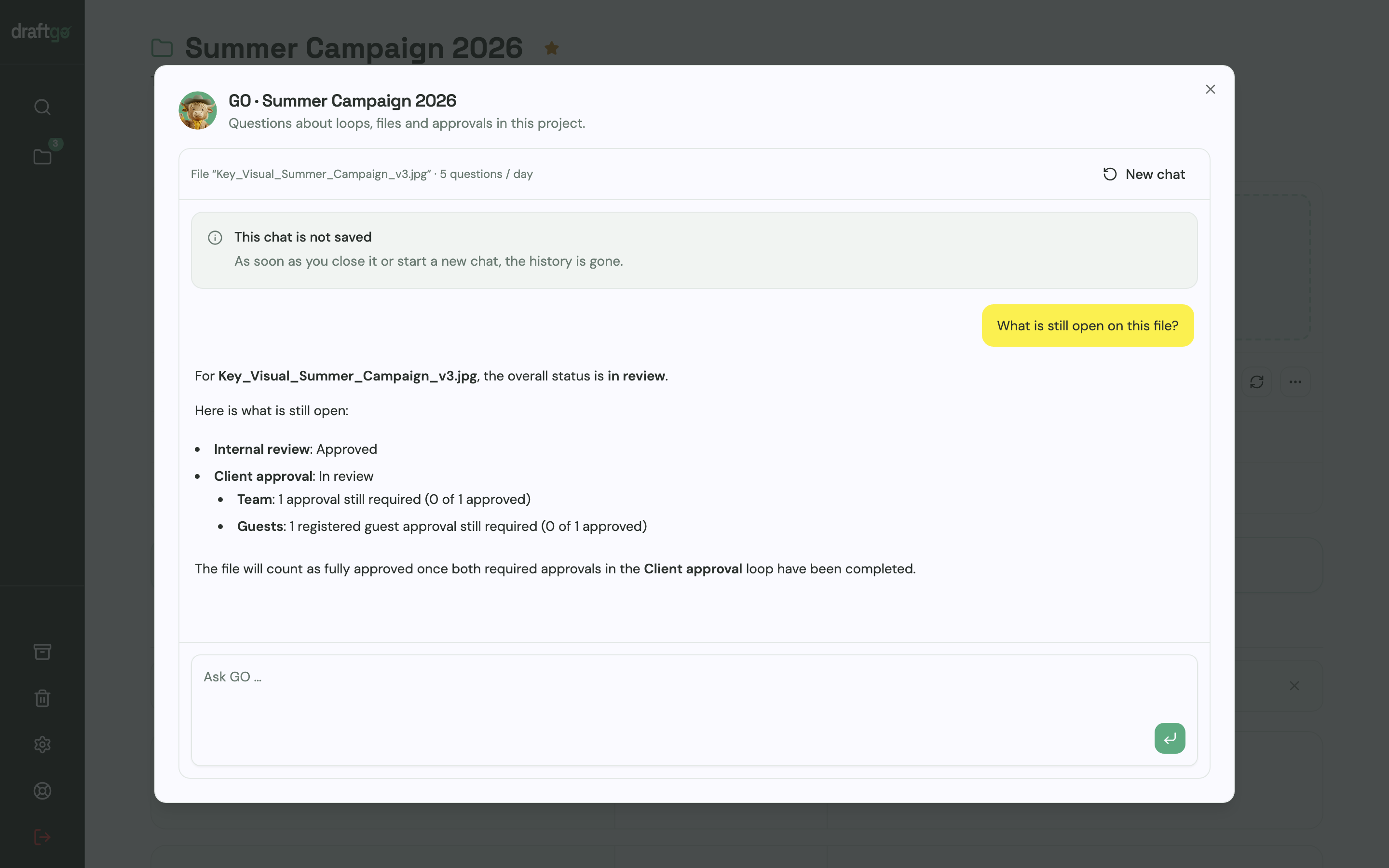
- Questions about a file: our AI agent “GO” answers questions about a chosen loop or file in every plan.
Pricing is per company, not per user or guest, and guests are unlimited from the Freelancer plan. Stored data is kept on EU servers in the Frankfurt data centre. More on the setup for productions is on draftgo for video production, and agencies with several clients find the overview on draftgo for agencies.
FAQ
What is the difference between video review and video approval?
Video review is the feedback phase: reviewers watch a cut and comment on what should change. Video approval is the decision at the end of it: a named person confirms that a specific version is final. A video feedback tool covers both and records which version was approved.
Do clients need an account to give feedback on a video?
In the tools in this comparison, no. Dropbox Replay, Filestage, Frame.io, ReviewStudio, Vimeo, Wipster and draftgo let external reviewers comment without an account. Some ask for a name and email address before the first comment, and the approval itself may need a personal link.
How many review rounds should a video have?
Many productions plan for a rough cut, a fine cut and a final round with sound and colour. Write the number of included rounds into your offer, so a fourth round becomes a decision with a price rather than a habit. Clear instructions for each round keep the number low.
Can I use a video feedback tool for audio files?
Yes, in several tools. Dropbox Replay, Wipster, ReviewStudio and draftgo review audio files too, so voice-overs, podcasts and sound mixes get comments at a timecode like a video.
How large can video files be?
That depends on the tool and the plan. Wipster states that it has no file size limits, Frame.io and Vimeo set storage per plan, and draftgo accepts files of up to 500 MB, with larger videos of up to 800 MB compressed in the browser before the upload. For long masters in high resolution, check the limit before the first upload.
Conclusion
Decide first where your editors work and how many people must approve a video. If your team lives in an editing suite, put the panel or extension on your list of criteria; if clients should approve videos next to PDFs, images and social posts without an account, choose a tool that covers every format in one review. In both cases, agree on rounds and the approver before the first cut.
Try it free – draftgo is free for 14 days, no credit card needed.
Written by
Emilia
Content Producer
Ready to streamline your approval processes?
Get started with draftgo today and see how easy professional collaboration can be.