
You look after Instagram and TikTok for a ski rental shop and a small gin distillery. Planable’s free posts are almost used up, and before you enter a card you want to know what other teams say about it. One review praises the easy approvals, the next one describes a post that never went out. Planable’s own pages explain part of the gap between the two.
How we read Planable reviews
We opened the review pages on 17 November 2026 and compared what reviewers write with Planable’s product page, pricing page and approval guide from the same day. draftgo is our product. We sell a review tool that works next to planners such as Planable, so we link every source and quote reviewers word for word.
On Trustpilot, Planable shows a score of 4.4 with the label “Excellent” from 71 reviews. 77% of them give five stars, 10% four stars and 11% one star. Of the 20 reviews on the first page, 18 were written in August and September 2025, so check the dates before you weigh the score.
Product Hunt lists 4.9 out of 5 from seven reviews, too few to weigh. G2 and Capterra also collect Planable reviews; we did not include their figures, so look up the current scores on G2 and Capterra directly.
What Planable reviews praise and criticise
The positive reviews describe a tool that is quick to learn and makes client sign-off simple. The negative ones are about publishing that failed, support and the cost of extras.
What users like
Several five-star reviews on the first Trustpilot page name ease of use. One from the UK sums it up as “Easy to set up, easy to use, great collaboration features.” A consultant in Australia calls Planable “A super useful tool for a consultant like me to organise client posts and gets easy approvals.” A reviewer from Honduras likes that they can “move things around and also approve or disapprove easily”.
What reviewers criticise
The one- and two-star reviews are fewer, and most of them name a concrete problem. A UK account writes that Planable “Failed to publish scheduled content to our business, whilst I’m on holiday” and describes a failed attempt to reschedule; Planable replied with an apology in October 2025. A two-star review from January 2026 says Stories never published through Planable, calls storage on the basic plan very limited and finds the interface “clunky and very buggy”.
Other reviews concern money, coverage and reliability. A one-star review from Australia complains about poor support and says every feature is now paid separately. A four-star reviewer from the UK likes the app but notes that “it doesn’t have all social media”. A US reviewer says their account was cancelled without notice in May 2026 and the outage kept them from posting for clients; in an update from July 2026, now rated four stars, they write that the service has been much better since.
| What reviewers say | What Planable’s own pages say |
|---|---|
| Easy to plan and move posts | Feed, calendar, grid and list views, drag and drop in the calendar |
| Simple client approvals | Four approval modes, from none to multi-level |
| Features cost extra | Analytics, a social inbox and social listening are add-ons priced per workspace |
| Not every network | Nine networks: Facebook, Instagram, LinkedIn, X, YouTube, Google Business Profile, TikTok, Pinterest and Threads |
Sources: Planable product page, Planable pricing and Planable’s guide to content approvals, as of 17 November 2026.
What Planable offers and what it costs
Planable plans, approves and publishes social media posts, and it bills per workspace. A workspace is a private space for one client, brand or company, so an agency with three clients needs three workspaces.
With yearly billing, which the pricing page marks “2 months free”, Basic costs $33 and Pro $49 per workspace and month; with monthly billing the page shows $39 and $59, the starting prices Planable’s approval guide names too. Prices are in US dollars before tax, and Enterprise is priced individually. Basic and Pro include unlimited users, and the first 50 posts are free with no time limit and no credit card.
| Basic | Pro | Enterprise | |
|---|---|---|---|
| Posts per workspace and month | 60 | 150 | unlimited |
| Approval modes | none, optional | none, optional, required | adds multi-level |
| Version history | 1 week | 30 days | indefinitely |
As of 17 November 2026, from the Planable pricing page and the approval guide.
For five client workspaces on Pro, that comes to 5 × $49 = $245 a month with yearly billing, or 5 × $59 = $295 with monthly billing. The bill grows with every workspace, not with every user.
Try it yourself: In the demo you work in a real draftgo workspace with sample data.
Video feedback and client approval in Planable
Planable collects feedback next to the post, and clients can comment without an account but need one to approve. Its product page and approval guide do not mention comments pinned to a moment in a video (as of 17 November 2026).
Reviewers write comments on the post, highlight words in the caption and suggest a replacement. According to the approval guide, a public share link lets anyone view a post and comment after entering a name or email address, but it does not let them approve. For the approval itself, the client needs a Planable account with approval rights; approver accounts are free. Planable can also send automatic reminders for pending approvals, lock a post once it is approved and schedule it the moment the client approves.
For video, the product page describes trimming clips, editing titles and adding custom thumbnails. In a reel, feedback can point at a single second, such as a price card at 0:12 that is too small. Left as a general comment on the post, it sends your editor looking for that moment first.
Planable plus a video review tool: how the two work together
Planable and a video review tool work together when each handles one part: the review tool takes the video file, Planable the post, its caption and the schedule.
- Review the cut: the client comments on the reel in the review tool, at the moment they mean.
- Correct in versions: each new cut becomes a new version of the same file.
- Approve the video: the person who decides approves the final cut.
- Plan the post: the approved file goes into Planable, where the caption is checked and the post is scheduled.
| Task | Planable | draftgo |
|---|---|---|
| Calendar, scheduling, publishing | yes | no |
| Comments at a point in a video | not mentioned on its product page or in its approval guide | yes |
| Client approves without an account | comments via share link, approves with a free approver account | approves via a personal approver link |
| Automatic reminders for pending approvals | yes, as a setting | no |
| Formats reviewed | social posts, plus long-form content such as blogs and newsletters | videos, audio, PDFs, images, website screenshots, social posts |
| Pricing model | per workspace | per company, see draftgo pricing |
Planable details as of 17 November 2026, from the pages linked above. For a wider field of planners and approval tools, see the social media approval tool comparison.
Example: room-tour reels for three boutique hotels
Take a thirteen-person agency that runs Instagram and TikTok for three boutique hotels. Each hotel gets two room-tour reels a month, and the agency plans all posts in Planable.
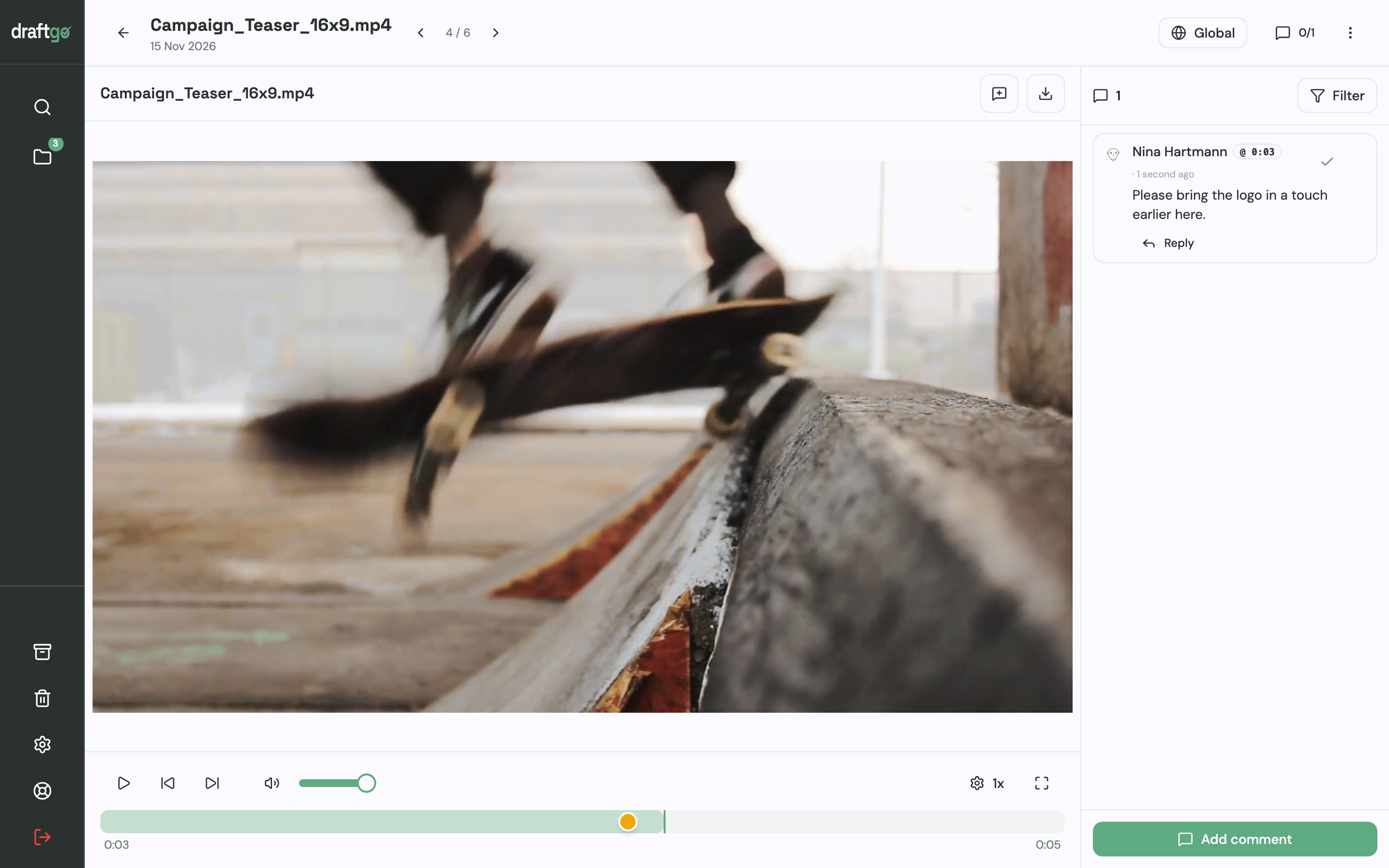
For the videos, the agency creates one draftgo project per hotel with an internal loop and a client loop. Two loops in one project need the Freelancer plan or higher: Free has one loop per project, Freelancer three, Agency and Team unlimited. The editor uploads the first cut, and the account lead comments in the internal loop that the logo sting comes in too late.
Once the corrected cut is in, the account lead approves it in the internal loop and activates the reel in the client loop. Only the hotel’s general manager decides, so she receives the personal approver link. The front-office manager gets the shared viewer link and comments at 0:08 that the parasol on the breakfast terrace is still folded. The editor uploads a third cut as a new version, which starts the approvals again. The account lead approves the third cut in the internal loop, the general manager approves it in the client loop, and the file goes into Planable with its caption and posting date.
How it works in draftgo
draftgo is an online proofing tool for the step before the planner: your client looks at the actual reel or post and decides on it.
Upload the reel to a project. Files of up to 500 MB go straight in, and the browser compresses larger videos of up to 800 MB before uploading. Your client pauses the video and comments, and draftgo stores the comment with its time, so a click takes your editor to that moment.
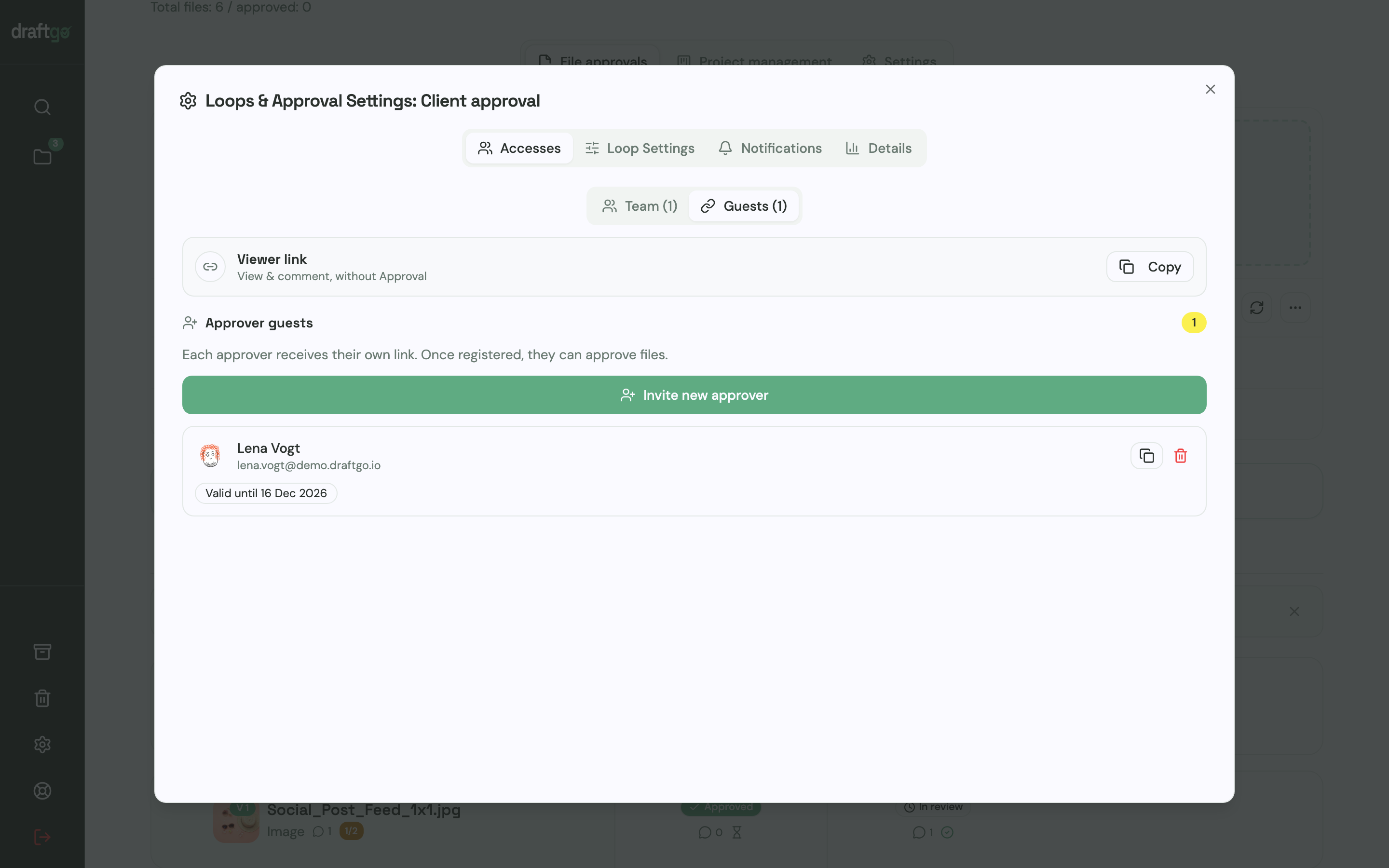
For access, each loop has a shared viewer link for people who should only comment and personal approver links for the people who decide. Guests need no account, and every approver link belongs to one named person with their email address.
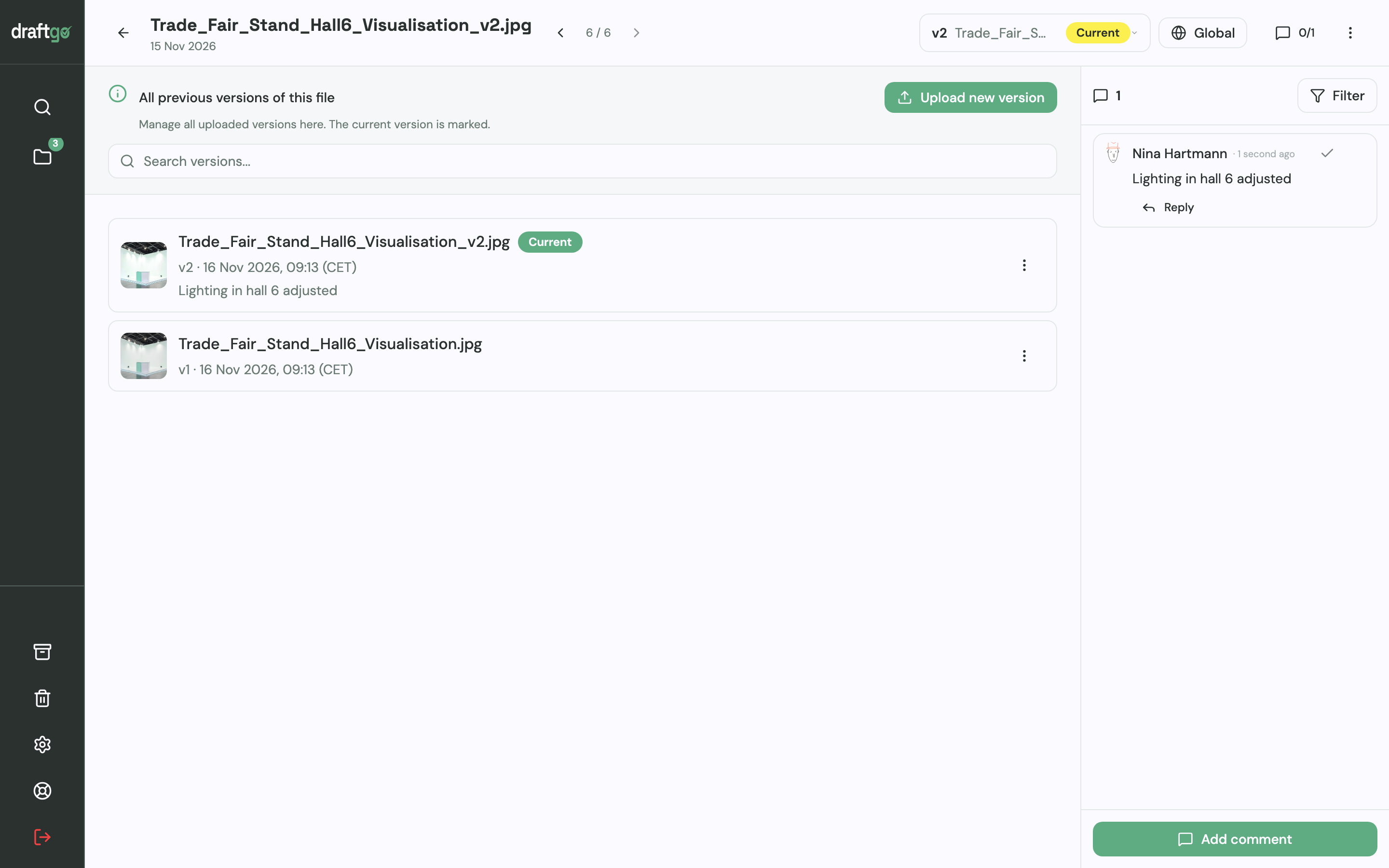
Corrected cuts land on the same file as versions. Earlier versions stay available, comments belong to the version they were written on, and a new version starts the approvals again. You can add a note to each version, for example which comments the new cut addresses.
Static posts work the same way: a social media post holds up to 20 images as a carousel with a caption of up to 2,200 characters. From the Freelancer plan you can start the AI review on posts and images, and its findings, such as a spelling mistake or cut-off text, appear as comments from our AI agent “GO”. The activity log records approvals, comments, versions and downloads with person and time. draftgo does not schedule or publish posts, so the approved file goes back to Planable.
Stored data is kept on EU servers in the Frankfurt data centre. For video ads and cut-downs, see video feedback tools for client reviews; the setup for social content is on draftgo for social media and content teams.
FAQ
How much does Planable cost?
On 17 November 2026, the Planable pricing page lists Basic at $33 and Pro at $49 per workspace and month with yearly billing, and $39 and $59 with monthly billing; Enterprise is priced individually. The first 50 posts are free, without a time limit or credit card. Analytics, a social inbox and social listening cost extra per workspace.
Can clients approve posts in Planable without an account?
They can view and comment through a public share link without an account. To approve, a client needs a Planable account with approval rights, and approver accounts are free, according to Planable’s guide to content approvals.
Can you comment at a timestamp on videos in Planable?
Planable’s product page and approval guide do not mention comments at a moment in a video (as of 17 November 2026). Teams that need feedback second by second can review the cut in a separate video review tool and bring the approved file into Planable.
Does draftgo replace Planable?
No. draftgo is built for feedback and approvals on files and does not plan or publish posts, so Planable stays in charge of the calendar.
Conclusion
Planable reviews point to a planner that is easy to learn and makes post approval simple, with complaints about failed publishing, support and add-on costs. Read the newest reviews before you buy, count your workspaces, and test whether your clients can give video feedback where your editor needs it. If reels are a large part of your work, run the next one through a review tool first and schedule the approved file in Planable, as described in our guide to content review from first draft to approval.
Try it free – draftgo is free for 14 days, no credit card needed.
Written by
Emilia
Content Producer
Ready to streamline your approval processes?
Get started with draftgo today and see how easy professional collaboration can be.