
The relaunch is two weeks away, and the feedback arrives from everywhere. The client emails three screenshots with the note "the button on the right looks odd", the marketing lead disagrees in the same thread, and the managing director forwards a photo of a phone screen. Your developer opens the staging site on a desktop and cannot see what anyone means.
A website feedback tool puts all of this in one place. Reviewers comment directly on the page, each comment points at a spot, and your team works through a list instead of an inbox. Before you compare tools, decide what your client should review: the working site with all its functions, or the layout and content of each page. That question splits the market into two kinds of tools.
What is a website feedback tool?
A website feedback tool lets clients, colleagues and testers comment on a web page at the spot they mean, so every note is tied to an element or an area of the page instead of a description in an email. Agencies and freelancers use it to collect feedback on a new site or a relaunch and to get the client's sign-off before launch.
Most website feedback tools cover the same jobs:
- Comments on the spot: a reviewer clicks on the page or draws a box, and the comment sits exactly there.
- Screenshots: each comment keeps an image of what the reviewer saw.
- Device views: the page can be checked at desktop, tablet and mobile width.
- Access for clients: reviewers open a link, ideally without creating an account.
- Status: each comment is open or resolved, so nobody fixes the same thing twice.
- History: comments, replies and decisions stay on record.
Tools for visitor feedback, such as on-page surveys or heatmaps, often appear under the same name, but they ask what users think of a site that is already live. This guide covers the tools agencies and freelancers use to review a site with their clients before launch.
Live-site annotation or screenshot-based review?
Website feedback tools come in two kinds: tools that let reviewers annotate the live site in the browser, and tools that capture a screenshot of a page and collect comments on that image. Both put comments at the right spot; they differ in what the reviewer can do with the page.
Live-site annotation loads the real site, through a browser extension, a JavaScript snippet in the site's code or a proxy that opens the site from a link. Reviewers click through pages, open menus and fill in forms, then comment wherever something is wrong. Many of these tools capture the browser, operating system and screen size with each comment and send it to a bug tracker such as Jira.
Screenshot-based review captures an image of a page, usually at several device widths, and reviewers comment on that image. Nothing has to be installed on the site or in the reviewer's browser, and every reviewer sees exactly the same state of the page. The image does not react to clicks, so the review covers what the page shows, not what it does.
| Question | Live-site annotation | Screenshot-based review |
|---|---|---|
| What does the reviewer see? | The real, working site | An image of a page at a chosen device width |
| What needs to be set up? | An extension, a script on the site or a proxy link, depending on the tool | A public address to capture |
| Can reviewers test menus, forms and links? | Yes | No, they comment on layout and content |
| Pages behind a login or on a private server? | Often possible with an extension or a script | Usually not |
| Does the reviewed state change? | Yes, the site changes while you work on it | No, the screenshot stays as captured |
| Typical use | Bug reports, QA, user acceptance testing | Layout and content sign-off, design review with clients |
Many agencies use both: a screenshot review while layout and copy are agreed with the client, and live-site annotation once the developer tests functions, browsers and forms on staging.
7 criteria for choosing a website feedback tool
Choose a website feedback tool by how your reviewers work, not by the length of its feature list. The first two criteria decide whether clients take part at all; the others decide how much work each round costs your team.
1. How reviewers get to the page
Check what a client has to do before the first comment. An extension asks every reviewer to install something, which some company IT departments do not allow; a script is installed once by your developer; a proxy link or a screenshot needs nothing on the site or in the browser.
2. Comments without an account
Clients comment more readily when they open a link and start. Most tools in this guide let guests comment without an account; check whether they have to enter a name and email address first, and whether your plan limits the number of guests.
3. Desktop, tablet and mobile views
A layout that works on a laptop can break on a phone. In the US, mobile devices accounted for 45.43% of web page views in October 2026 and desktop computers for 52.4%, according to StatCounter (2026). Look at how a tool shows different widths: side by side, one after the other, or only at the size of the reviewer's own screen.
4. Staging sites and pages behind a login
Before launch, the new site usually sits on a staging server, often protected with a password. Check whether the tool can reach it and how: with the password, with an extension or with a script. For pages behind a user login, such as a customer area, most tools need a script or an extension.
5. Technical details and integrations
Developers need to know which browser, operating system and screen size a reviewer used. Tools built for bug reporting capture these details and send each comment to Jira, Trello, Asana or another tool your team works in; for feedback on layout and copy, a clear list of comments with a status is often enough.
6. Approval and a record of the sign-off
A comment says what is wrong; an approval says the page is done. If your contract ends with the client's sign-off, check whether the tool records who approved which state and when, and whether you can export that record.
7. Other formats and data protection
A website project produces more than pages: wireframes, mockups, photos, videos and PDF briefs. For the videos, see our guide to the video feedback tool. A tool that reviews these too keeps all feedback of the project in one place, and if the launch comes with social media posts, a social media approval tool handles them the same way. Client sites can also contain unreleased products, prices or personal data, so ask where stored data is kept and whether the provider offers a data processing agreement.
Website feedback tools compared (as of November 2026)
The eight tools below cover both kinds and one more: six annotate the live site, one reviews screenshots, and one collects feedback through a widget on your own site or app.
How we compared the tools
We checked each vendor's own product and help pages in November 2026 against the seven criteria above, with the most weight on how reviewers get to the page, comments without an account and device views. The list is alphabetical, not a ranking. Prices change often and depend on team size, so this comparison names none; each entry links the vendor's pricing page. draftgo is our product.
| Tool | Kind | How the page is reviewed | Guests comment without an account | Task and bug tracker integrations |
|---|---|---|---|---|
| BugHerd | Live-site annotation | Browser extension; a script for staging and internal sites | Yes | Yes, for example Jira, Trello, Asana |
| draftgo | Screenshot-based review | Screenshot of a public page as desktop, tablet or mobile | Yes | No |
| Huddlekit | Live-site annotation | Paste a URL; a script tag for pages behind a login | Yes | Yes, for example Linear, ClickUp, Asana |
| Marker.io | Live-site annotation | Code snippet, WordPress plugin or browser extension | Yes | Yes, for example Jira, GitHub, Trello |
| MarkUp | Live-site annotation | Drop a link; Chrome extension | Yes | None named on its homepage |
| Pastel | Live-site annotation | Enter a URL (proxy); Chrome extension for sites behind a VPN | Yes | Yes, with project management tools |
| Ruttl | Live-site annotation | Paste a URL into a project | Yes | Yes, for example Jira, Trello, Asana |
| Userback | Feedback widget | Widget on your site or app; browser extension | Users report through the widget | Yes, for example Jira, Linear, GitHub |
Try it yourself: In the demo you work in a real draftgo workspace with sample data.
1. BugHerd: suited for agencies that want feedback as tasks on a board
BugHerd is a feedback and bug tracking tool for websites. According to its website, clients drop a pin on the page and comment without an account or login, the feedback stays pinned to the page element, and every comment becomes a task on a Kanban board, together with the technical data your developers need. The browser extension works on live sites without any code; for staging or internal sites you install a JavaScript snippet. Integrations include Jira, Trello and Asana.
- Pro: clients comment without an account; each comment becomes a task with technical data.
- Contra: staging and internal sites need a script in the site's code.
- Pricing: BugHerd pricing
2. draftgo: suited for layout and content sign-off with clients
draftgo is an online proofing platform for agencies, freelancers and in-house teams. It captures a publicly reachable website as a screenshot, as desktop, tablet or mobile, either the full page up to 10,000 pixels high or the visible area, and your team and guests comment on the image with a pin or a rectangle. The same project holds mockups, PDFs, images and videos, and approvals run in loops with set approvers.
- Pro: every device view and the full page as one image; mockups, PDFs and videos in the same review; approvals with a record.
- Contra: the review is based on a screenshot, so reviewers do not click through the site, and pages behind a login cannot be captured.
- Pricing: draftgo pricing, with a free plan and a 14-day trial of the paid plans.
3. Huddlekit: suited for designers who compare breakpoints
Huddlekit is a visual annotation and QA tool for websites. On its website, you paste any URL to start a review, pin comments on live or staging pages and compare responsive breakpoints side by side in one tab, and each comment captures a screenshot and debugging details. Guests reply through a shared link with no account or extension, site passwords and basic authentication work, and comments become issues or tasks in Linear, ClickUp, Notion or Asana.
- Pro: breakpoints side by side; nothing to install for standard websites.
- Contra: pages behind a user login need the Web App project type, which runs a script tag on your site.
- Pricing: Huddlekit pricing
4. Marker.io: suited for teams that work in Jira, GitHub or Trello
Marker.io connects website feedback with the tools your developers use. According to its website, you choose a code snippet, the WordPress plugin or a browser extension; reviewers comment on a page and annotate a screenshot, and each report captures console logs, network requests, the browser and the operating system. Anyone can send feedback without an account, and two-way integrations with Jira, Trello, Asana, GitHub and other tools keep the status aligned.
- Pro: detailed technical context with every report; status synced with issue trackers.
- Contra: a snippet, plugin or extension has to be set up before the first review.
- Pricing: Marker.io pricing
5. MarkUp: suited for quick link-based reviews of mixed content
MarkUp is a feedback tool for digital content. On its website, you drop a link to comment directly on any live site, pin feedback to exact timestamps in videos, review PDFs in detail and mark up images from mockups to photography. Guests take part with no registration, and a Chrome extension creates reviews straight from the browser.
- Pro: websites, videos, PDFs and images reviewed by link; guests without registration.
- Contra: its homepage names no integrations with task or bug trackers.
- Pricing: MarkUp pricing
6. Pastel: suited for clients who comment on the live site by link
Pastel shows the live website through its own proxy and lays the comments over it, according to its help article on reviewing websites: you enter the URL, and the canvas updates when the site changes. For password-protected sites you log in while browsing and then switch back to commenting. Its website names unlimited guests on every plan, no login for reviewers, responsiveness checks and comments that become tasks in your project management tool.
- Pro: nothing to install for most sites; clients comment without a login.
- Contra: sites behind a VPN or firewall need IP whitelisting or the Pastel Chrome extension.
- Pricing: Pastel plans
7. Ruttl: suited for teams that review websites and mobile apps
Ruttl is a feedback tool for live websites, web apps, mobile apps, images and PDFs. You paste the website's URL when you create a project and start commenting. On its website, Ruttl lets clients review live projects without signing up, lets your team assign tasks, prioritise tickets and set deadlines, and connects with Trello, Slack, Asana, Jira, Zapier and ClickUp. For mobile apps, developers install an NPM package.
- Pro: websites, web apps and mobile apps in one tool; clients comment without signing up.
- Contra: plans are billed per user, so costs grow with your team.
- Pricing: Ruttl pricing
8. Userback: suited for product teams collecting feedback from users
Userback is a user feedback platform for product teams. On its website, users send feedback through a widget on your website or app, with annotated screenshots, video recordings and console logs; session replay shows what a user did before reporting a bug, and in-app surveys and NPS prompts collect opinions. Feedback goes to Jira with a two-way sync and to tools such as ClickUp, Slack, GitHub and Linear.
- Pro: screenshots, recordings, session replay and surveys in one platform.
- Contra: the widget has to be installed on your site or app before feedback comes in.
- Pricing: Userback pricing
Which kind of tool fits your project?
- Your developer tests functions, browsers and forms on staging: a live-site tool that sends technical details to your bug tracker, such as BugHerd, Marker.io or Ruttl.
- Clients should comment on the live site by link, without installing anything: Huddlekit, MarkUp or Pastel.
- You collect feedback from the users of a product that is already live: Userback.
- Clients sign off the layout and content of each page, next to the mockups, photos and videos of the same project: a screenshot-based review such as draftgo.
When is screenshot-based review the better fit?
Screenshot-based review fits when the question is whether a page looks right and says the right things, not whether its functions work. That is the question in most client rounds of a website project.
- Layout and content sign-off: the client checks headlines, copy, images and the order of sections on the whole page as one image, and every comment stays at its spot.
- Desktop, tablet and mobile in one round: the client comments on each view without resizing a browser window.
- Clients who are not technical: reviewers open a link and see an image, with no extension and no pop-up covering the content.
- A fixed state for the approval: the client approves the page as captured, and months later the image still shows what was approved.
- The whole project in one place: mockups, photos, videos and the finished pages sit in the same project. If the site needs new team photos, photo proofing software lets the client rate and choose them.
Live-site annotation is the better choice when the review has to cover interaction: forms that submit, menus that open, pages behind a login and bugs that only appear in one browser.
How to run a website review before launch in 6 steps
A website review before launch moves from layout and content to functions and ends with the client's sign-off. These six steps work with either kind of tool.
1. Agree on reviewers, rounds and the sign-off
Write down who reviews for the client, who has the last word and how many rounds the budget includes. Settle this at the start of the project, as part of your client onboarding for agencies, so that a new opinion in week six does not reopen the design.
2. Review mockups before any code exists
Agree on layout, navigation and the key pages as mockups first. A change costs less in a design file than on a coded page.
3. Collect content feedback page by page
Once the pages are built, share each page at desktop, tablet and mobile width. Ask the client to check headlines, copy, images, contact details and the legal pages, and to put every note on the page, not in an email.
4. Test functions on staging
Your team or a tester clicks through forms, menus, links, the cookie banner and the checkout, in the browsers your client's customers use. Technical details with each report save your developer from asking which browser a reviewer had.
5. Fix, resolve and share the new state
Mark each comment as resolved once it is fixed, then share the updated pages, so the client checks only what changed.
6. Get the sign-off in writing
Before launch, the named approver signs off each page or the whole site in the tool. A record of who approved what, and when, settles questions after the launch.
Template: who checks what before launch
Copy this table into your project plan and adjust the roles to your team.
| Area | Who checks | What to check | Done when |
|---|---|---|---|
| Layout | Designer, client | Order of sections, spacing, images at every device width | All comments are resolved |
| Copy | Copywriter, client | Headlines, body text, calls to action, spelling | The client approves the page |
| Contact and legal pages | Client | Address, phone, email, privacy policy, terms, cookie notice | The client approves the page |
| Functions | Developer, tester | Forms, menus, links, search, checkout | No bug report is open |
| Browsers and devices | Tester | Current browsers on desktop, tablet and phone | No bug report is open |
| Final sign-off | Named approver at the client | The site as a whole | The approval is recorded |
Example: the relaunch of a physiotherapy practice's website
A two-person agency rebuilds the website of a physiotherapy practice with three locations. The practice manager collects the feedback of the three location heads, and the owner wants to approve the site before it goes live.
The location heads first comment on the mockups and ask for the opening hours higher up; after the second round, the owner approves them.
Once the pages are built, the agency captures each page at desktop and mobile width and sends one link. On the mobile view of a location page, the practice manager marks a phone number that breaks onto two lines; on the team page, a location head notes that one therapist has left. The designer fixes both and resolves the comments.
In parallel, the developer tests the booking and contact forms on staging with a live-site tool. A week before launch, the owner approves each page. When a location head later asks who approved the new treatment descriptions, the history shows the name and the date.
How it works in draftgo
With draftgo, you review websites as screenshots next to the mockups, images, PDFs and videos of the same project, and every approval is recorded.
- Website screenshots: enter the address of a publicly reachable page and choose desktop, tablet or mobile, and either the full page up to 10,000 pixels high or the visible area.
- Comments on the spot: your team and guests place a comment as a pin or a rectangle on the screenshot. Replies, @mentions and attachments keep the discussion on the comment, and a comment is marked as resolved once it is done.
- Clients without an account: a personal approver link asks for a name and email address and lets the client approve. A shared viewer link per loop or file lets further people comment without approving.
- Approval rules per loop: run an internal loop first and the client loop second. For each loop you decide whether everyone, a set number of people or one specific person must approve, separately for your team and for guests. A file in a loop is "Inactive", "Under review" or "Approved".
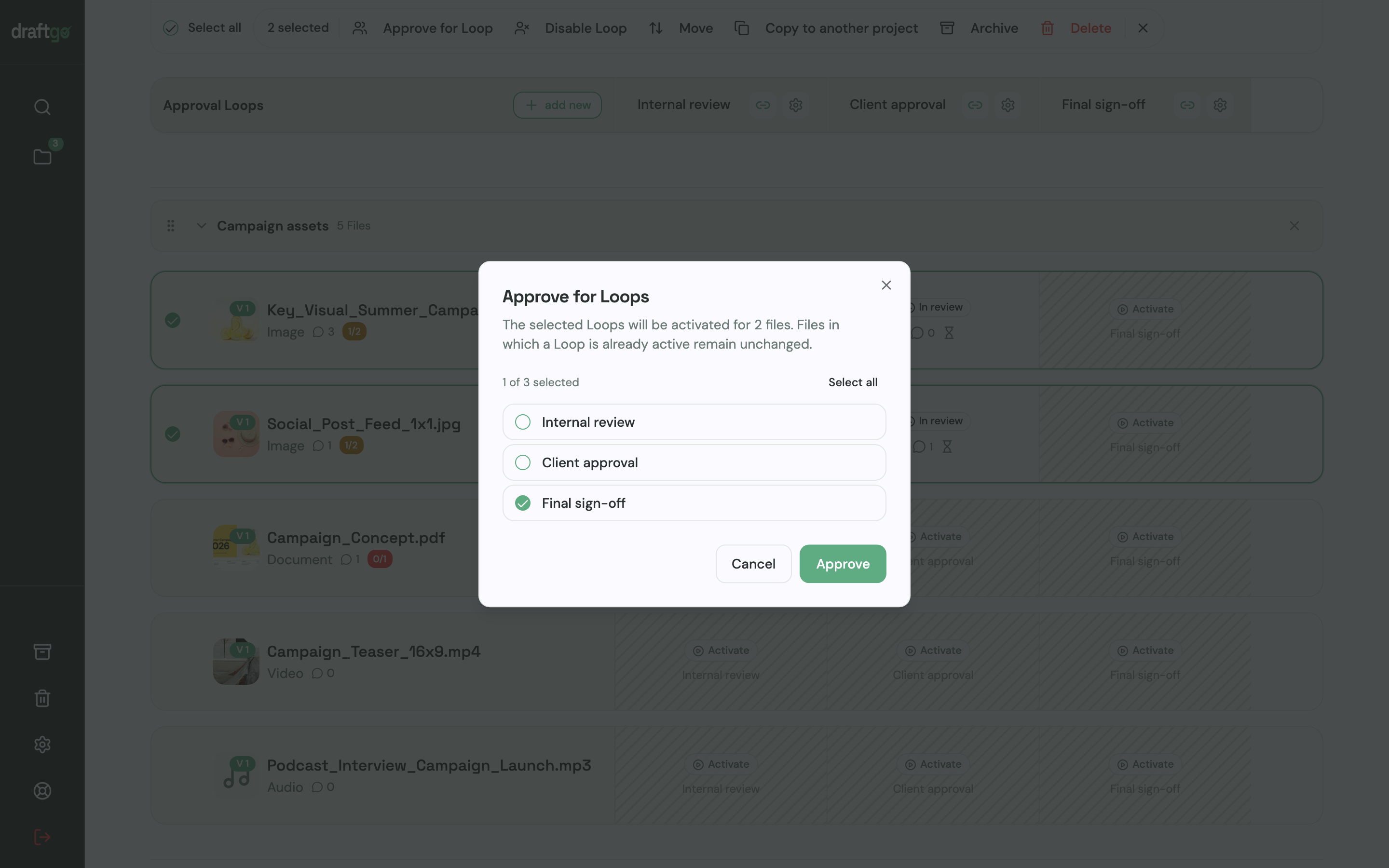
- Versions: earlier versions of a file stay available, comments belong to their version, and a new version starts the approvals again.
- To-dos for your developer: turn a comment into a to-do on the project board and assign it to one person; "My to-dos" shows the to-dos of every project in one list.
- History: the activity log keeps approvals, comments, versions and downloads with person and time, and you export it as CSV, JSON or PDF.
- AI review: from the Freelancer plan, the AI review checks mockups uploaded as PDFs or images for errors such as spelling mistakes, cut-off text or very small type before your client sees them. Its comments carry the name of our AI agent “GO”.
Pricing is per company, not per user or guest, and guests are unlimited from the Freelancer plan. Stored data is kept on EU servers in the Frankfurt data centre. More on design and website reviews is on draftgo for web design, freelancers find their setup on draftgo for freelancers, and the comparison overview shows how draftgo compares with other proofing tools.
FAQ
What is the difference between a website feedback tool and a bug tracker?
A bug tracker such as Jira manages the tasks of your developers. A website feedback tool collects the comments of clients and testers at the spot on the page, often with a screenshot and technical details. Many website feedback tools send each comment to a bug tracker as a ticket, so the two work together.
Do clients need an account to give website feedback?
In most tools in this guide, no. BugHerd, Huddlekit, Marker.io, MarkUp, Pastel, Ruttl and draftgo let guests comment without an account. Some ask for a name and email address before the first comment.
Can I collect feedback on a staging site?
Yes, with most live-site tools. Some reach a password-protected staging site with its password, others need a browser extension or a script on the site. Screenshot-based tools capture publicly reachable pages, so the staging site needs a public address for the review.
Can I get feedback on the mobile version of a website?
Yes. Many live-site tools show the page at different widths. Screenshot-based tools such as draftgo capture it at mobile, tablet and desktop width. Ask your client to check the mobile view in every round, because a layout that works on a laptop can break on a phone.
Conclusion
Decide first what your client should review: the layout and content of each page, or the working site with its functions. For layout and content sign-off, a screenshot-based review with device views and a recorded approval keeps rounds short; for bug reports on staging, choose a live-site tool that sends technical details to your bug tracker. Many agencies use one of each, so check that both fit the way your clients already work.
Try it free – draftgo is free for 14 days, no credit card needed.
Written by
Emilia
Content Producer
Ready to streamline your approval processes?
Get started with draftgo today and see how easy professional collaboration can be.