
A colleague is off sick, and the client calls about the poster for Saturday’s street festival: the start time has moved, could you send the print file again today? On the shared drive you find a folder called Festival poster, a second one called Poster_festival_NEW and, inside both, subfolders named old, misc and Tom temp. Three PDFs look the same apart from their names, and you can’t tell which one the client signed off.
A clear folder structure ends the search. With a naming rule and one place for versions and approvals, it also tells you which file is the right one.
What is a folder structure?
A folder structure is the fixed set of rules a team uses to create, name and nest folders. It says what sits on each level, for example client, project and work stage, and who may add new folders. A good one looks the same in every project and makes sense to anyone who joins later, such as a freelancer brought in for one campaign.
Why folder structures fall apart
Folder structures fall apart when people file by their own logic and nobody owns the template. What is obvious to the person who created a folder turns into guesswork for the colleague who covers for them.
- Several storage places. Part of a project sits on the shared drive, part in a personal cloud folder and part in email attachments, so a search finds only some of it.
- Folders without an owner. If anyone can add a folder on the top level, the drive grows its own variants of the same client.
- Structure built on the fly. A new job gets whatever folders its first designer thinks of, so no two projects look alike and nobody knows where the brief is.
Three models for the top level: client, phase or asset type
The right top level depends on what your team looks for first when it opens the drive: a client, a stage of the work or a kind of asset. Pick the model that matches that first question and keep the levels below it the same everywhere.
| Top level | Example path | Fits | Weak spot |
|---|---|---|---|
| Client | 01_Clients/Fennick/2026-03_Autumn-launch/ | Agencies and freelancers with recurring clients | Assets shared by several clients have no obvious home |
| Phase | 03_Production/Fennick/Autumn-launch/ | Teams that run similar jobs through the same stages | One client’s files are spread over several top folders |
| Asset type | Video/Fennick/Autumn-launch/ | In-house teams that reuse assets across campaigns | Project context and status get lost |
If you work for clients, start with the client as the root and give logos, fonts and brand guidelines one Brand folder per client instead of copying them into each job. An in-house team that needs to find images by keyword across a large archive can be better off with a digital asset management system than with a folder tree.
How to set up a folder structure in 6 steps
Set the structure up once as a template and copy it for every new project, instead of tidying the drive folder by folder.
1. Choose one root and one owner
Decide where client work lives, whether on a shared drive or in a cloud service, and treat everything outside it as unofficial. Name one person who creates client folders and changes the template; everyone else works inside the folders. If you are still choosing where to store files, our comparison of Dropbox alternatives for creative teams puts storage services and review tools side by side.
01_Clients/
02_Internal/
03_Templates/
04_Archive/
2. Build one project template
Every project gets the same folders, numbered so they sort in the order the work happens:
2026-03_Autumn-launch/
├── 00_Admin       quote, brief, contract
├── 01_Input       material from the client
├── 02_Working     layout and source files
├── 03_Review      exports for feedback
├── 04_Delivered   approved final files
└── README.txt
Save the empty tree in 03_Templates and copy it for each new job. The approved creative brief goes into 00_Admin, and the README names the project owner, the naming rule and what each folder is for. The UK Data Service describes such a README at the top level of a project folder, explaining what each folder is for and which naming conventions apply. It also asks for folder structures that are “simple, predictable and documented”, so new collaborators can follow them without an explanation.
Try it yourself: In the demo you work in a real draftgo workspace with sample data.
3. Stop at three or four levels
Deep trees cost clicks and make paths long. The Data Management Expert Guide (CESSDA, 2017–2022) advises restricting folders to three or four levels with no more than ten items on a list. Counted from the drive, the template above has four: 01_Clients, the client, the project and the stage folder.
Long paths also cause errors. In OneDrive and SharePoint, the full decoded path including the file name can’t exceed 400 characters, and SharePoint counts spaces and accented characters in their encoded form. On Windows, Office desktop apps can’t open a file whose full path is longer than 260 characters, while Office for Mac allows paths of up to 1,024 bytes (Microsoft Support, checked 17 November 2026).
4. Write one naming rule
A naming rule fixes the parts of a name and their order, so anyone can read a file without opening it:
- Project folders start with year and month:
2026-03_Autumn-launch. - Files name client, project, content, date and version:
fennick_autumn-launch_poster-a2_2026-03-14_v03.pdf. - Dates follow YYYY-MM-DD, and hyphens or underscores replace spaces.
CESSDA’s guide uses the same date format and advises against spaces, dots and special characters. OneDrive and SharePoint don’t allow characters such as *, :, ? and | in names, or a space at the start or end (Microsoft Support). How to number versions from first draft to approved file is covered in our guide to document version control.
5. Keep working, review and delivered files apart
Source files, exports for feedback and the files you hand over need separate folders. The designer works in 02_Working, exports a PDF or MP4 into 03_Review, and only the approved version goes into 04_Delivered.
This keeps open layout files away from clients, and “the file we approved” has one obvious place. If feedback runs in an online proofing tool, 03_Review holds only what you uploaded, because versions and comments live in the tool.
6. Archive finished projects with their record
Once the final invoice has gone out, move the whole project folder from 01_Clients to 04_Archive, README included, and delete nothing on the way. Add the record of who approved which version and when, for example as an exported PDF, so the answer to a question months later sits next to the files. Our guide to the approval audit trail explains what that record should contain.
Common mistakes and what to do instead
Each of these slips in during a busy week and stays until someone owns the template.
| Mistake | What happens | Better practice |
|---|---|---|
A misc or temp folder per project | Files land there unsorted and get lost | Skip the catch-all folder; a file without a home shows the template is missing a folder, which the owner adds |
One client spelt two ways (Fennick, FENNICK_Ltd) | Two client folders with half the files each | Only the owner creates client folders, from one list of names |
Folders named after people (Tom temp) | Files vanish from view when that person is away | Folders name content or stage, never a person |
An Approved folder for copies | Copy and working file drift apart | The approval stays with the file, and 04_Delivered holds the handed-over version |
| Archiving “some day” | Finished jobs crowd the client list for months | Archive a project when its final invoice goes out |
Practical example: a seven-person studio with three clients
Take a seven-person studio that designs print material and short videos for a climbing gym, a music school and a dental practice. Its shared drive has grown person by person: the climbing gym’s posters sit in a folder named after the designer who started them, and the music school has two client folders with different spellings. A freelance motion designer joins next month for the climbing gym’s summer campaign.
The studio lead becomes the owner and builds the template from the six steps. She moves the active projects first and sets the old folders to read-only during the switch. On the first day of the job, the freelancer opens the climbing gym’s client folder and finds the brief in 00_Admin and the current exports in 03_Review without asking anyone.
How it works in draftgo
Your layout files and raw footage stay on your drive. draftgo holds what goes to review, and you can set it up to match the structure you just built.
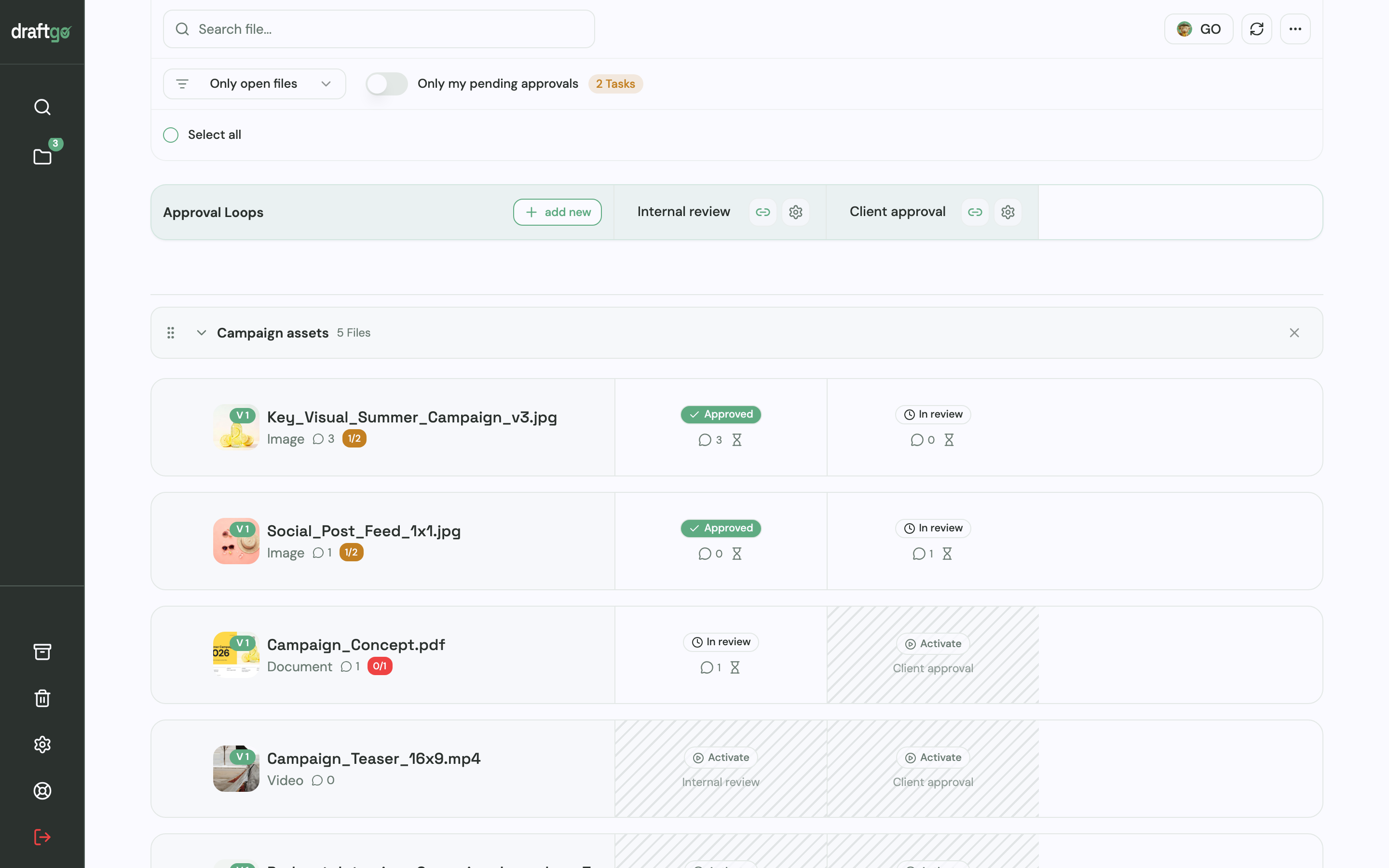
1. Folders and sections. In draftgo, folders group projects and galleries, so one folder per client works as on your drive. Sections divide a project, for instance into “Print”, “Social” and “Video”. The project page shows every file with its status in each approval loop.
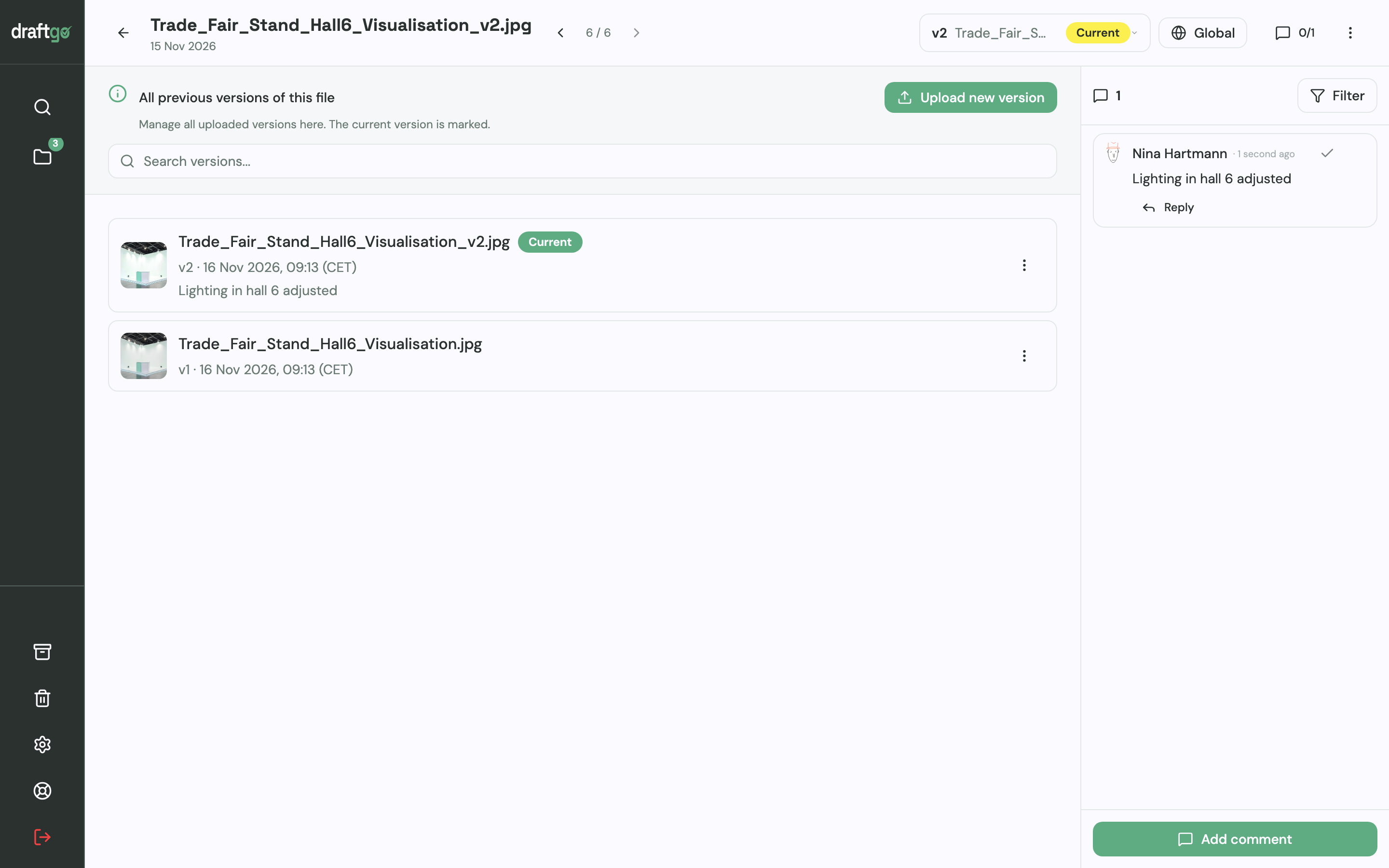
2. Versions instead of new files. When the client asks for changes, you upload the revised export as a new version of the same file. Earlier versions stay available one by one, comments belong to the version they were written on, and a new version restarts the approvals. A note on the version, such as “start time moved to 3 pm”, tells reviewers what to look at.
3. One loop per stage. The internal review and the client approval each get their own loop. For a loop you set whether all approvers, a set number or any one of them has to approve, separately for your team and for guests. A project holds 1 loop on Free, 3 on Freelancer and as many as you need on Agency and Team. The person who decides on the client side gets a personal approver link, the client’s colleagues who should only comment get the shared viewer link, and neither needs an account.
4. The record for your archive. draftgo logs every approval, comment and version with a timestamp, and every plan keeps the full history. Before the project folder moves to 04_Archive, you export the activity log as CSV, JSON or PDF and save it there. The page draftgo for agencies shows how this works across several clients.
FAQ
How many levels should a folder structure have?
Three or four levels, the depth the CESSDA guide suggests, are enough for client work: one top folder for all clients, then client, project and stage. If a project needs more, split it into two projects instead of adding levels.
Should I organise folders by client or by asset type?
Organise by client if the first question on your team is about a client, such as “where are Fennick’s files?”. If you reuse the same assets across many campaigns, sorting by asset type at the top can fit better. Either way, the folders below the top level stay the same in every project.
How do I move an existing drive to a new structure?
Start with new and active projects, and leave finished jobs where they are for now. Set the old folders to read-only and test access for colleagues and freelancers after each move. Move one project as a trial run before the rest.
Conclusion
Build one project template, give it an owner and a naming rule, and use it from your next new job on. Keep versions and approvals with the file in a review tool, and archive each finished project together with its record.
Try it free – draftgo is free for 14 days, no credit card needed.
Written by
Emilia
Content Producer
Ready to streamline your approval processes?
Get started with draftgo today and see how easy professional collaboration can be.