
Your proposals start as a copy of last month’s proposal, with the previous client’s name still in the footer. The text of the annual report sits in a shared document full of open comments, the layout lives in a design file on one person’s laptop, and the client sends corrections as a marked-up PDF by email, which someone then types back into the source file.
Document creation software takes over parts of this work, and each of the seven tools in this guide is built for a different kind of document. You get them sorted by type, with free options and prices checked on 17 November 2026, and where the review and approval of the finished document fits in.
What is document creation software?
Document creation software is any program you use to write, design or automatically generate business documents such as reports, proposals, brochures and contracts. The tools fall into four groups.
| Type | Typical documents | Tools compared below |
|---|---|---|
| Word processors | Reports, briefs, policies, letters | Google Docs, Zoho Writer |
| Layout and design apps | Brochures, annual reports, catalogues | Adobe InDesign, Affinity |
| Proposal software | Proposals, quotes, contracts | PandaDoc, Qwilr |
| Document generation | Contracts and letters filled from data | Formstack Documents |
The groups overlap: Zoho Writer also merges data into documents, and PandaDoc and Qwilr have their own editors. If a client has to approve the result, that review comes after the writing. Some tools below include an approval step on certain plans, while proofing tools are built around it, as the guide to online proofing explains.
How we compared the tools
We describe every tool by the same criteria: the documents it is built for, its free option, the entry price and pricing model, and what the entry plan leaves out. Prices come from each vendor’s own pricing page, checked on 17 November 2026, in the currency and billing period the page showed. The list follows the four groups, alphabetical within each, and is not a ranking.
draftgo is our product. It handles the review and approval of finished documents rather than their creation, so it is not part of the list; the section on draftgo below shows where it comes in.
Microsoft Word belongs in the first group as well, but Microsoft’s plan pages did not load when we checked them, so Word has no entry here. In Word for the web, track changes can be switched on for everyone working on a document (Microsoft Support).
Document creation software compared: 7 tools at a glance
Pros and cons of each tool follow the table.
| Tool | Suited to | What sets it apart | Free option | Entry price (as of 17 November 2026) |
|---|---|---|---|---|
| Google Docs | Writing together in the browser | Suggesting mode | Anyone with a Google account can create in Docs | €6.80 per user a month excl. tax, one-year commitment billed monthly (pricing) |
| Zoho Writer | Writing, mail merge, fillable forms | All features free | Yes | Free, extra automation credits paid (pricing) |
| Adobe InDesign | Page layout for print and digital | Preflight built in | 7-day trial | £21.98 a month incl. VAT (UK), US$22.99 (US), annual plan billed monthly (UK, US) |
| Affinity | Layout, design, photo editing | Design, photo editing and layout in one app | Free for individuals | Free (website) |
| PandaDoc | Proposals, quotes, contracts | Approval workflows on Business | 5 documents a month | $19 per seat a month (billing period not stated) (pricing) |
| Qwilr | Interactive proposals and quotes | Payments inside the proposal | No free plan listed; 14-day trial of Starter | $35 per user a month billed annually (pricing) |
| Formstack Documents | Documents filled from CRM or form data | No-code templates | No free plan listed; 14-day trial of Forms | Suite from $250 a month paid annually (pricing) |
1. Google Docs: writing together with suggestions
Google Docs is the word processor of Google Workspace and runs in the browser. Anyone with a Google account can create in Docs (Google Docs). In suggesting mode, reviewers propose changes without touching the original text, and the owner decides whether to keep them (Google Docs Help). On the Irish pricing page, Starter costs €6.80 and Standard €13.60 per user a month excluding tax, with a one-year commitment billed monthly, and both can be tried for 14 days at no cost.
- Pros: earlier versions you can reinstate; templates; Word documents and PDFs can be imported and edited.
- Cons: priced per user; formal approvals in Drive, which lock the file once all reviewers have approved, start with Standard (Business Standard in Google’s help) (Google Workspace Admin Help).
2. Zoho Writer: a free word processor with automation
Zoho Writer is a word processor for desktop, tablet and mobile. On its pricing page, Zoho states that Writer is free for individuals and organisations, with access to all features. Mail merge, fillable forms and e-signature collection use automation credits: 200 free a month on the free edition, 1,000 per organisation on the paid edition for businesses.
- Pros: no limit on the number of documents; imports and exports DOCX, ODT and PDF, among others; the AI assistant Zia generates content and offers proofing.
- Cons: automation beyond the free credits is paid; imports are capped at 50 MB for DOCX files and 10 MB for other formats.
Try it yourself: In the demo you work in a real draftgo workspace with sample data.
3. Adobe InDesign: page layout for print and digital publishing
Adobe describes InDesign as a professional page layout application for print and digital publishing, for brochures, digital magazines, eBooks and posters (Adobe InDesign). You design, preflight and publish in one application; what happens to a print file next is in the guide to prepress. The UK plans page shows £21.98 a month including VAT and the US page US$22.99 a month, each on an annual plan billed monthly, with a 7-day free trial.
- Pros: layout and preflight in one application; part of Creative Cloud Pro with more than 20 other apps.
- Cons: a paid subscription once the trial ends; the team plan is priced per licence.
4. Affinity: layout, design and photo editing in one free app
Affinity combines professional design, photo editing and page layout in one app for Mac, Windows and iPad. According to its website, Affinity is free for individuals, and its AI tools are available to users on a Canva premium plan.
- Pros: free for individuals; page layout, graphic design and photo editing without switching apps.
- Cons: the AI tools need a Canva premium plan; for Affinity with single sign-on, organisations contact Canva Enterprise or Canva Education.
5. PandaDoc: proposals, quotes and contracts with e-signatures
PandaDoc builds proposals, quotes and contracts in a drag-and-drop editor. Its pricing page lists Free with 5 documents a month, Starter at $19 per seat a month with unlimited e-signatures, and Business at $49, which adds custom branding, a content library and approval workflows. The page offers monthly and annual billing without saying which period these amounts refer to; the free trial lasts 14 days.
- Pros: real-time tracking and notifications already on Free; unlimited e-signatures from Starter.
- Cons: priced per seat; approval workflows and the content library only from Business.
6. Qwilr: interactive proposals and quotes with payments
Qwilr turns proposals into what it calls interactive buying experiences, notifies you when buyers engage and collects payments within proposals and quotes (Qwilr). Starter costs $35 per user a month billed annually or $49 billed monthly and includes e-sign, analytics and HubSpot, Zoho and Pipedrive integrations, with a free 14-day trial (pricing). Growth costs $55 per user a month for at least 5 users, billed annually only.
- Pros: notifications when a buyer engages; payment and signature in the same document; CRM integrations from Starter.
- Cons: no free plan on the pricing page; custom branding starts with Growth and its minimum of 5 users.
7. Formstack Documents: documents generated from your data
Formstack Documents is a no-code document generation tool. It pulls data from CRMs, form builders and databases, such as Salesforce, HubSpot or SharePoint, into templates, which can be DOCX, PPTX, PDF or CSV files (Formstack Documents). On the pricing page, Documents is part of the Suite with Forms and Sign, from $250 a month paid annually for 3 builder users, 250 document deliveries a month and unlimited e-signatures.
- Pros: no code needed; connects to the systems that already hold the data; e-signatures included.
- Cons: outside the custom-priced Salesforce Solutions, the pricing page offers Documents only in the Suite; the 14-day free trial covers the Forms product.
Which document creation software fits which document?
The right tool depends on the type of document you produce regularly:
- Text written by several people, such as reports and policies: Google Docs on Google Workspace, Zoho Writer without a subscription, Word on Microsoft 365.
- Designed documents for print, such as brochures and annual reports: InDesign if your studio works in Creative Cloud, Affinity for layout without a subscription.
- Proposals and quotes that need a signature: PandaDoc or Qwilr, both with e-signatures on their first paid plan.
- Many similar documents from data, such as contracts or letters from a CRM: Formstack Documents, or Zoho Writer’s automation credits.
Whichever you choose, set up templates with your logo, fonts and fixed text, and check the results against your brand guidelines.
What a document really costs: licence plus hours
A document costs the licence plus the hours your team spends on it. You can work out the hours per document type with one calculation: minutes per document ÷ 60 × hourly rate × documents a month.
Estimate the minutes per step:
| Step | What it includes | Where a tool from this list helps | Your minutes |
|---|---|---|---|
| Research | Figures, old versions, approved wording | Content library (PandaDoc Business) | |
| Draft | Structure and text | Templates, AI drafting (Zia in Zoho Writer) | |
| Layout | Fonts, images, brand colours | InDesign, Affinity, proposal editors | |
| Review | Collecting comments and working them in | Suggestions (Google Docs) | |
| Sign-off | Which version counts and who approved it | Approvals in Drive, approval workflows (PandaDoc Business) |
If review and sign-off take up a large share of your minutes, a faster editor changes little, because the time goes into feedback rounds. AI can shorten the draft if a person checks it, as the guide to AI content creation explains, and document version control keeps the review on the right file.
Practical example: a quarterly white paper for a software client
Take a four-person content agency that writes and designs a 12-page white paper for a software client every quarter. The copywriter drafts the text in Google Docs, and the client’s content lead adds suggestions there until the content is settled. The designer then lays it out in InDesign and exports a PDF.
Three people on the client side read the PDF: the founder, who has the final say, the head of customer success, who checks the customer quotes, and the legal counsel, who reads the claims. Sent as an attachment, the PDF comes back as three marked-up copies, one of them on an older export. At 90 minutes of collecting and typing in comments per round, four rounds cost 4 × 1.5 hours = 6 hours per white paper.
With a review step on the PDF, the agency sends links instead. The founder gets the personal approver link, the other two the shared viewer link, which lets them comment but not approve. Corrections go in as a new version of the same file, and the founder approves the version that gets published.
How it works in draftgo
You write and lay out the document in the tools above; draftgo takes over for the review and approval.
- Upload the finished file. You upload the PDF; Word files are converted to a PDF on upload. Before the client sees it, you can start the AI review, which checks PDFs for errors such as spelling mistakes, cut-off text or very small type. Its findings appear as comments from our AI agent “GO”, and its pages come with the plans from Freelancer on.
- Share the file by link. The person who decides gets a personal approver link, everyone else who should comment the shared viewer link, which allows comments but no approval. Neither needs an account.
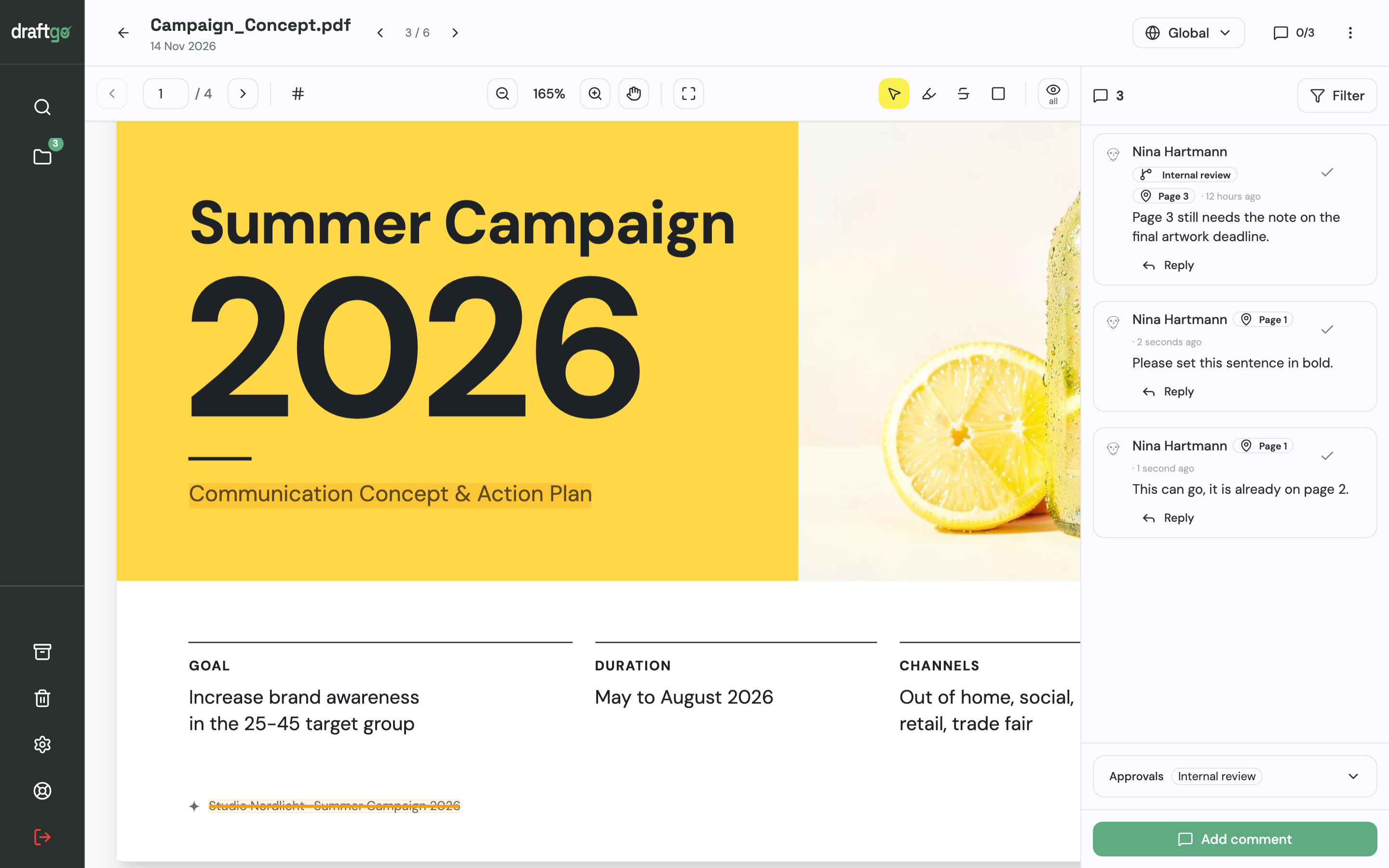
- Collect comments on the page. Reviewers highlight or strike through text or place a point or a rectangle, and each comment carries its page number.
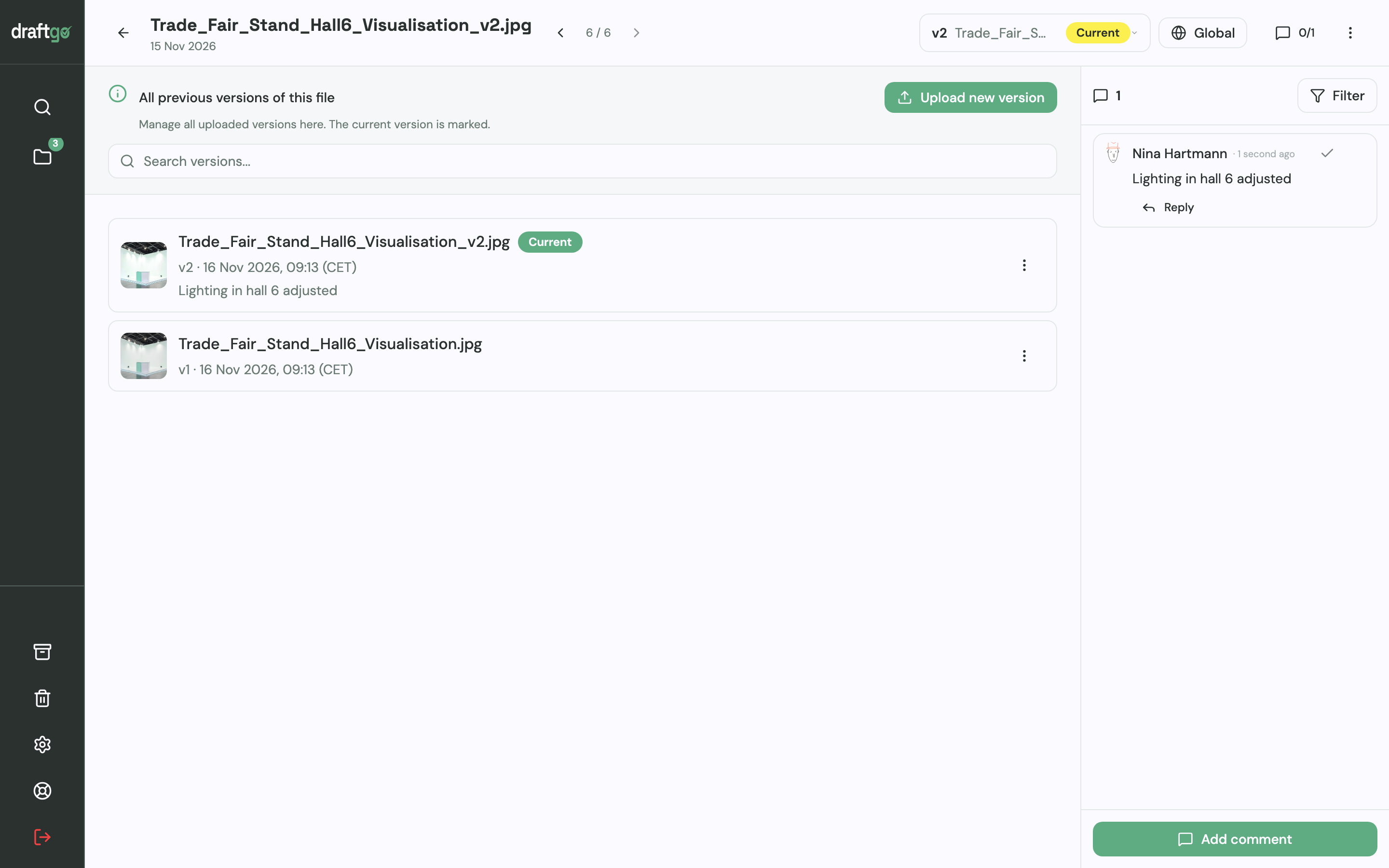
- Upload corrections as a new version. The new version sits on the same file, earlier versions stay available, and a note on the version says what changed. Comments belong to the version they were written on, and a new version starts the approvals again.
- Approve in loops. A loop collects the approvals of one stage, such as an internal proofread followed by the client approval. For each loop you set whether all approvers, a set number or any one of them must approve, separately for team and guests. A project holds 1 loop on Free, 3 on Freelancer and unlimited loops on Agency and Team, so this two-stage setup needs Freelancer or higher.
- Export the record. The activity log records approvals, comments, versions and downloads with person and time, and you export it as CSV, JSON or PDF.
Stored data is kept on EU servers in the Frankfurt data centre. How draftgo handles PDFs and other documents is shown on PDF and document review, and the plans are on plans and pricing.
FAQ
Is there free document creation software?
Yes. Zoho Writer is free for individuals and organisations, Affinity is free for individuals, and anyone with a Google account can create documents in Google Docs. PandaDoc’s free plan allows 5 documents a month.
What is the difference between document creation and document generation?
In document creation, a person writes and designs each document in a word processor or a layout app. Document generation fills a template with data from a CRM, a form or a spreadsheet and creates many documents automatically, as Formstack Documents does.
Can AI write the documents for me?
AI can write a first draft. Zoho Writer’s assistant Zia, for example, offers content ideas and generates content. A person still checks facts, figures, brand and rights before anyone outside the team sees it.
How do clients review a finished document?
While the text is still changing, reviewers comment or suggest edits in the word processor, for example in Google Docs’ suggesting mode. Once the document is a laid-out PDF, a proofing tool lets clients mark the page and approve one specific version, in draftgo through a link without an account.
Conclusion
Choose document creation software by the documents you produce regularly: a word processor for shared text, a layout app for print, proposal software for quotes that need a signature and document generation for many similar files. Then plan the review before the first draft goes out: who comments, who approves and which version counts.
Try it free – draftgo is free for 14 days, no credit card needed.
Written by
Emilia
Content Producer
Ready to streamline your approval processes?
Get started with draftgo today and see how easy professional collaboration can be.