
An enquiry from a hotel group reaches the shared inbox on Tuesday afternoon: a spring menu card in two sizes, a matching Instagram post and a poster for the lobby. Before anyone opens a layout file, the project manager copies the details into the task board, creates the job folders, renames the logo the client sent as image001.png and posts in the team channel that a new job is in.
None of these steps needs a designer, and all of them come back with the next job. Creative workflow automation can take them off your team, while the creative work and the client’s decision stay with people.
What is creative workflow automation?
Creative workflow automation means handing the repeatable steps around creative work to software that follows a fixed rule: when one thing happens, the software does the next. Zapier’s help centre calls the event that starts such a workflow a trigger and the step it performs afterwards an action (Zapier Help Center, updated 13 August 2026).
In a creative team, the trigger can be a submitted form, an uploaded file or a changed status, and the action a new task, a renamed file or a message to the right person. Five steps lend themselves to it:
| Step | Trigger | Action | Where it can run |
|---|---|---|---|
| Intake | A request form is submitted | A task with the brief fields appears on the board | Form tool, project board, integration platform |
| File naming | Files are exported for review or delivery | The files get the agreed name pattern | Operating system, file storage |
| Hand-offs | A task reaches a new status | The next task is created and assigned | Project board |
| Notifications | A file, comment or approval changes | The person who has to act gets a message | Review tool, chat, email |
| Approval routing | A new version arrives or someone approves | The approval status follows the agreed rule | Proofing tool |
Concept, design and the approval decision are not on the list. A rule can tell the client that a draft is ready, but it can’t judge whether the headline works.
Why creative workflow automation stalls
Automation stalls when the rule behind a step was never agreed, so the software has nothing reliable to copy. Three causes can lie behind it:
- No agreed rule. If two project managers name files in two ways, a rename rule picks one of them. Write the rule down and use it by hand for a couple of weeks first.
- Long chains. A request that passes from a form to a sheet, a board and the team chat breaks when one field changes, and nobody notices until a job is missing.
- No owner. A colleague built the rule and moved on, and now tasks appear that nobody can explain or switch off.
5 steps to automate a creative workflow
Automate one step at a time, in the order the work happens, and let each rule run for a few weeks before you add the next.
1. Turn intake into a form
A form makes each request arrive with the same fields, so nobody has to copy details out of emails. Take the fields from your creative brief template, so each request already holds what the brief needs.
Google Forms can save responses in a spreadsheet, where Google Sheets puts the data in a table automatically (Google Docs Editors Help). Integration platforms then connect the form or the sheet with your project board: Zapier says its workflows connect more than 9,000 apps (Zapier, as of 17 November 2026).
2. Let a rule name your files
File naming needs no new software. On a Mac, Finder renames a batch of selected files at once and can replace text, add text or apply a format with a counter or a date (Apple Support). On Windows, PowerRename from Microsoft’s PowerToys renames many files in one go with search and replace, counters and the file’s creation date, and it shows a preview before anything changes (Microsoft Learn).
The tool applies the pattern, but your team has to agree it first. Our guide to document version control explains how to build a name from client, job, content, date and version.
Try it yourself: In the demo you work in a real draftgo workspace with sample data.
3. Hand off tasks when a status changes
A hand-off is the moment work moves to the next person, for example from the internal review to the client or from the approved file to the printer. Project boards such as Trello have rules for this built in. Trello says its automation is built into every board, runs the actions you set when a trigger happens and adds card and board buttons that run several actions in one click (Trello, as of 17 November 2026).
A rule could read: when a card moves to “Ready for client”, assign it to the account manager and add the checklist for sending. Our guide to the seven stages of an agency workflow maps them from quote to invoice, and the marketing workflow guide does the same for in-house requests.
4. Send notifications to the person who acts next
A notification helps when it reaches someone who has to do something. Agree which event goes to whom, such as a new comment to the designer and an approval to the project manager. Everything else can wait for a summary.
Reminders before a deadline are a separate case. They belong in the tool your team plans deadlines in, such as a task manager or the shared calendar.
5. Route approvals by a rule
Approval routing decides who approves which file, in which order, and when a file counts as approved. Agree the rounds before you set it up, for example an internal check first and then the client, and the rule for each round: all reviewers, a set number or any one of them.
A proofing tool then keeps the status for you, instead of a spreadsheet someone updates after each email. Our guide to online proofing explains how comments, versions and approvals stay together on the file.
Common mistakes and better practice
These mistakes turn a helpful rule into extra work.
| Mistake | What happens | Better practice |
|---|---|---|
| A message for every event | The team mutes the channel and misses the one that matters | Direct messages for actions, a summary for the rest |
| Testing a new rule on a live client job | The client gets a half-finished draft or a duplicate email | Test with an internal dummy job first |
| Sending files to the client automatically after upload | The client sees work nobody has checked | Keep an internal check before the client round |
| Passing client data to a tool nobody has checked | Data ends up in places the contract doesn’t cover | Check where the tool stores data and pass on only the fields a rule needs |
Practical example: an in-house team at a tour operator
Take an in-house team of three designers and a team lead at a tour operator. Product managers send requests for brochure pages, web banners and newsletter images by email and chat, and the team lead spends the first hour of each day turning them into tasks.
The team starts with intake: a form with the fields of its brief template, whose responses reach the board as cards through an integration platform. Two weeks later it agrees a naming pattern and applies it with a batch rename before files go to review. The third rule sits on the board: when a card moves to “Ready for review”, it is assigned to the product manager who asked for it. Approvals run in a proofing tool with one internal round and one round for the product managers, so the board no longer needs a column called “Waiting for approval”.
How it works in draftgo
Two steps from the table run inside draftgo: notifications, and approvals by a rule that you set once per loop. draftgo records each approval. It has no public API yet (it is planned and starts as a beta), so intake, file naming and board rules keep running in the tools you use for them.
- Set the rule once per loop. Give the project an internal loop and a client loop and pick each loop’s rule: all approvers, a set number or any one of them, separately for the team and for guests. When the rule is met, the file counts as approved in that loop. Free has one loop per project, Freelancer three, Agency and Team as many as you need, as the plans and prices show.
- Send two kinds of link. The client’s decision-maker opens a personal approver link. Anyone else on the client side who should only comment opens the shared viewer link, which can comment but not approve, and neither needs an account.
- Leave the messages to draftgo. What concerns a person directly reaches them by email at once. Whoever subscribes to a project, loop or file gets the rest bundled every 30 minutes or as a daily or weekly summary, which also lists pending approvals.
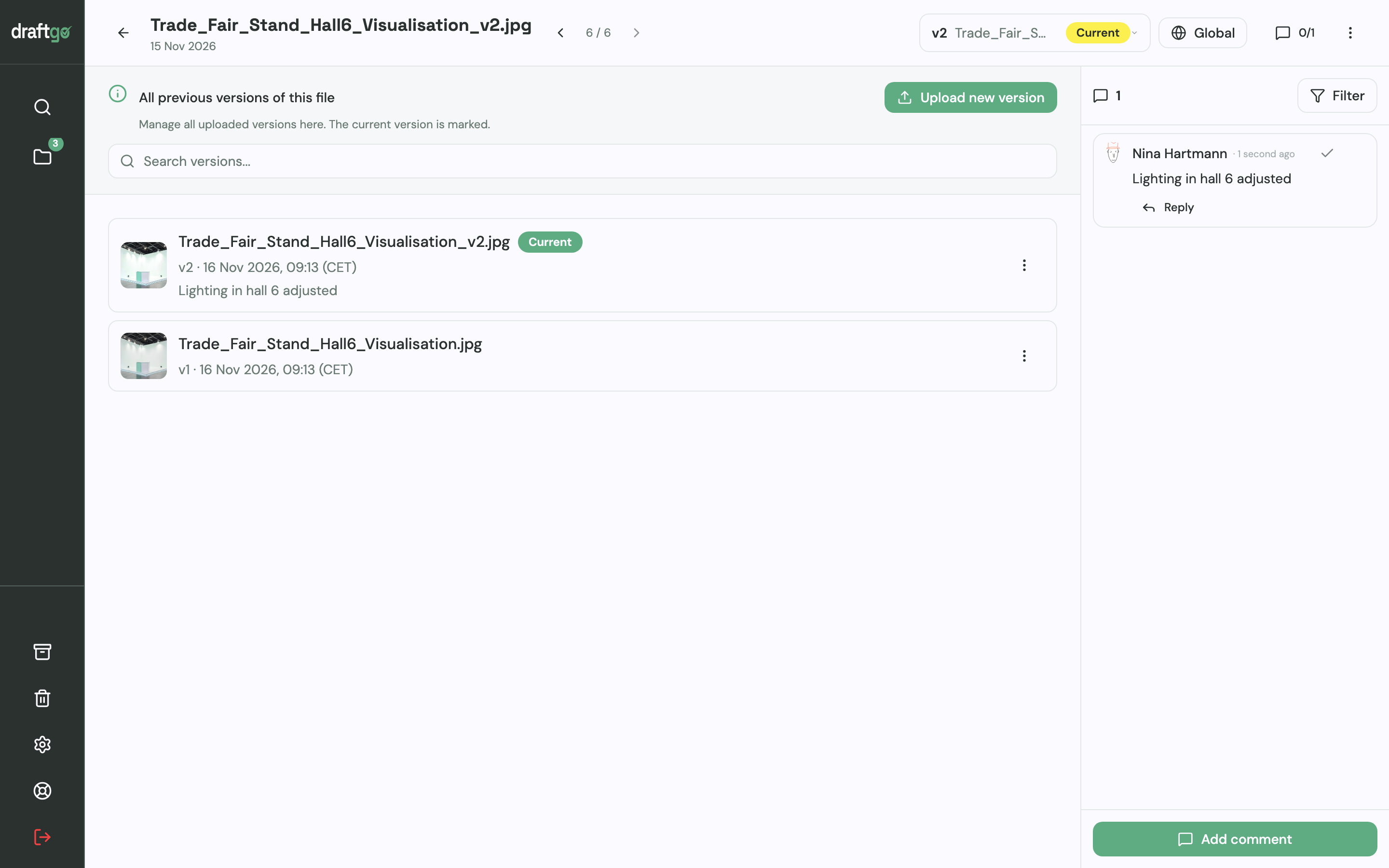
- Upload a correction as a new version. The approvals of that file start again on their own, and a note on the version tells reviewers what changed.
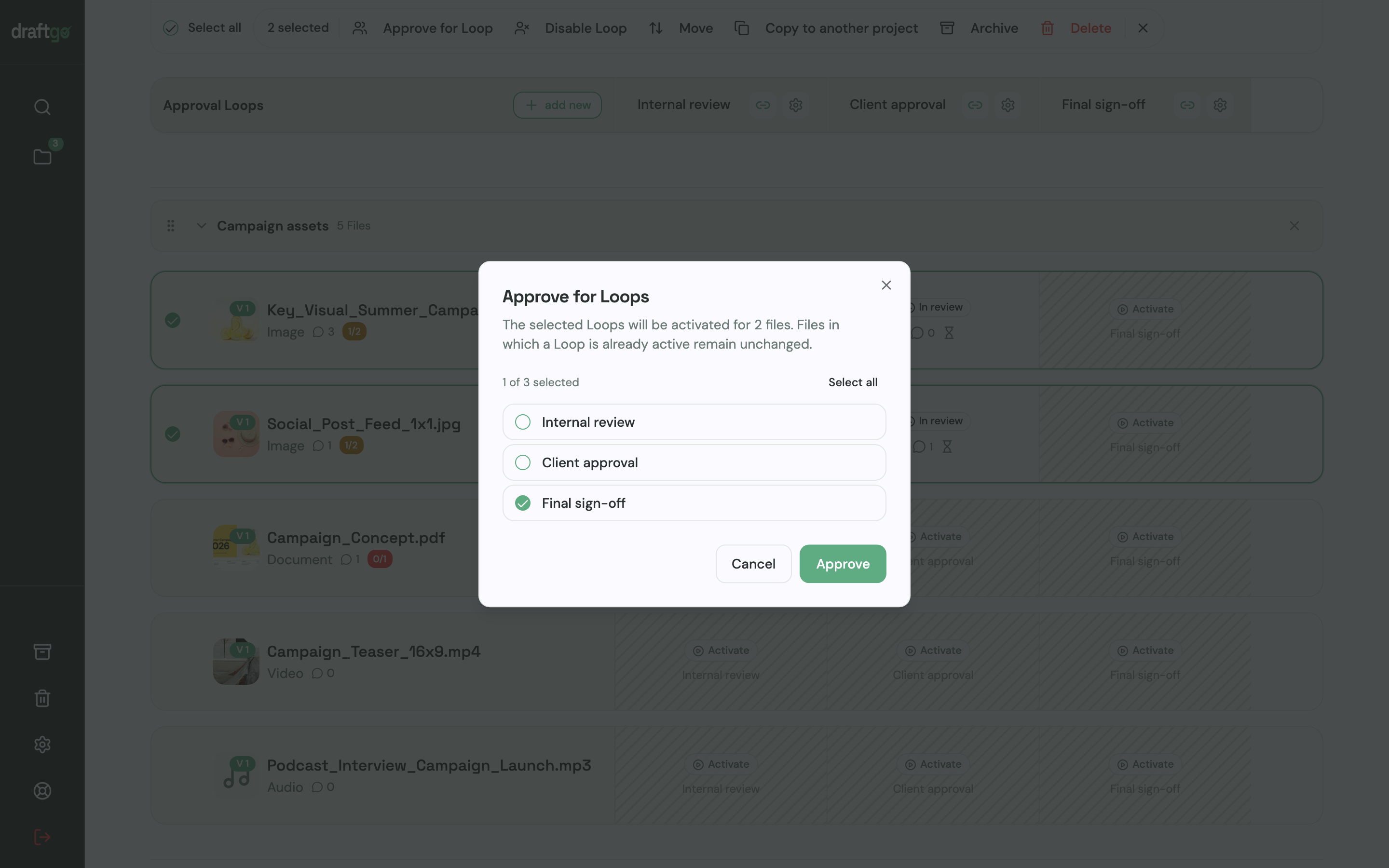
- Decide when a file moves on. Once the internal loop has approved a file, you activate it in the client loop, for several selected files in one step.
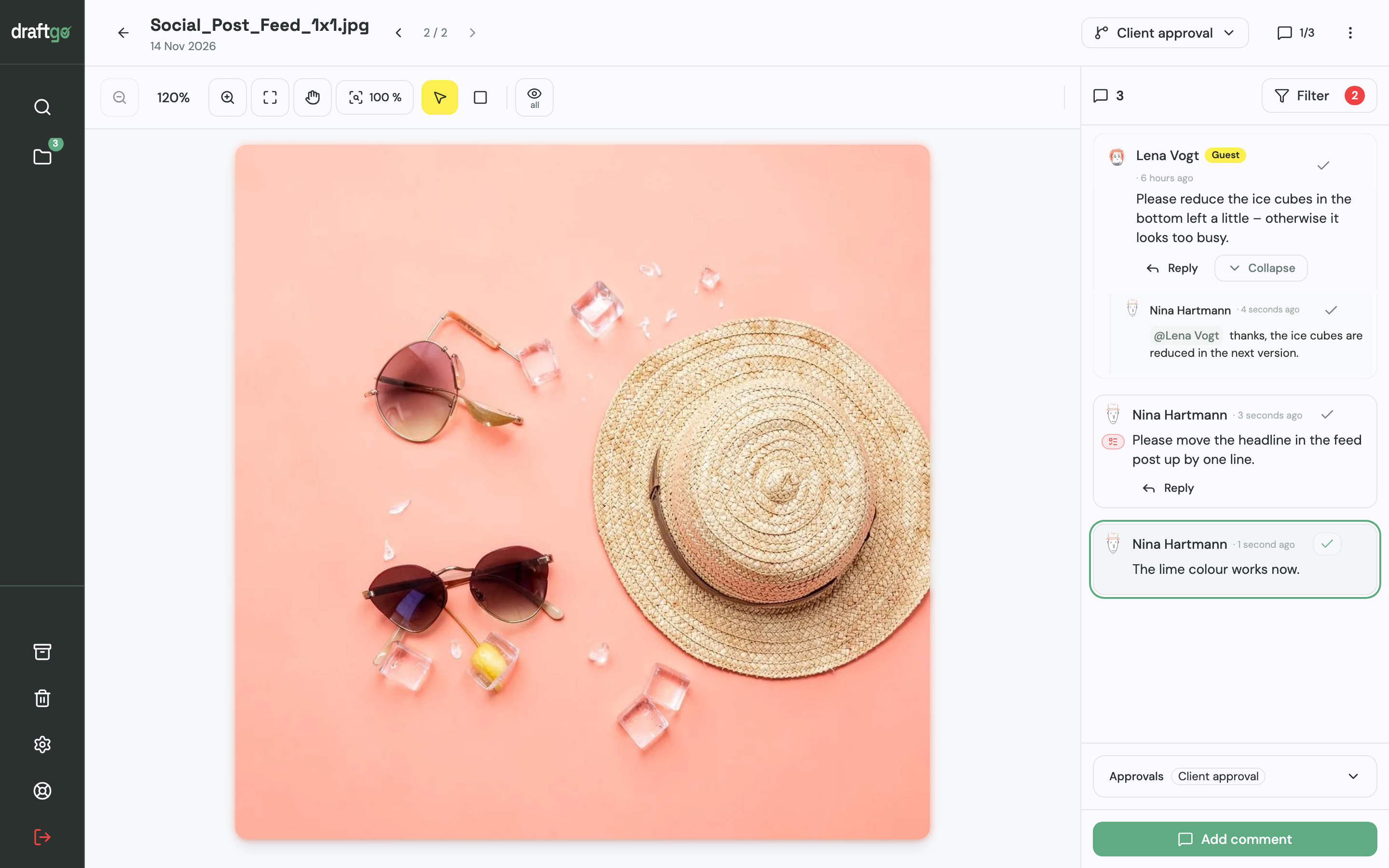
- Turn a comment into a to-do. You turn a comment on the image, the PDF page or a point in the video into a to-do on the project board, with an assignee and a due date.
- Export the record. Approvals, comments, versions and downloads land in the activity log with person and time, ready to export as CSV, JSON or PDF.
How this looks for client work and for internal requests is shown on the pages draftgo for agencies and draftgo for in-house teams.
FAQ
Do I need to code to automate a creative workflow?
No. The steps in this guide are set up in the tools themselves: a form, a batch rename in Finder or PowerRename, a rule on your board. Use what your tools already offer before you add a platform that connects them.
Which step of a creative workflow should I automate first?
Pick the step your team repeats on each job without making a decision, such as copying request details or renaming exports. Look at last month’s jobs and start with the step that came up in most of them.
Is it safe to send client data through automation tools?
Check where each tool processes and stores the data and what your contract with the client allows. Pass on only the fields a rule needs. Some platforms can run on your own servers: n8n says you can self-host it on your own infrastructure, on-premises or in a private cloud (n8n Docs).
Can automation approve files on my client’s behalf?
No, and it shouldn’t. The decision stays with the person you named as approver. A rule can tell that person a file is ready, show who has approved and who is still pending, and keep a record of each approval.
Conclusion
Creative workflow automation helps where a step repeats without a decision: intake, file naming, hand-offs, notifications and the routing of approvals. Agree the rule first, automate one step this month and give it an owner. Keep the creative work and the approval with people, in a tool that shows who approved which version.
Try it free – draftgo is free for 14 days, no credit card needed.
Written by
Emilia
Content Producer
Ready to streamline your approval processes?
Get started with draftgo today and see how easy professional collaboration can be.