
An account manager opens the Asana task “Wayfinding signage – client sign-off” on the morning of the client call and finds it marked Approved. A junior designer clicked it on Friday while ticking off the subtasks around it, and the client’s own feedback, four notes on the lift lobby sign, is still sitting in the account manager’s inbox.
Asana approvals work well when someone on your team signs off a task. When clients review files, when videos are part of the job or when a design goes through several versions, keep the decision on the file in a proofing tool and let Asana carry the task, the dates and the status.
How approval tasks work in Asana
An approval in Asana is a type of task: you ask for a decision, and the approver closes the task with one of three answers. According to Asana’s help article on approvals, those answers are Approved, Changes requested and Rejected, and a task that is still open counts as pending.
You create one with “+ Add task” and “Add approval” in a project, or you open an existing task, click the three dots and choose “Mark as Approval”. In My Tasks and in projects, the approval icon shows the state: empty while pending, green for approved, orange for changes requested and red for rejected.
Three details from the same article matter for client work:
- Anyone can complete an approval, not only the assignee. Asana suggests comment-only projects if only the assignee should be able to approve.
- Subtasks can be marked as approvals as well.
- If you downgrade from Advanced or the legacy Business plan, approval tasks lose the feature, and completed ones look like normal completed tasks.
What Asana proofing adds
Proofing lets reviewers leave feedback directly on an image or PDF attached to a task, and every annotation becomes a subtask. Asana’s proofing article describes the steps: open the attached image, click “Add Feedback”, click the area you mean, and Asana creates the subtask. You can rename it, assign it, give it a due date and add a description.
The article lists PDF, PNG, JPG, GIF and BMP files, and proofing also works in the iOS and Android apps. For an internal layout review, nobody has to copy notes out of an email into tasks.
Both features need the same plans. As of 17 November 2026, Asana’s help centre and pricing page show this:
| Feature | What it does | Plans that include it |
|---|---|---|
| Approval tasks | A task closed as Approved, Changes requested or Rejected | Advanced, Enterprise, Enterprise+, legacy Business and Legacy Enterprise |
| Proofing | Annotations on images and PDFs that become subtasks | Advanced, Enterprise, Enterprise+, legacy Business and Legacy Enterprise |
| Guests | People outside your email domain who see only what you share with them | Listed for every plan from Personal up; free of charge on paid plans |
| Client portal | A space per client with shared tasks, files and status updates | Asana Client Management, an add-on for Starter or Advanced |
On Asana’s pricing page, as shown to a visitor from the EU on 17 November 2026, Starter costs €10.99 and Advanced €24.99 per user per month, billed annually, and the page lists approvals and proofing under Advanced. If you are still choosing your stack, our overview of agency software for the five parts of an agency stack puts Asana next to tools for time, files and invoices.
Where client sign-off gets harder in Asana
Asana keeps the approval on the task, and the people who decide need to be inside Asana. That fits internal sign-off, but with clients four points need a plan before the first round.
Client access. You can invite clients as guests. Asana’s guests FAQ says guests in a paid organisation do not count towards your membership. The client portal of Asana Client Management is the other route. Asana’s article on the client portal says clients need an Asana account for it and are asked to create one if they have none, while the invitation uses no licence on your paid plan. A client who does not want another login needs a different way in.
Try it yourself: In the demo you work in a real draftgo workspace with sample data.
File types. The proofing article names PDF and four image formats. Video and audio files are not on that list, so time-coded comments on a cut or a voice-over need a tool built for them. Our comparison of video feedback tools shows how client video review works.
Several deciders. One approval task has one outcome. If the brand manager and the legal team both have to agree, give each of them an approval subtask, so every decision shows up as its own completed approval.
Which file was approved. The decision belongs to the task. When a task holds the first and the second draft as attachments, write into the task which file the approval covers, or keep the files with their versions somewhere that records the approver for each one.
Asana approvals with a proofing tool: 6 steps
This setup keeps Asana for planning and status and moves comments and the decision onto the file. Our post on Slack feedback for creative approvals applies the same split to a chat tool.
1. Create the approval task in Asana
Add an approval task per deliverable, for example “Poster set – client approval”, assign it to the account manager who will close it and set the date of the client round. Asana stays the place where the team sees what is due.
2. Put the file into the proofing tool
Upload the PDF, image or video and plan two rounds, one for your team and one for the client. If files still reach clients as download links, our list of WeTransfer alternatives shows tools that send a file and collect comments on it.
3. Send the right link to the right person
The client’s decision-maker gets a personal approver link. Anyone else on the client side who should comment gets a shared link that cannot approve. Paste both links into the description of the Asana task, so the team knows where the round happens.
4. Keep comments on the file
Ask reviewers to comment on the file, not in the Asana task’s comment thread. Your designers can keep using Asana proofing for internal notes, as long as the client’s comments end up in one place.
5. Upload corrections as new versions
Each correction goes onto the same file as a new version instead of a new attachment in Asana, and the earlier comments stay with the version they were written on.
6. Close the Asana approval with a note
Once the client has approved in the proofing tool, the account manager marks the Asana task as Approved and notes which version, who approved it and the link. If the client asks for changes instead, the account manager closes the Asana task as Changes requested, so the team knows the job is back with them. For later questions, an audit trail of creative approvals explains what such a record should hold.
Common mistakes and what to do instead
| Mistake | What to do instead |
|---|---|
| A colleague completes the approval task while tidying up | Close it only after the client’s decision is recorded, or use a comment-only project |
| One approval task for three deciders | One approval subtask per decider |
| Client feedback arrives in Asana comments and on the file | Agree at kick-off that comments on a file go on the file |
| You plan a downgrade from Advanced | Keep the approval record outside the approval tasks, which then look like normal completed tasks |
Practical example: a ferry operator’s summer timetable campaign
Take a twelve-person agency that plans all its client work in Asana and is producing the summer campaign for a ferry operator: three timetable posters as PDFs, a 15-second clip for the screens on board and four social images. In Asana, each deliverable has an approval task assigned to the account manager.
Inside the agency, the art director comments on the poster drafts with Asana proofing, and each of her notes becomes a subtask for the designer. For the client, the agency uploads all eight files into a proofing project with an internal round and a client round. The ferry operator’s marketing lead decides and gets the personal approver link. The operations manager, who knows the departure times, comments through the shared link.
He pins a comment on a wrong departure time on the second poster. The designer uploads the corrected PDF as version 2 of the same file, the marketing lead approves it, and the account manager closes the Asana task: “Poster 2, version 2, approved by the marketing lead, link to the record in the description.”
How it works in draftgo
draftgo is our product. In draftgo, the file carries the client’s comments, its versions and the record of who approved it, while the task, its date and its assignee stay in Asana.
You start with a project and its loops, for example an internal loop and a client loop. Each loop has a rule: all approvers, a set number or any one of them must approve, set separately for your team and for guests. On Free a project holds 1 loop, on Freelancer 3, and on Agency and Team as many as you need, as the plans and prices show. A file the internal loop has approved moves on when someone on your team activates it in the client loop.
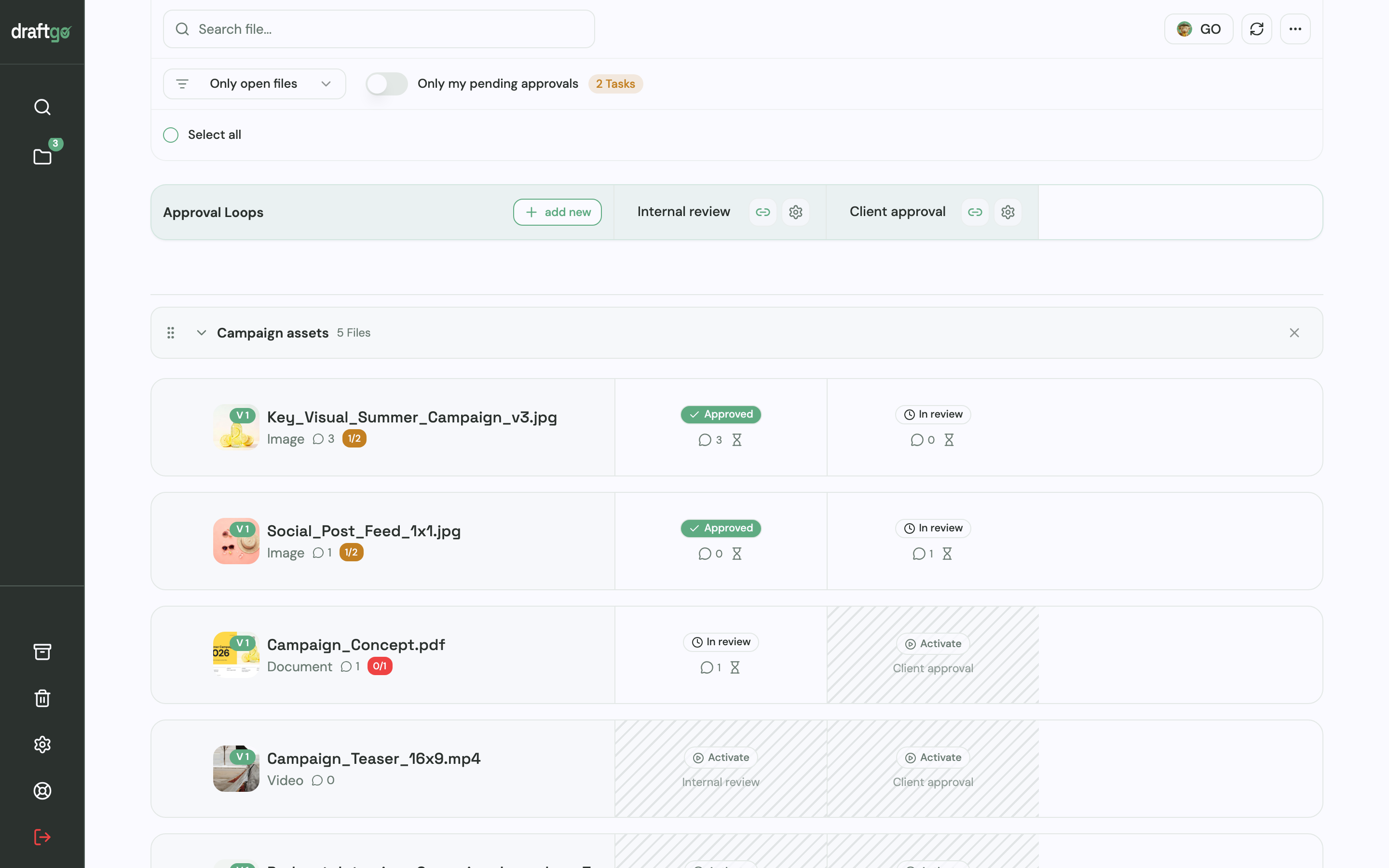
The ferry operator’s marketing lead, or whoever decides for your client, approves in the browser from a personal approver link and needs no draftgo account. Colleagues on the client side who should only comment use the loop’s shared viewer link. Both comment where the change belongs: a pin or a box on an image, a highlight or strikethrough on a PDF line, a time on a video or audio file.
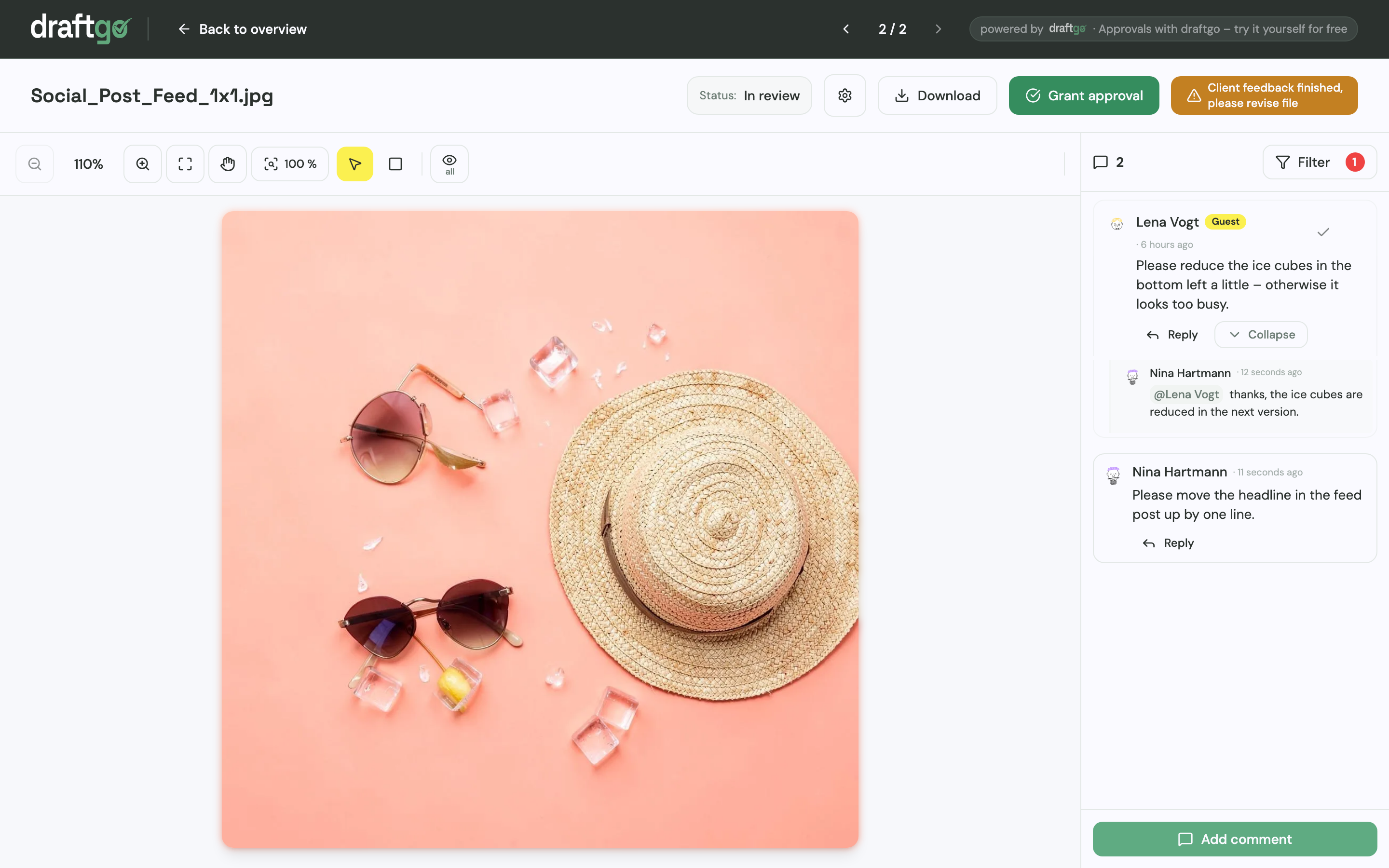
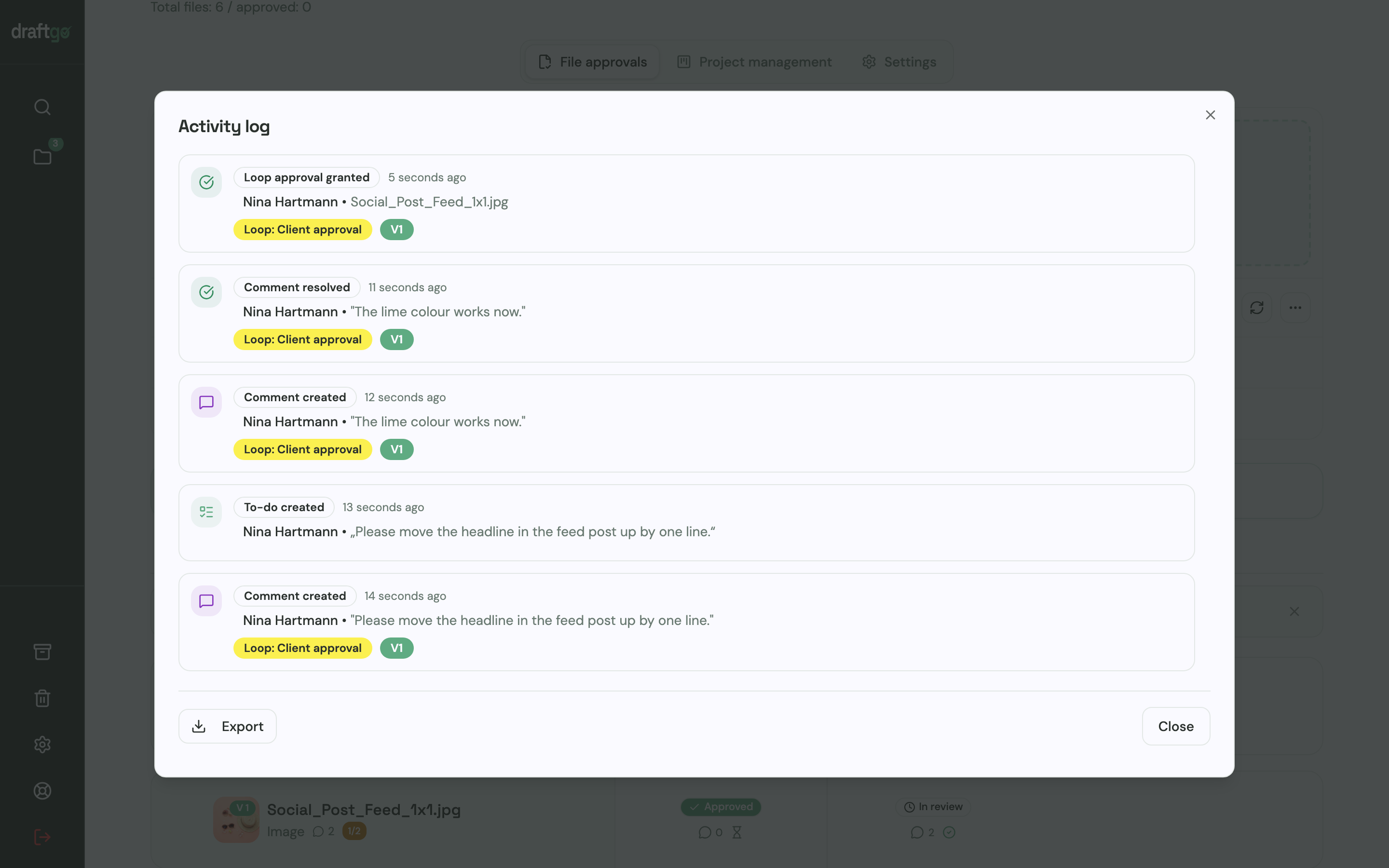
A correction goes onto the same file as a new version, with a note on what changed. The approvals of that file start again, so the client signs off the version in front of them. The activity log records approvals, comments, versions and downloads with person and time, and you export it as CSV, JSON or PDF when the Asana task needs a reference.
There is no ready-made connection between draftgo and Asana, so the link in the task description joins the two. The page draftgo for agencies shows how agencies run client reviews this way.
FAQ
Which Asana plan includes approvals?
Asana’s help centre lists approvals for Advanced, Enterprise and Enterprise+ as well as the legacy plans Business and Legacy Enterprise. Proofing is available on the same plans. Personal and Starter are not on that list.
Do clients need a paid Asana seat?
No. Clients you invite as guests do not count towards the membership of a paid organisation, and inviting clients to the client portal of Asana Client Management uses no licence. For the portal, though, a client needs an Asana account.
Can an Asana approval have more than one approver?
One approval task ends with one outcome, set by whoever completes it. Because subtasks can be marked as approvals, you can give each decider their own approval subtask under the main task.
What happens to approval tasks if you downgrade?
Asana says that after a downgrade from Advanced or the legacy Business plan, approval tasks lose the approval feature. Completed approvals then look like normal completed tasks, so keep a separate record if you need to show who approved what.
Conclusion
Use Asana approvals for sign-off inside your team and Asana proofing for internal notes on images and PDFs. When clients approve, videos are involved or a file goes through several versions, review the file in a proofing tool and close the Asana task with a note on which version was approved.
Try it free – draftgo is free for 14 days, no credit card needed.
Written by
Emilia
Content Producer
Ready to streamline your approval processes?
Get started with draftgo today and see how easy professional collaboration can be.