
The draft has been with your client for a week. No reply, no comment, and the printer needs the files on Friday. Chasing feels pushy, while not chasing pushes the whole schedule back. A short reminder email usually sorts it out, as long as it says the right things and arrives at the right time.
What is a reminder email?
A reminder email is a short message that brings an open request back to someone's attention, such as feedback, an approval or a payment. In creative work it is usually about drafts that sit with the client waiting for an okay. A good reminder doesn't repeat the whole first email. It puts the open decision back in front of the right person, one click away.
Unpaid invoices follow their own rules with deadlines and formal steps, which our guide on what to do when a client is not paying an invoice covers. This article is about feedback and approvals.
Why approvals stall on the client side
Rarely out of disinterest. Usually one of these reasons is behind it:
- An unclear request. The client doesn't know whether to look, comment or approve.
- The file has gone missing. The attachment is buried in a long thread, or the download link has expired.
- A hurdle to open it. A login, missing software or a very large file gets in the way.
- The wrong person. The decision sits with the director, but the email went to her assistant.
- Too much at once. Twelve files in one email look like a project to put off until later.
A good reminder clears exactly these hurdles out of the way. Getting the first request right helps even more, and it starts at kick-off: our guide to client onboarding shows how to agree who reviews and who signs off before the first file goes out.
Try it yourself: In the demo you work in a real draftgo workspace with sample data.
How to structure a reminder email
A reminder needs only a few parts. Each one answers a question that would otherwise hold your client up again.
| Part | What it covers | Example |
|---|---|---|
| Subject line | File and task instead of “Quick question” | “Approval: summer party flyer, version 2” |
| Reference | What you are reminding them of | “The second draft has been ready since Tuesday.” |
| Link | One click to the current file | A link to the file rather than a new attachment |
| Request | What exactly you need | “Your approval, or comments right on the draft” |
| Deadline | By when and why | “The printer needs the files on Friday.” |
| Way out | What to do if the timing doesn't work | “If that's too tight, a quick reply is enough.” |
How to get clear, usable comments from clients in the first place is the topic of our guide to design feedback.
When to send a reminder: a simple schedule
How soon you follow up depends on the project. Agree on the waiting time at kick-off, so the reminder surprises nobody. This schedule suits many projects:
| Stage | When | Tone |
|---|---|---|
| Request for approval | At the start | Factual, with a deadline |
| Friendly reminder | After three working days without a reply | Short and helpful |
| Second reminder | After about a week | Specific, with the effect on the schedule |
| Call or short message | After that | Personal |
Fixed feedback dates and a set number of revision rounds belong in the quote. Why that also keeps projects from growing out of control is explained in our guide to scope creep. Where the reminder fits in the whole process is shown in our guide to the approval workflow.
Reminder email templates
The templates below are written for a client you address by name. Adjust the tone to your relationship with them.
Friendly reminder
"Subject: Approval: summer party flyer, version 2
Hi Sarah,
the second draft of the flyer has been ready for you since Tuesday. You can open it in your browser through the link below. Feel free to approve it or add your comments right where they apply. To keep Friday's print date, I'd need your reply by Thursday lunchtime.
Best wishes, Jana
Second reminder with the effect on the schedule
"Subject: Summer party flyer: approval for the print date
Hi Sarah,
I'm following up on the flyer once more. For the print run in time for the summer party, we need your approval by midday tomorrow, otherwise delivery moves back by a week. The current draft is at the same link below. If you have any questions, just give me a call.
Best wishes, Jana
Last check before you call
"Subject: Quick check on the flyer
Hi Sarah,
I just want to make sure my last emails reached you. Is the flyer still going ahead, or should we put the project on hold for now? A short reply is enough, and I'll plan around it.
Best wishes, Jana
| Mistake | Better practice |
|---|---|
| Sending the whole first email again | A short reminder of the open request |
| Attaching the file again | One link that leads straight to the current file |
| “Just a reminder …” with no clear request | Saying what you need and by when |
| Reproaches like “I'm still waiting” | Stating the effect on the schedule factually |
| Chasing every day | Agreeing on the waiting time up front and sticking to it |
Practical example: open approvals with five clients
A small agency looks after five clients with ongoing campaigns. The project lead used to write a round of reminders by hand every Monday, with fresh attachments and the question of whether everything had arrived. Often she wasn't sure herself which file was with whom.
Now she bundles them. Each client gets one email listing all open files, each with a link and a deadline. Anyone who hasn't replied after three working days gets a short second reminder saying when the plan would slip. With clients who don't answer that either, she picks up the phone and asks openly whether the project is still on.
How it works in draftgo
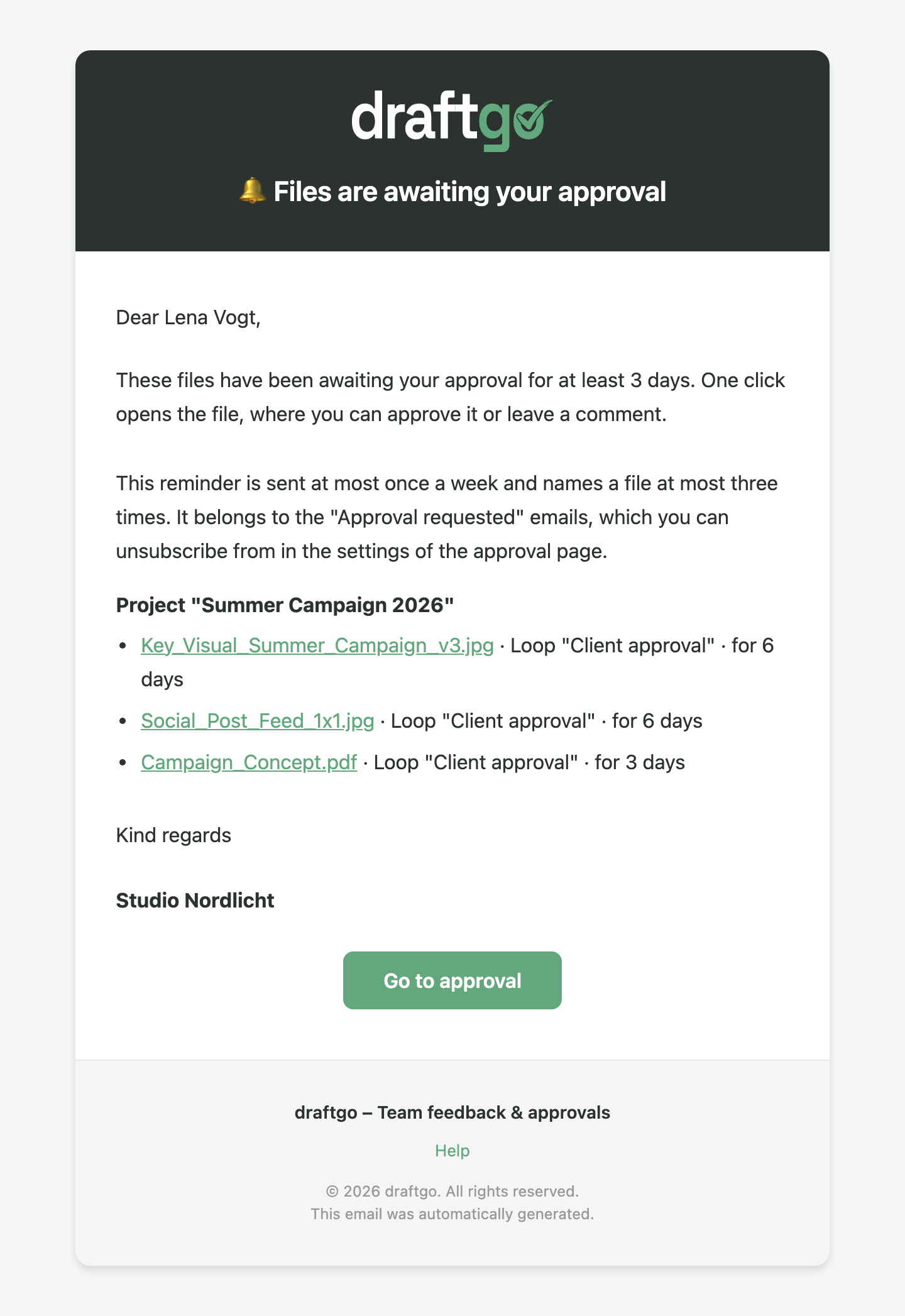
In draftgo you don't have to keep track of open approvals yourself: draftgo reminds your approvers of pending approvals by email. The email goes out on weekday mornings once a file has been waiting for at least three days. The page draftgo for agencies shows how the rest of the client review fits together.
- Name your approvers. In each loop you decide who from your team and which guests approve. Guests get a personal approver link and don't need an account.
- Approval reminder after three days. When a file has been waiting for someone for at least three days, that person gets an email that lists the waiting files, each with a direct link.
- Guests included. Clients with a personal approver link get the approval reminder too, for the files their link covers.
- Never too often. Each person gets at most one approval reminder a week, and each file appears in it at most three times.
- Controlled with the approval emails. The approval reminder belongs to the approval emails under Settings → Notifications → “Approvals” and can be switched off together with them.
- Always the current version. If a new version arrives while your client has the file open, draftgo shows a notice, and one click switches to the new version. Only the current version can be approved.
FAQ
How do I write a polite reminder without being pushy?
Keep it short, name the file with a link and say what you need by when. One sentence on the reason, such as the print date, makes the request easy to understand. Leave out reproaches and phrases like “still waiting”.
When should I send the first reminder?
For most projects, three working days after the request for approval works well. With tight deadlines remind sooner, with long documents a little later. Ideally you agree on the waiting time at kick-off.
Should I attach the file again?
Better not. A link leads straight to the current version, so your client doesn't have to work out which attachment counts. If the file is in a proofing tool, they can comment in the right place there too.
What if the client doesn't react to the second reminder either?
Call, or send a short message through the channel the client normally uses. Ask openly whether the project is still on or should pause. Afterwards, confirm the effect on the schedule in writing.
Does draftgo remind my clients about open approvals?
Yes. Guests with a personal approver link get the approval reminder for the files their link covers. Guests with a viewer link don't approve, so they don't get one.
Conclusion
A good reminder email names the file, the link, the request and the deadline, and stays friendly. Agree on the waiting time up front and follow a fixed schedule rather than your gut feeling. It gets easier still when reminders about open approvals go out by themselves and you only call where something is really stuck.
Try it free – draftgo is free for 14 days, no credit card needed.
Written by
Emilia
Content Producer
Ready to streamline your approval processes?
Get started with draftgo today and see how easy professional collaboration can be.