
The homepage redesign lives in a design file, the workshop notes on a whiteboard, and the client's feedback in three emails and a PDF covered in red circles. Each tool works fine on its own. What slows the project down is the gap between them: nobody is sure which version the client looked at, and the final approval sits in a chat message that nobody can find a week later.
Design collaboration tools close those gaps, but they don't all do the same job. This comparison sorts seven tools by the job they do, so you can see which ones belong together. Every price and plan detail was checked on the vendors' own pages on 23 November 2026.
What are design collaboration tools?
Design collaboration tools let designers, colleagues and clients work on the same visual material in the browser instead of passing files and comments around by email. They fall into three groups. Whiteboards such as Miro and FigJam hold ideas and references before design starts. Design tools such as Figma and Penpot let several people edit one file at the same time. Feedback and approval tools such as draftgo, Filestage and MarkUp.io collect comments on finished drafts and show who signed off which version.
A comment next to a changing design file is not a client approving version 3, so most teams need more than one group. How to get precise comments once a draft is ready is covered in our guide to design feedback.
How we evaluated the tools
We looked at each tool as an agency or in-house team that designs for clients and stakeholders, using five criteria:
- Job: whiteboarding, designing together, or feedback and approval.
- Outside access: what clients can do, and whether they need an account or a paid seat.
- Pricing model: per seat type, per member, per editor, per plan or per company.
- Free entry: a free plan, a trial, or neither.
- Hand-off: how work moves from the design file into review.
All details come from the vendors' pricing and product pages as of 23 November 2026, in the currency each page showed. draftgo is our product. It gets pros and cons like every other tool in this list. The order is not a ranking: it follows the three groups in the order a project passes through them, and runs alphabetically within each group.
Design collaboration tools compared: 7 tools
| Tool | Job | Suited for | Free entry | Pricing model | Entry price, as of 23 Nov 2026 |
|---|---|---|---|---|---|
| FigJam | whiteboard | workshops in teams that design in Figma | free Starter plan with limited access | per seat type | Collab seat $3 a month on Professional, annual billing |
| Miro | whiteboard | workshops and planning with clients | free plan with 3 editable boards | per member | Starter $8 per member a month, billed yearly |
| Figma | designing together | UI, web and product design in one shared file | free Starter plan with limited access | per seat type | Full seat $16 a month on Professional, annual billing |
| Penpot | designing together | teams that want open source or their own server | free plan for up to 8 team members | per editor, with a monthly cap | Unlimited $7 per editor a month |
| draftgo | feedback and approval | agencies approving mixed files with clients | permanent Free plan | per company | see the draftgo entry below |
| Filestage | feedback and approval | review rounds with due dates and reminders | free plan: 1 active project, 5 new files a month | per plan, 10 team members included | Starter €199 or $199 a month, yearly billing |
| MarkUp.io | feedback | comments on live websites and files | 14-day trial | per plan, unlimited users | Pro from $79 a month |
Whiteboards: where the ideas start
A whiteboard holds references and first sketches that nobody has to polish. Our guide on how to make a moodboard shows the steps to an approved direction.
1. FigJam: suited for workshops in teams that already design in Figma
FigJam is Figma's online whiteboard and comes with Figma's plans. On the Figma pricing page, a Collab seat costs $3 a month on the Professional plan with annual billing and includes FigJam, Figma Slides, Buzz and Specs, plus view and comment access to Figma Design files. For workshops the page lists stamps and stickers, a shared timer, voting and live polls.
- Pros: a low seat price, timer, voting and polls, the same account as the design files
- Cons: its advantages show inside Figma, and the seat types take some reading before you buy
- Price: Collab seat $3 a month on Professional with annual billing, plus a free Starter plan with limited access (Figma pricing)
2. Miro: suited for workshops and planning with clients
Miro is a whiteboard for workshops, customer journeys and project planning on one large canvas. Its pricing page lists a free plan with three editable boards, Starter at $8 and Business at $20 per member a month billed yearly, and annual billing saves 20% over monthly. Starter adds private boards, timer and voting, and visitor editing, so people with a public link can edit a board without signing in. Business adds unlimited guests, who join with a free Miro account and don't use a paid seat.
- Pros: visitors edit without an account from Starter, more than 7,000 templates, over 250 integrations
- Cons: the free plan keeps only the three most recent boards editable and has no guest role
- Price: Starter $8 and Business $20 per member a month, billed yearly (Miro pricing)
Our Miro alternative comparison covers four more boards and their free plans.
Try it yourself: In the demo you work in a real draftgo workspace with sample data.
Designing together: one file for the whole team
3. Figma: suited for UI, web and product design in one shared file
Figma lets several editors work in the same file at the same time, and its pricing page says you can invite as many people as you want to view, comment, inspect or export from your files for free. On Professional with annual billing, a Full seat costs $16 a month, a Dev seat $12 and a Collab seat $3, and Organization starts at $55 a month for a Full seat, billed annually. A Full seat covers every Figma product, and comments sit directly on a file or prototype.
- Pros: real-time editing in one file, free viewers who comment and inspect, developer hand-off in the same tool
- Cons: every editor needs a paid seat, and the right seat type depends on the products each person uses
- Price: Full seat $16, Dev seat $12 and Collab seat $3 a month on Professional, annual billing (Figma pricing)
4. Penpot: suited for teams that want open source or their own server
Penpot is an open-source design and prototyping tool that runs in the cloud or on your own server, installed with Docker or a Helm chart for Kubernetes (Penpot self-host). Its pricing page lists a free Professional plan with up to 8 team members, unlimited viewers and 10 GB of storage, and Unlimited at $7 per editor a month, capped at $175 a month whatever the team size, with a 14-day trial. In View mode, a shared prototype link opens with or without a Penpot account, and its permissions decide whether people outside the team may comment (Penpot help).
- Pros: a free plan for up to 8 team members, a monthly price cap for large teams, self-hosting
- Cons: the free plan keeps autosaved versions for 7 days, and your own server needs someone to look after it
- Price: Unlimited $7 per editor a month, capped at $175, and Enterprise $25 per member a month (Penpot pricing)
Feedback and approval: from comment to sign-off
Once a draft leaves the design file, the questions change: which version is the client looking at, and who has to approve it? Our comparison of proofing software looks at eight tools for this step in more depth.
5. draftgo: suited for agencies that approve mixed files with clients
draftgo is an online proofing platform for agencies, freelancers and in-house teams. Your team uploads images, PDFs, videos and audio files, or captures a publicly accessible website as a screenshot. Clients comment through a link without an account: as a point or rectangle on an image, a PDF page or a screenshot, or at a point on the timeline in video and audio.
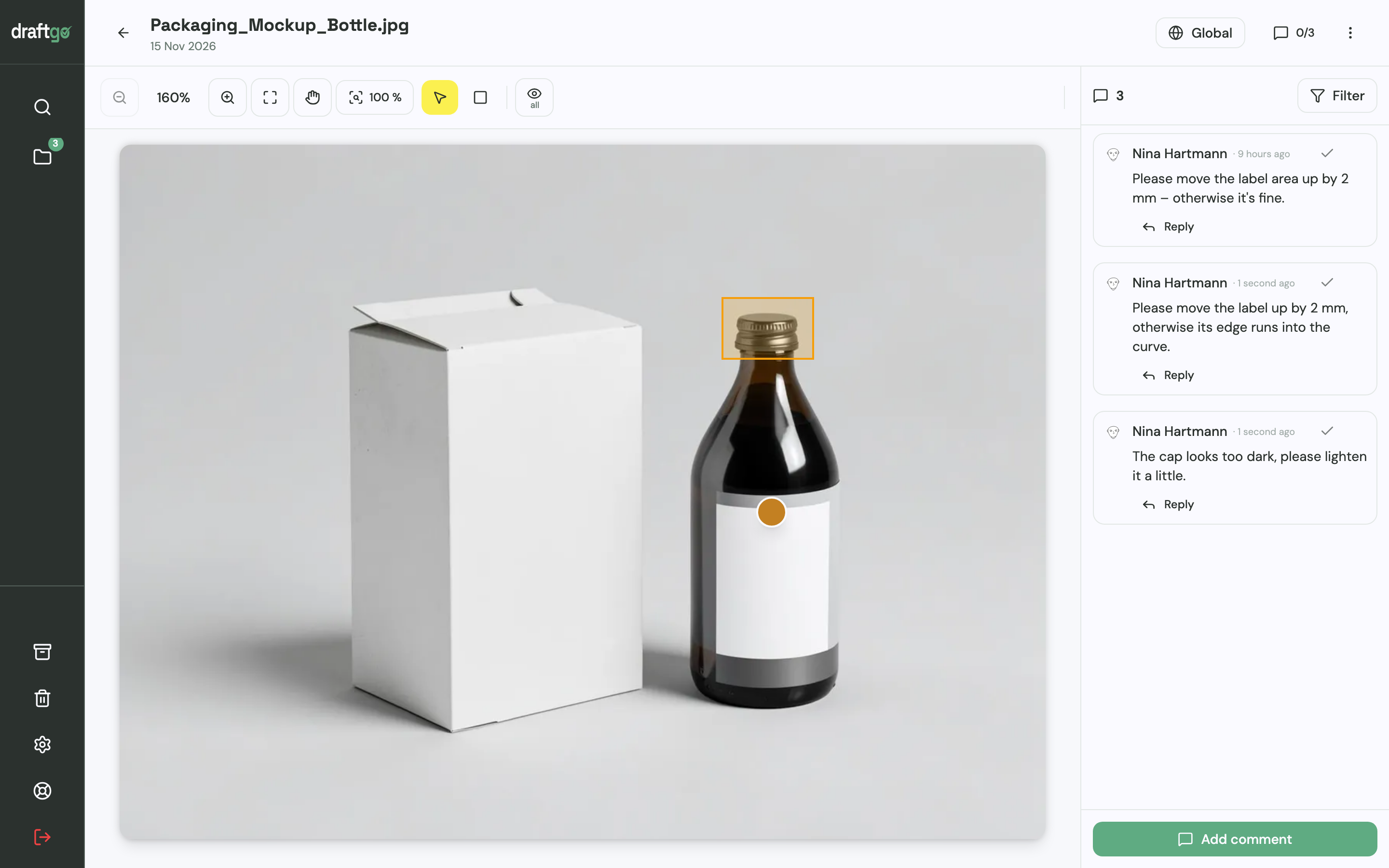
Each corrected draft becomes a new version of the same file and starts the approvals again. Approvals run in loops, for example internal first and client second, each with its own rule for how many approvers must agree. The person who decides gets a personal approver link, everyone who only comments shares a viewer link, and the activity log keeps every approval with the person and the time.
Pricing is per company, not per user or guest. Internal users are capped by plan (Free 1, Freelancer 1, Agency 5, Team 15), and guests are unlimited from the Freelancer plan. Stored data is kept on EU servers in the Frankfurt data centre. How design teams set up their projects is shown on draftgo for web and UI design.
- Pros: images, PDFs, video, audio and website screenshots in one project, an approval rule for each loop, clients approve without an account, one price per company
- Cons: you design in another tool and upload the exported files, such as PNGs or PDFs
- Price: a permanent Free plan and paid plans you can test free for 14 days, all listed on draftgo pricing
6. Filestage: suited for review rounds with due dates and reminders
Filestage reviews videos, images, designs, documents, websites, interactive HTML and audio in one platform, and reviewers give feedback without an account. On its pricing page, Starter costs €199 or $199 a month on yearly billing and €249 or $249 monthly, and Business €329 or $329 a month on yearly billing. Every plan includes 10 team members. Starter adds due dates and reminders, side-by-side version comparison and password-protected review links, and every plan lists integrations with Adobe Photoshop and InDesign.
- Pros: due dates, reminders and version comparison from Starter, Adobe integrations, 10 team members on every plan
- Cons: a team of two pays the same Starter price as a team of ten, and the free plan holds one active project at a time
- Price: Starter €199 and Business €329 a month on yearly billing, with a 14-day Business trial (Filestage pricing)
draftgo vs Filestage compares the two tools point by point.
7. MarkUp.io: suited for quick comments on live websites and files
MarkUp.io, built by Ceros, lets you pin comments on live websites, images, PDFs and videos, with timestamped comments on video and a Chrome extension that attaches a screenshot to each comment (MarkUp.io). Guests comment without registering, and every plan includes unlimited users. The pricing page counts MarkUps per month: Pro starts at $79 a month for 50 MarkUps, Business at $499 a month for 200, and extra MarkUps cost $4 each in batches of ten.
- Pros: comments on live websites, unlimited users, guests without sign-up, a Chrome extension
- Cons: the monthly MarkUp allowance sets the plan, and the pricing page lists no free plan
- Price: Pro from $79 and Business from $499 a month, each with a 14-day trial (MarkUp.io pricing)
If most of your reviews are websites, our website feedback tool comparison explains when a live-site review or a screenshot fits better.
How the three groups work together
Most teams use one tool from each group they need and agree on the point where a draft moves on:
- Ideas on a whiteboard: references and the mood words from the brief go on a FigJam or Miro board.
- Design in a shared file: the team builds layouts in Figma or Penpot.
- Export a review version: when a draft is ready for the client, the designer exports it as a PNG or PDF.
- Feedback and approval in one place: the client comments in the proofing tool, and the person who decides approves the corrected version there.
Step 3 matters more than it looks. A live design file keeps changing while the client looks at it, while a fixed export stays the same until the next round.
Which design collaboration tools fit your team?
Start with the job that causes the most friction today.
| Your situation | Group to start with | Tools to test first |
|---|---|---|
| Product or UI team designing screens together | designing together | Figma, Penpot |
| Workshops and planning sessions with clients | whiteboard | Miro, FigJam |
| Agency with many clients and mixed files to approve | feedback and approval | draftgo, Filestage |
| Review rounds that need due dates and reminders | feedback and approval | Filestage |
| Web team collecting comments on live sites | feedback | MarkUp.io |
| Team that has to host its design tool itself | designing together | Penpot |
Practical example: a four-person web agency and a bakery chain
A four-person web agency redesigns the website of a regional bakery chain with eight shops. The owner has the final say, and the marketing manager and two shop managers check opening hours and prices.
After a whiteboard kick-off, the designers build the home page and three templates in a shared design file. For the client round, the designer exports the home page for desktop and mobile and uploads both files to draftgo. The owner gets a personal approver link for the client loop, and the marketing manager and shop managers share the viewer link, so they comment without approving.
One shop manager marks the wrong Saturday opening hours, the designer corrects the layout and uploads version 2, and the owner approves it. The activity log shows the approval with the version and the time.
FAQ
Are there free design collaboration tools?
Yes, with limits. As of 23 November 2026, Figma and FigJam have a free Starter plan with limited access, Penpot's free plan covers up to 8 team members, and Miro's free plan keeps three boards editable (Figma, Penpot, Miro). Filestage and draftgo have free plans for feedback and approval.
Do clients need an account to give design feedback?
It depends on the tool. Figma lets you invite as many viewers as you want to comment for free, and Miro's Starter plan lets visitors edit a board through a public link without signing in. Filestage, MarkUp.io and draftgo let reviewers comment without creating an account.
Can I use Figma together with a proofing tool?
Yes. You design in Figma and export the review version as a PNG or PDF for the client round. In draftgo, those exports go into a project as files, each correction becomes a new version, and the client approves in a loop.
Conclusion
Choose design collaboration tools by job rather than by feature list: one tool to design together, a whiteboard if your projects start with workshops, and one place for client feedback and approval. Agree on the step where a draft leaves the design file as a fixed export, and test that hand-off with one live client job.
Try it free – draftgo is free for 14 days, no credit card needed.
Written by
Emilia
Content Producer
Ready to streamline your approval processes?
Get started with draftgo today and see how easy professional collaboration can be.